
Microsoft 365 Copilot connector
The Microsoft 365 Copilot connector sends the images you approve in Freedam to your organization's Microsoft 365 tenant. People then find them where they already work: in Copilot Chat, in Microsoft Search, and in Copilot in PowerPoint through a Brand Kit. The images stay managed in Freedam, and nothing is copied into SharePoint.
What it does
Copilot answers from what Microsoft 365 can see. Without a connector, the images in a separate media library are invisible to it, so a sales rep who asks Copilot for "our approved photos of the new sofa" gets nothing, or a generic stock picture in PowerPoint.
With the connector, Freedam publishes a chosen set of images to Microsoft 365 through a Copilot connector, the mechanism Microsoft provides for content that lives outside SharePoint and OneDrive. Each image arrives with its title, description, keywords and custom metadata, so Copilot and Search can match it to the words people use.
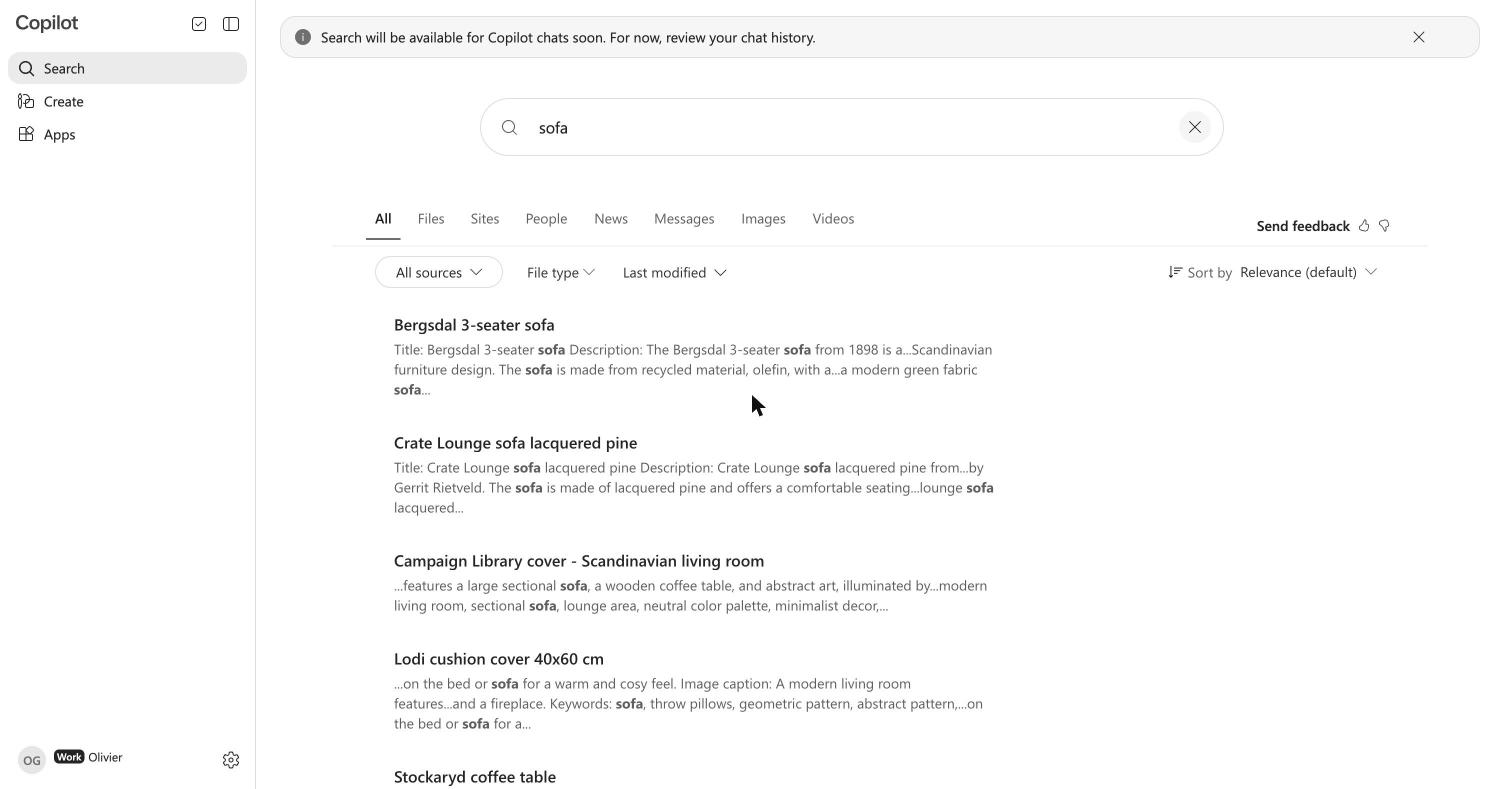
Where people find the images
| Where | What people do | What Microsoft requires |
|---|---|---|
| Microsoft Search | Search for a word from the image's title or keywords; results link to the asset page in Freedam | Any Microsoft 365 plan |
| Copilot Chat | Ask for an image by its subject, for example "find our approved images of a sofa in a living room" | A Microsoft 365 Copilot license for each person |
| Copilot in PowerPoint | Pick the company Brand Kit, then ask Copilot for a presentation; it uses the Brand Kit's images | A Microsoft 365 Copilot license, and Policy Management in the Microsoft 365 Apps admin center to name brand managers |
Policy Management comes with Microsoft 365 Apps for enterprise, which is part of Microsoft 365 E3 and E5. Microsoft 365 Business Standard does not include it, so Brand Kits are not available on that plan. The Copilot Brand Kit guide covers that setup step by step.
How it works
- A Microsoft 365 administrator approves the Freedam app from Administration → Platform → Microsoft 365 Copilot in Freedam. Freedam only asks to create its own connection and publish items to it: it cannot read your email, files or other Microsoft 365 data.
- You choose which images leave Freedam with conditions, for example a Brand status field equal to Approved, or membership of a collection. You also choose who can see them in Microsoft 365: everyone in the organization, or one Entra group.
- Freedam sends the matching images. New and edited images follow within minutes, images that stop matching are withdrawn, and every image is checked again each night.
- A Microsoft 365 administrator switches on Copilot Visibility on the connection, which Microsoft keeps off for a new connection. Microsoft says to allow up to 30 minutes after that before results appear.
The documentation walks through each step with screenshots of both Freedam and the Microsoft 365 admin center.
What Microsoft 365 receives
For each image, Freedam sends the title, description, AI caption, keywords and AI tags, file name, dimensions, creator, copyright and dates, plus the text of your custom metadata in every language it has. It also sends three links: the asset page in Freedam, a thumbnail, and a preview image.
The links only serve preview images, never the original file, and they stop working as soon as an image stops being shared. Whatever your conditions say, Freedam never sends:
- files that are not images, or images still being processed,
- archived assets and assets in the trash,
- assets whose rights policy has expired,
- custom metadata fields marked as sensitive.
An image whose usage rights expire is withdrawn from Microsoft 365 at the next nightly check, so Copilot stops offering it without anyone having to remember.
Good to know
- Microsoft recommends at least 1,000 images with good titles, descriptions and keywords, so Copilot has enough to choose from. Freedam's AI captions and tags fill in descriptions for images that have none.
- Use a field only brand managers can edit to mark images as approved, so an image cannot reach Copilot by mistake.
- Search shows titles, not always thumbnails. Search in SharePoint shows the thumbnail of each image; Search in the Microsoft 365 Copilot app shows the title only. The Images tab of Microsoft Search lists only files stored in SharePoint and OneDrive.
- Disconnecting removes everything. Every shared image is withdrawn from Microsoft 365 and its links stop working at once. Images already placed in presentations stay there.
- Available on request. The connector is enabled per workspace. Contact us to switch it on for yours.
Frequently asked questions
Can Copilot find images that are not in SharePoint?
Yes, through a Copilot connector. Microsoft 365 Copilot answers from the Microsoft Graph, which covers SharePoint, OneDrive and any external content published through a connector. Freedam's connector publishes your approved images with their metadata, so Copilot Chat and Microsoft Search find them.
Does Copilot in PowerPoint use the images from Freedam?
Yes, through an official Brand Kit. A brand manager adds the Freedam connection as an image source of the Brand Kit, and Copilot in PowerPoint uses those images when someone picks that brand. Brand Kits need a Microsoft 365 Copilot license and the brand manager policy, which Business Standard plans do not offer.
Are the original files sent to Microsoft?
No. Microsoft 365 receives metadata and links to preview images. The originals stay in Freedam, and the links stop working when an image is no longer shared or when you replace the links from the Freedam admin page.
Who can see the images in Microsoft 365?
Everyone in the organization, or only the members of one Entra group, depending on what you choose in Freedam. Each person also needs the Microsoft license for the place where they look: any plan for Microsoft Search, a Copilot license for Copilot Chat and Copilot in PowerPoint.
What permissions does the Freedam app ask for in Microsoft 365?
Only the permissions to create its own connection and publish items to it. It cannot read email, files, calendars or any other Microsoft 365 data.
Building the Brand Kit is covered in How to set up a Copilot Brand Kit. For how a DAM and SharePoint share the work, read how to use SharePoint and a DAM together. Teams that use Claude, ChatGPT or their own agents can reach the same library through the MCP server.