
How to set up a Copilot Brand Kit for PowerPoint
An official Brand Kit tells Copilot in PowerPoint which logos, colours, fonts and images belong to your company. Once one is published, anyone with a Copilot license can pick it in PowerPoint and get a presentation that uses your brand instead of stock defaults. Setting it up takes five steps, and most failed setups stop at the second one: naming the brand managers, which needs a policy that not every Microsoft 365 plan includes.
This guide follows Microsoft's own instructions as of October 2026 and adds what we learned connecting Freedam's image library to a Brand Kit. Microsoft changes these screens often, so the names below are those of the English admin centers on that date.
What a Brand Kit holds
According to Microsoft's Brand Kit article, an official Brand Kit can hold:
- logos, a colour palette with hex codes, and primary and secondary fonts,
- images and icons,
- templates for presentations, documents and social posts,
- brand voice, and brand guidelines uploaded as a PDF, from which Copilot extracts the rules.
Images are not uploaded into the kit. The kit points to where they are stored: SharePoint, OneDrive, an organization assets library, or a supported digital asset management system connected to Microsoft 365. That last option is how the images in Freedam reach PowerPoint.
There are three kinds of kit. Official kits are published by brand managers for the whole organization and appear on the Organization tab. Shared and personal kits are made by anyone and appear on the User tab. This guide is about official kits, the ones that make every presentation start from the approved brand.
What you need first
| Requirement | Why | Where it comes from |
|---|---|---|
| A Microsoft 365 Copilot license for each brand manager and each person who will use the kit | Microsoft states that the feature "requires a Microsoft Copilot Premium license" | The Copilot add-on to a Microsoft 365 plan |
| Policy Management in the Microsoft 365 Apps admin center | The policy that names brand managers lives there | Microsoft 365 Apps for enterprise, included in Microsoft 365 E3 and E5, or bought on its own |
| A Global Administrator, or an administrator who can create groups and manage Office policies | Steps 1 and 2 | Your IT team |
| Up to 24 hours | The time Microsoft gives the policy to reach the brand managers' accounts | - |
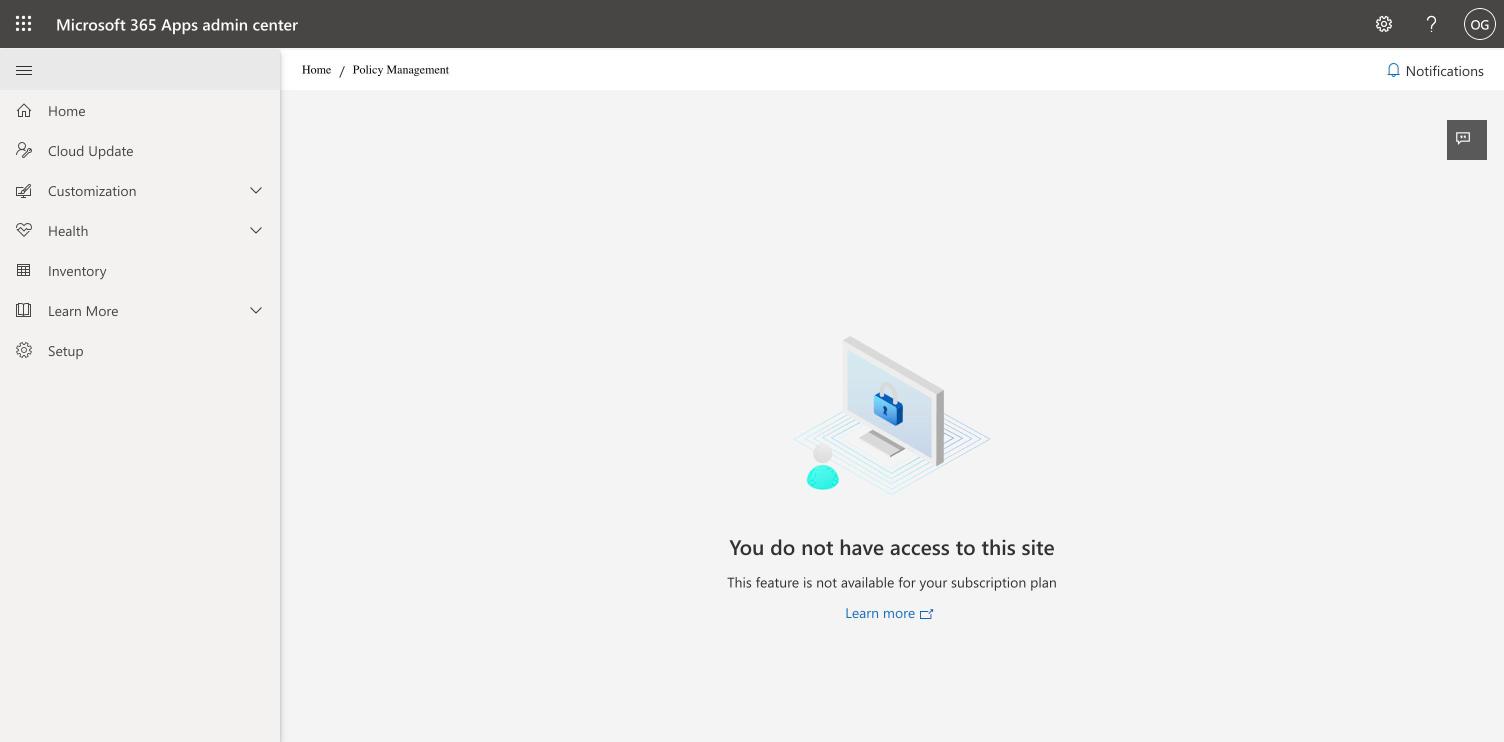
Microsoft 365 Business Standard and Business Premium include Microsoft 365 Apps for business, not for enterprise. Microsoft documents that a policy configuration for Apps for business only supports privacy settings, so on those plans Policy Management answers "This feature is not available for your subscription plan" and no Brand Kit can be published. Adding Microsoft 365 Apps for enterprise as a second subscription in the same tenant is the way around it; ask your Microsoft reseller which option fits.
Step 1 - Create a group of brand managers
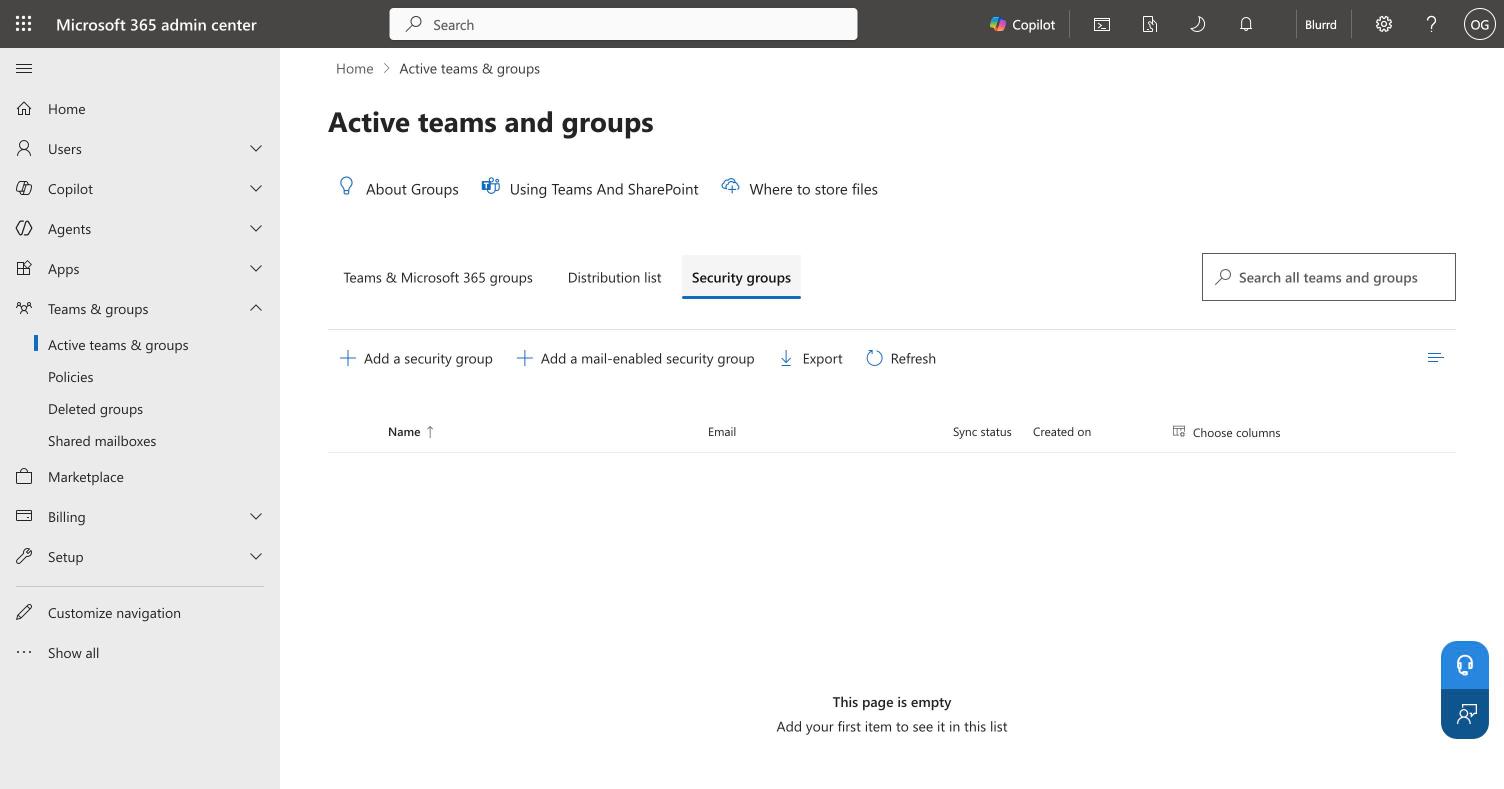
- Open Active teams & groups in the Microsoft 365 admin center and select the Security groups tab.
- Click Add a mail-enabled security group. The wizard has five steps: Basics, Owners, Members, Settings, Finish.
- Name the group, for example "Brand managers".
- Under Members, add every person who will build or edit the Brand Kit. Owners of the group can manage the group but cannot publish a Brand Kit, so put brand managers in Members.
- Under Settings, choose the group's email address and note it.
- Click Create group.
Step 2 - Name the group in the brand manager policy
- Open Policy Management in the Microsoft 365 Apps admin center.
- Select the policy whose scope is Apply to all users, or create one with that scope.
- On the Policies tab, search for "Brand Manager" and select Elevated role for Brand Managers.
- Set it to Enabled, enter the group's email address in Security group email address, and click Apply.
- On Review and Publish, check the details and click Done.
- Back on the list, select the policy, click Reorder priority, set the priority to 0, and check that its scope reads Tenant.
Then wait. Microsoft allows up to 24 hours before members of the group can create an official kit. Microsoft's brand manager policy page has the reference details.
If Policy Management shows the message below instead of the list of policies, your subscription does not include it. See What you need first.
Step 3 - Connect the image source
A Brand Kit can only offer images from a source Microsoft 365 already knows about. Prepare it before building the kit:
- SharePoint or OneDrive: a folder or library the brand managers can read.
- An organization assets library: a SharePoint library designated with the
Add-SPOOrgAssetsLibraryPowerShell cmdlet. Microsoft allows up to 30 per organization, all on the same site, and up to 24 hours before one appears in the desktop apps. - A digital asset management system: connected to Microsoft 365 through a Copilot connector. In Freedam, an administrator connects the workspace from Administration → Platform → Microsoft 365 Copilot, chooses which images to share, and a Microsoft 365 administrator switches on Copilot Visibility on the connection. The documentation has every screen.
Microsoft recommends at least 1,000 images with good titles, descriptions and keywords, so Copilot has enough to choose from. A small library of untitled files gives Copilot little to match against a prompt like "a team meeting in a bright office".
Step 4 - Build and publish the Brand Kit
A brand manager does this step, once the policy has reached their account.
- Open Create in the Microsoft 365 Copilot app.
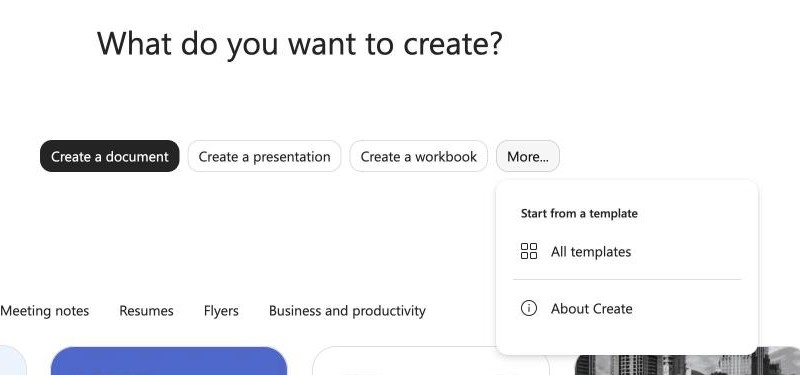
- Click More… and select Brand kits.
- Click Add Brand Kit and name it.
- Add logos, colours with their hex codes, and fonts. Upload the brand guidelines PDF if you have one.
- Under Images, select the image source from step 3, for example the Freedam connection.
- Add templates and the brand voice if you use them.
- Click Publish.
If More… lists only All templates and About Create, the brand manager policy has not reached the account yet, or the account has no Copilot license.
Step 5 - Use it in PowerPoint
In PowerPoint, open the Copilot pane, click + in the prompt box, choose Select brand, and pick the official kit. Then ask for the presentation, for example "a ten-slide product launch for our autumn range". Copilot applies the kit's fonts and colours and takes images from its image source.
Tell people the kit exists. The brand selector is one click away but easy to miss, and a presentation made without it falls back to Microsoft's stock imagery.
When it does not work
| Symptom | Likely cause | What to do |
|---|---|---|
| Policy Management says the feature is not available for your plan | Business Standard or Business Premium | Add Microsoft 365 Apps for enterprise, or move to E3 or E5 |
| More… in Create has no Brand kits entry | Policy not applied yet, or no Copilot license | Wait 24 hours after step 2; check the license |
| A group owner cannot publish | Owners are not brand managers | Add the person as a member of the group |
| The image source is not offered under Images | The connector is not visible to Copilot yet | Check that Copilot Visibility is on for the connection and allow 30 minutes |
| Copilot uses stock images anyway | The brand was not selected, or the library has few described images | Select the brand in the prompt box; add titles and descriptions |
Frequently asked questions
Which licence do I need for a Copilot Brand Kit?
A Microsoft 365 Copilot license for the brand managers and for each person who uses the kit in PowerPoint. Naming brand managers also needs Policy Management in the Microsoft 365 Apps admin center, which comes with Microsoft 365 Apps for enterprise, part of Microsoft 365 E3 and E5.
Can I create a Brand Kit on Microsoft 365 Business Standard?
Not an official one. Business Standard includes Microsoft 365 Apps for business, and Policy Management on that plan only covers privacy settings, so the brand manager policy cannot be set. Personal and shared kits are still available to people with a Copilot license.
How long does it take before brand managers can create a kit?
Microsoft gives the brand manager policy up to 24 hours to take effect after it is published. Until then, the Brand kits entry does not appear in the More menu of Create.
Where can Brand Kit images come from?
From SharePoint, OneDrive, an organization assets library, or a digital asset management system connected to Microsoft 365. The images stay where they are stored and the kit references them, so an update in the source reaches the kit without uploading anything again.
Can Copilot in PowerPoint use images from a DAM?
Yes, when the DAM publishes its images to Microsoft 365 through a Copilot connector and a brand manager selects that connection as the Brand Kit's image source. Freedam's Microsoft 365 Copilot connector works this way.
Building the brand rules themselves comes first: how to design a brand center and the brand center template cover the content. For what SharePoint's own brand tools cover, read SharePoint Brand Center vs a DAM.