
API Keys & Playground
The API Keys & Playground feature provides a centralized hub for managing system-to-system integrations. It allows administrators to generate secure access tokens, monitor real-time API usage statistics, and manage webhook endpoints used by external applications like CMS or PIM systems.
This interface also includes an interactive Playground, enabling developers to test API requests against live data without writing code, ensuring integrations are configured correctly before deployment.

Page Overview
- Purpose: To facilitate secure external access to the DAM and monitor the health of automated integrations.
- When to use it: Use this page when setting up a new third-party integration, troubleshooting failing webhooks, or auditing API traffic.
- What you can do here:
- Generate and revoke Application Tokens for automated services.
- View API request volume, error rates, and average response times.
- Monitor and reset failing webhook endpoints.
- Test live API endpoints using the built-in Playground.
- Access official API documentation.
Page Layout
- Where to find it: Administration → Platform → API Management. The page requires the Manage API access permission.
- Top bar: Displays the page title and an API Reference link that opens the API documentation in a new tab.
- Main area: Organized into four tabs: Overview, Tokens, Webhooks, and Playground.
- Dialogs: Contextual windows for creating new tokens, confirming token revocation, and displaying sensitive security keys.
Main Features
API Usage Overview
- What it's for: Monitoring the performance and health of your API integrations.
- Typical use: Checking the "Error Rate" or "Avg Response Time" to identify performance bottlenecks or integration bugs.
- Result: Four cards (Total Tokens, API Requests (30d), Error Rate, Avg Response Time) above the Requests Over Time, Top Actions, Status Distribution and Webhook Health charts. The period selector switches the charts between Last 7 days, Last 30 days and Last 90 days.
- SDKs & Documentation: Below the charts, a card lists the official client libraries with their version, install command and links to their documentation and source, plus a link to download the OpenAPI specification.
Application Token Management
- What it's for: Creating secure credentials for non-human users (applications).
- Typical use: Generating a token for a WordPress plugin or a CI/CD pipeline to upload assets.
- Result: Issues a unique Bearer Token that can be used in the Authorization header of API requests.
- Available permission groups: Tokens can be scoped to any combination of the following human-readable groups, organised by area:
- Assets: Read Assets, Write Assets, Delete Assets, Download Assets
- Collections: Read Collections, Write Collections, Delete Collections
- Uploads: Manage Uploads
- Metadata: Read Metadata, Write Metadata
- Shares: Read Shares, Manage Shares
- Analytics: Read Analytics
- Consents: Read Consents (for terms-of-use acceptance audit trail)
- Webhooks: Manage Webhooks (create and manage webhook endpoints for the events the token can read)
- Administration: Full Admin Access (grants every capability above, and requires the Manage system settings permission)
- Important: A token can never grant more than the person who created it already has. The dialog only lists the abilities your own role allows: if your role does not include the Delete assets permission, Delete Assets is not offered. A token also loses an ability in practice when the permission is later removed from your role: uploading through the API or the MCP server, for example, needs the Upload assets permission on every call, whatever the token's abilities. If your role changes while the dialog is open and no longer allows a selected ability, the token is not created and an error message is shown.
Webhook Monitoring
- What it's for: Managing real-time notifications sent from Freedam to external URLs.
- Typical use: Re-enabling a webhook that was automatically disabled due to repeated delivery failures.
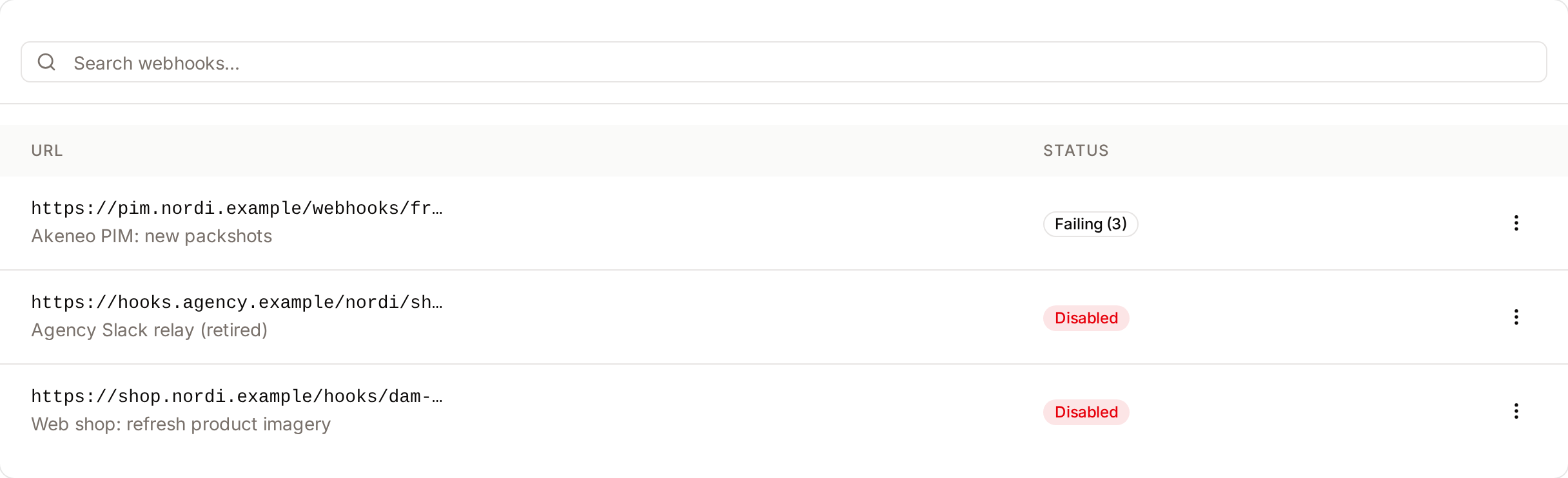
- Result: The Status column shows Active, Failing (n) with the number of failed deliveries in a row, or Disabled.
- Where endpoints come from: Webhook endpoints are created by API consumers through the REST API, with a token that has the Manage Webhooks ability. This tab lists them so you can monitor, disable, enable, reset or delete them.
- Events you can subscribe to: Asset created / updated / deleted / downloaded, collection created / updated / deleted, collection assets added or removed, share created, share accessed, upload batch completed or failed, workflow transitioned. You can also subscribe to all events with a single wildcard option.
API Playground
- What it's for: Interactive testing of API endpoints.
- Typical use: Verifying the required parameters for an asset search or testing a file upload request.
- Result: Shows the raw JSON response, HTTP status code, and execution time for the request.
Detailed Feature Documentation
Create Application Token
- Purpose: To generate a new security key for an external application with specific permissions.
- Where to find it: In the Tokens tab, click the Create Application Token button.
- What you'll see: A dialog window requesting a name, application details, and a checklist of the "Abilities" (permissions) you are allowed to grant.
How to use it:
- Navigate to the Tokens tab.
- Click Create Application Token.
- Enter a Token Name (e.g., "Production CMS") and an Application Name.
- Select the required Abilities by checking the boxes next to specific permissions.
- (Optional) Set an Expiry Date and provide a Description.
- Click Create Token.
- Important: Copy the token shown in the "Token Created" dialog immediately. It will never be displayed again.
Good to know about tokens:
- Every token is tied to the user who created it. Revoking a token instantly blocks all future requests using it.
- Tokens can optionally be given an expiry date. Leave it blank for a long-lived integration token, or set a short window for temporary contractor access.
- Each token is individually rate-limited to 60 requests per minute. If an application exceeds this, its requests get a "too many requests" response (HTTP 429) until the minute resets. Other tokens are not affected.
- Every request made with a token is recorded in the audit trail with the token name, the user it belongs to, the action performed, the originating IP address, the response status, and how long the request took. This log powers the Overview charts (requests over time, error rate, average response time) and the top-actions table.
- The "last used IP" stored on each token updates automatically, so you can spot if a token is suddenly being used from an unexpected location.

Token List
- Purpose: To review every token issued on the workspace.
- Where to find it: The Tokens tab.
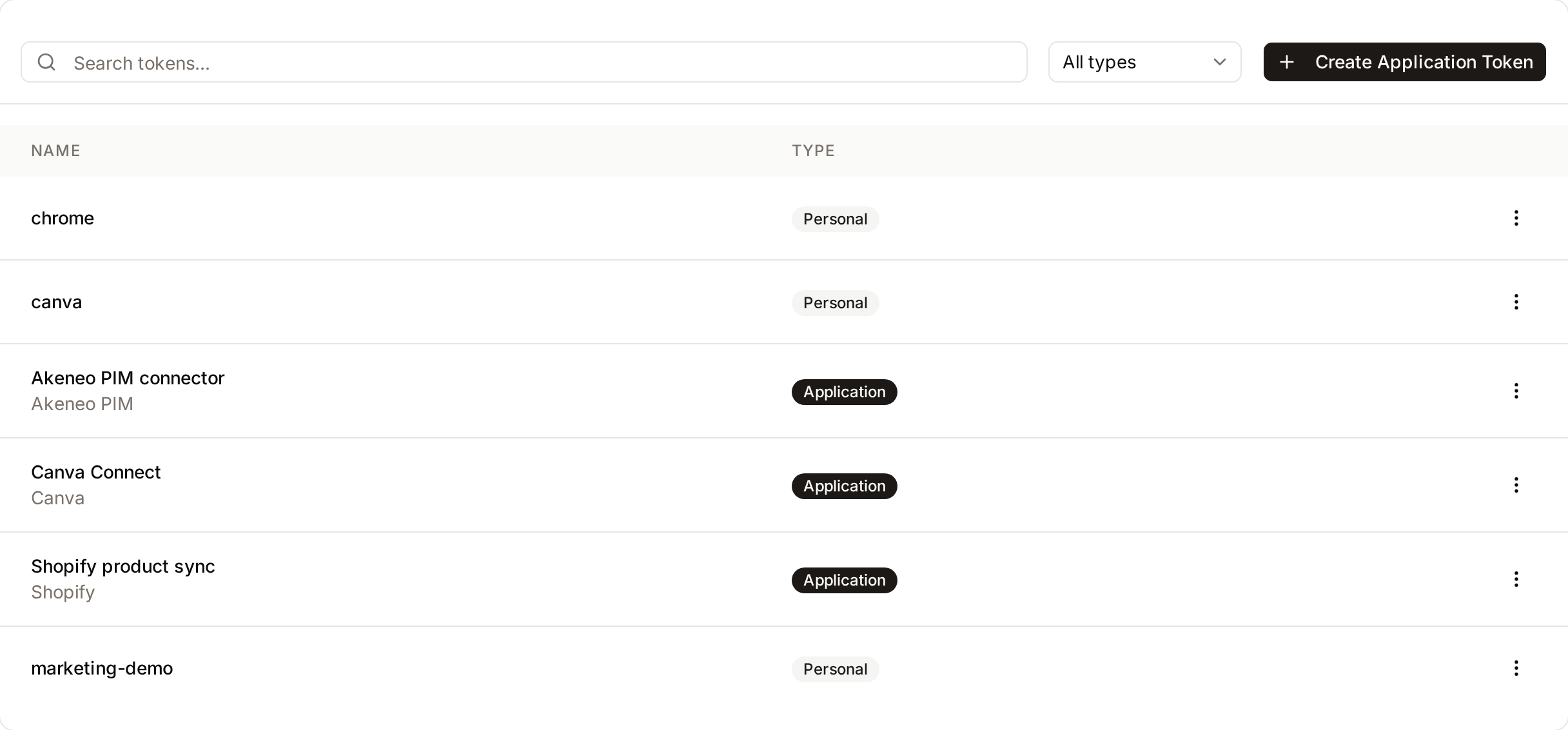
- What you'll see: A table with the token Name, Type (Application or Personal), User, the number of Abilities, Last Used and Expires. Use Search tokens... and the type filter (All types, Application, Personal) to narrow the list.
Webhook List
- Purpose: To review the webhook endpoints registered through the API and act on the ones that fail.
- Where to find it: The Webhooks tab.
- What you'll see: A table with the endpoint URL, User, subscribed Events, Status and Last Delivery. The row menu offers Disable or Enable, Reset Failures (only when the endpoint has failures) and Delete.
API Playground Execution
- Purpose: To send live requests to the API and view the results.
- Where to find it: In the Playground tab.
- What you'll see: A sidebar of available endpoints, a configuration panel for the Base URL and Token, and a response window.
How to use it:
- Select an endpoint from the Endpoints sidebar (e.g., GET /assets).
- In the Bearer Token field, paste a valid API token.
- Fill in any required Dynamic params (parameters marked with a red asterisk).
- Click Execute.
- Review the results in the right-hand panel, which displays the status code (e.g., 200 OK) and the JSON body.

Complete Workflows
Workflow: Revoking a Compromised Token
- Goal: Immediately stop an application from accessing the DAM if a token is leaked or no longer needed.
- Prerequisites: Administrator permissions.
Steps:
- Click the Tokens tab.
- Locate the token in the list (use the Search tokens... field if necessary).
- Click the More options (three dots) icon at the end of the row.
- Select Revoke Token.
- In the confirmation dialog, click Revoke.
- Expected result: The token is removed from the list, and any further API requests using that token will return a 401 Unauthorized error.
Workflow: Troubleshooting a Failing Webhook
- Goal: Identify why an external system isn't receiving updates and restore service.
- Prerequisites: An existing webhook endpoint.
Steps:
- Click the Webhooks tab.
- Look for endpoints with a Failing or Disabled badge in the Status column.
- Click the More options (three dots) icon.
- If the webhook has failures, click Reset Failures. This clears the failure count and enables the endpoint again.
- If the endpoint was disabled by hand and has no failures, click Enable.
- Use the Overview tab to monitor the Webhook Health chart for new failures.
- Expected result: The status badge changes to Active, and the system attempts to deliver the next event.
How webhook deliveries work:
- Every outgoing notification is signed using a secret that only you and your receiving server know. When you rotate a secret, the previous one keeps working for a 24-hour grace period so you can roll the change out without downtime.
- If your receiving server doesn't respond with a success status, Freedam retries automatically. It waits 10 seconds before the first retry, then 1 minute, then 5 minutes, then 30 minutes, then 1 hour.
- Freedam only delivers to hosts on the public internet. A URL that points to a private or internal address, such as
localhostor10.0.0.5, is refused when the endpoint is saved. If an existing endpoint's host resolves to such an address, each delivery fails at once without retries. A receiver that answers with a redirect is followed for up to 3 redirects. Details: Webhooks. - After 10 failed delivery attempts in a row (each delivery is tried up to 5 times) the webhook is disabled automatically. Its status then shows Disabled, and Reset Failures enables it again.
- Each delivery attempt is kept on file with its response status and the first portion of the response body, which is what the Overview's Webhook Health chart uses.
Tips and Best Practices
- Token Security: Create a dedicated Application token for each integration instead of reusing a personal token, so you can revoke one integration without affecting the others. The token still acts with the permissions of the user who created it.
- Least Privilege: When creating tokens, only select the specific Abilities the application needs to function. Avoid granting Full Admin Access unless necessary.
- Playground Testing: Use the Copy button in the Playground response panel to quickly grab JSON data for use in your own development environment.
- Monitoring: Check the Error Rate in the Overview tab weekly. A sudden spike usually indicates a change in an external system or an expired token.
Troubleshooting
Issue: API Playground returns "Request failed"
- Symptoms: An error message appears in the response panel instead of a status code.
- Cause: Incorrect Base URL, invalid Bearer Token, or network connectivity issues.
- Fix:
- Verify the Base URL matches your DAM's web address.
- Ensure the Bearer Token is pasted correctly and has not expired.
- Check that all Required (*) parameters are filled in.
- Prevention: Test your token with a simple "GET" request before attempting complex "POST" or "PUT" operations.
Issue: An ability is missing from the Create Application Token dialog
- Symptoms: A checkbox such as Full Admin Access or Delete Assets does not appear in the Abilities list.
- Cause: Your role does not include the permission behind that ability, and a token can never grant more than the person who creates it.
- Fix:
- Ask an administrator to add the missing permission to your role (for Full Admin Access, the Manage system settings permission).
- Reload the API Management page once your role has been updated.
- Prevention: Create integration tokens from an account whose role covers every ability the integration needs.
Issue: Webhook is automatically disabled
- Symptoms: The webhook status shows as "Disabled" without manual intervention.
- Cause: The external server returned multiple errors (5xx) or timed out, causing the DAM to disable the endpoint to save resources.
- Fix:
- Verify the external URL is accessible.
- Select Reset Failures from the webhook's action menu. The endpoint is enabled again.
- Prevention: Ensure your webhook receiver returns a
200 OKstatus immediately upon receiving the data.