
Metadata Definitions
Metadata Definitions allow administrators to define the data structure for assets within a specific Asset Class. By configuring these fields, you determine what information users must provide when uploading assets and how that information is displayed, searched, and linked across the platform.
This feature is essential for maintaining data integrity, enabling advanced filtering in the gallery, and creating relationships between assets through shared metadata values.

Page Overview
- Purpose: To define the schema and validation rules for asset information.
- When to use it: Use this page when setting up a new Asset Class or when you need to add, modify, or remove data fields for existing assets.
- What you can do here:
- Create new metadata fields with specific data types (Text, Date, Boolean, etc.).
- Configure multilingual support for text fields.
- Set up cascading dependencies between vocabulary fields.
- Designate fields as "Quick Filters" for the gallery.
- Add fields to the gallery's Sort menu.
- Mark a vocabulary field as a language field.
- Define default values and help text for users.
- Delete a field together with its values, after checking what still uses it.
Page Layout
- Top bar: Displays the "Metadata Fields" title, the specific Asset Class being edited, and the Add Field button.
- Main area: A table listing all defined fields with the columns Field, Type, Multilingual, Required, Sensitive, Links Assets and Vocabulary. A vocabulary name is a link to that vocabulary's terms. A cascading field shows "Depends on" followed by its parent field.
- Dialogs: The Add field / Edit field form, the type change warning for managing data migrations, and the Delete Field dialog.
Main Features
Field Type Configuration
- What it's for: Assigning a specific data format to a field (e.g., Number, Date, Vocabulary).
- Typical use: Choosing "Date" for a "Production Date" field to ensure users use a calendar picker.
- Result: The system enforces the correct input format during asset editing and upload.
Cascading Vocabularies
- What it's for: Creating a parent-child relationship between two vocabulary fields.
- Typical use: A "City" field that only shows options based on the selection in a "Country" field.
- Result: Users see filtered, relevant options, reducing data entry errors.
Promoted Filters
- What it's for: Elevating a metadata field to a primary search control.
- Typical use: Setting a "Department" vocabulary as a quick filter.
- Result: The field appears as a one-click filter next to the main gallery search bar.
Bulk Paste Search
- What it's for: Letting users paste a long list of identifiers (SKUs, product references, supplier codes) into a single smart filter rule. See Bulk Paste Search for the end-user view.
- Typical use: Enabling Allow bulk-paste search on a
product_referencetext field. - Result: When users pick that field in Advanced Filters with the Is one of operator, they get a paste-list textarea (up to 1000 values) and a CSV export of unmatched values.
Value Format
- What it's for: Describing how your workspace writes the identifiers held in a bulk-paste field (part numbers, SKUs, references), so that pasted lists and searches recognise them.
- Typical use: Entering
\d{5}-\d{2}on a SKU field whose values look like10052-01. - Result: A list pasted into the gallery or homepage search bar is recognised by this format, and a search made only of such values is searched in full when no asset contains all of them. Without a format, an identifier is any value of four characters or more that contains a digit.
Sensitive Information Toggle
- What it's for: Marking fields that contain private or restricted data.
- Typical use: Hiding "Internal Cost" from standard users.
- Result: Only users with the View sensitive metadata permission can see, search and edit the field's values. For everyone else the field is hidden everywhere, including exports, public links and the API.
Gallery Sort
- What it's for: Letting users order the gallery by a metadata field.
- Typical use: Turning on Show in gallery sort on a "Launch Date" field.
- Result: The field appears in the gallery's Sort menu. Text, Number, Float and Date fields sort by value. Vocabulary fields sort by the configured order of their terms.
Language Field
- What it's for: Declaring that a vocabulary field holds languages, with term codes that are language codes (
en,fr,sv). - Typical use: Turning on Language field on a "Languages" vocabulary field.
- Result: Gallery cards and list columns show each value with a flag, and filename parsing rules read prefixes such as
SE_orESP_as languages.
Detailed Feature Documentation
Adding or Editing a Field
- Purpose: To define the properties and behavior of a metadata attribute.
- Where to find it: Click the Add Field button in the top bar, or open the actions menu (vertical dots) of an existing field and select Edit.
- What you'll see: A large dialog divided into sections: Identity, Vocabulary (vocabulary fields only), Default value, Behavior, Search & filtering, Sorting and Help & hints. The last three appear when they apply to the selected type.
How to use it:
- Enter the Label in the default language; the Key will auto-generate (e.g., "Asset Title" becomes
asset_title). - Select a Type from the dropdown (e.g., Text, Long Text, Number, Date, Vocabulary).
- If using "Vocabulary", select the specific Vocabulary source from the list, and turn on Allow multiple selections if users may pick more than one term.
- In Behavior, set the toggles you need: Required, Sensitive information, Hide when empty, Use for asset linking and, for Text fields, Multilingual support.
- Click Create field or Save changes to save.

Managing Type Changes
- Purpose: To safely change the data type of a field that already contains data.
- Where to find it: Change the Type dropdown while editing an existing field.
- What you'll see: A warning dialog showing how many assets are affected and whether the change is "Allowed" or "Blocked."
How to use it:
- Select a new type in the Edit field dialog.
- Review the current type, the new type and the number of affected assets in the warning dialog.
- If the dialog is titled Confirm Type Change and no asset is affected, click Confirm Change.
- If assets are affected but the conversion is possible, click Proceed Anyway, or Cancel to revert.
- If the dialog is titled Type Change Blocked, click OK. The type is not changed.

Deleting a Field
- Purpose: To remove a field that is no longer needed, together with the values assets hold for it.
- Where to find it: Open the actions menu (vertical dots) of a field and select Delete.
- What you'll see: The Delete Field dialog first checks where the field is used, then shows one of the following.
How to use it:
- If the dialog states that the field is still in use, it lists each use (for example "Field rule: ..." or "Data source: ..., column ..."). The delete button stays disabled. Change or remove these uses, then open the dialog again.
- If no asset has a value, confirm with Delete Field.
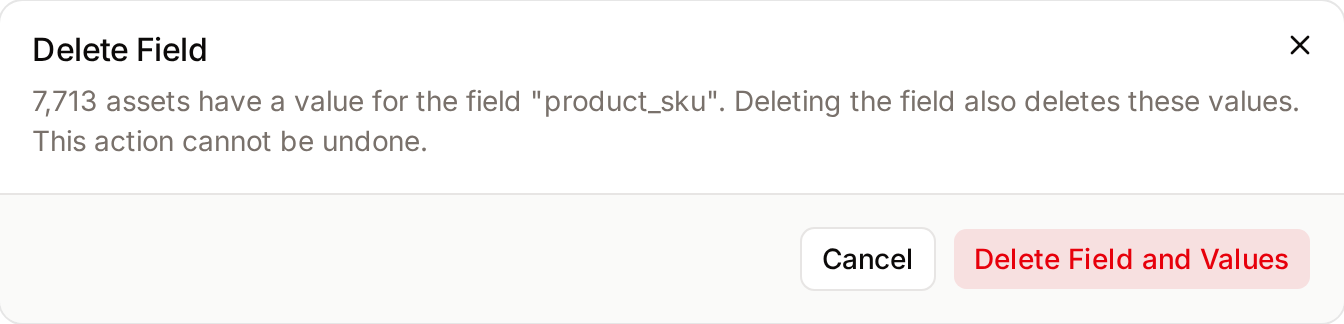
- If assets have a value, the dialog states how many. Confirm with Delete Field and Values to delete the field and these values.
The dialog also reports what the deletion changes without blocking it: data source columns that will no longer be copied to assets, and the number of saved searches that filter on the field and will stop working.
Complete Workflows
Workflow: Create a Cascading Vocabulary Field
- Goal: Set up a "Sub-Category" field that depends on a "Category" selection.
- Prerequisites: Both fields must use the same Vocabulary source. The "Parent" field must already exist.
Steps:
- Click Add Field in the Top bar.
- Select Vocabulary from the Type dropdown.
- Select the appropriate Vocabulary from the list.
- Under Cascading dependency, select the "Category" field from the Parent field dropdown.
- Set the Term depth to "Level 2 (first children)".
- Click Create field.
- Expected result: When users edit an asset, the "Sub-Category" field will remain disabled until a "Category" is selected.
Workflow: Promote a Field to Gallery Quick Filter
- Goal: Make a specific metadata field easily accessible for filtering in the main gallery.
- Prerequisites: The field must be of type Vocabulary.
Steps:
- Locate the field in the Main area table, open its actions menu and select Edit.
- In Search & filtering, turn on Show as quick filter.
- Click Save changes.
- Expected result: A new filter dropdown appears next to the search bar in the Asset Gallery. The order of all quick filters is set on the Search Configuration page.
Workflow: Enable Bulk Paste Search on an Identifier Field
- Goal: Let users paste a list of SKUs, product references, or other identifiers directly into a smart filter and look up every matching asset at once.
- Prerequisites: The field must be of type Text, Long Text, Number, or Float. (Vocabulary, Date, Boolean, and JSON fields are not eligible.)
Steps:
- Locate the field in the Main area table, open its actions menu and select Edit.
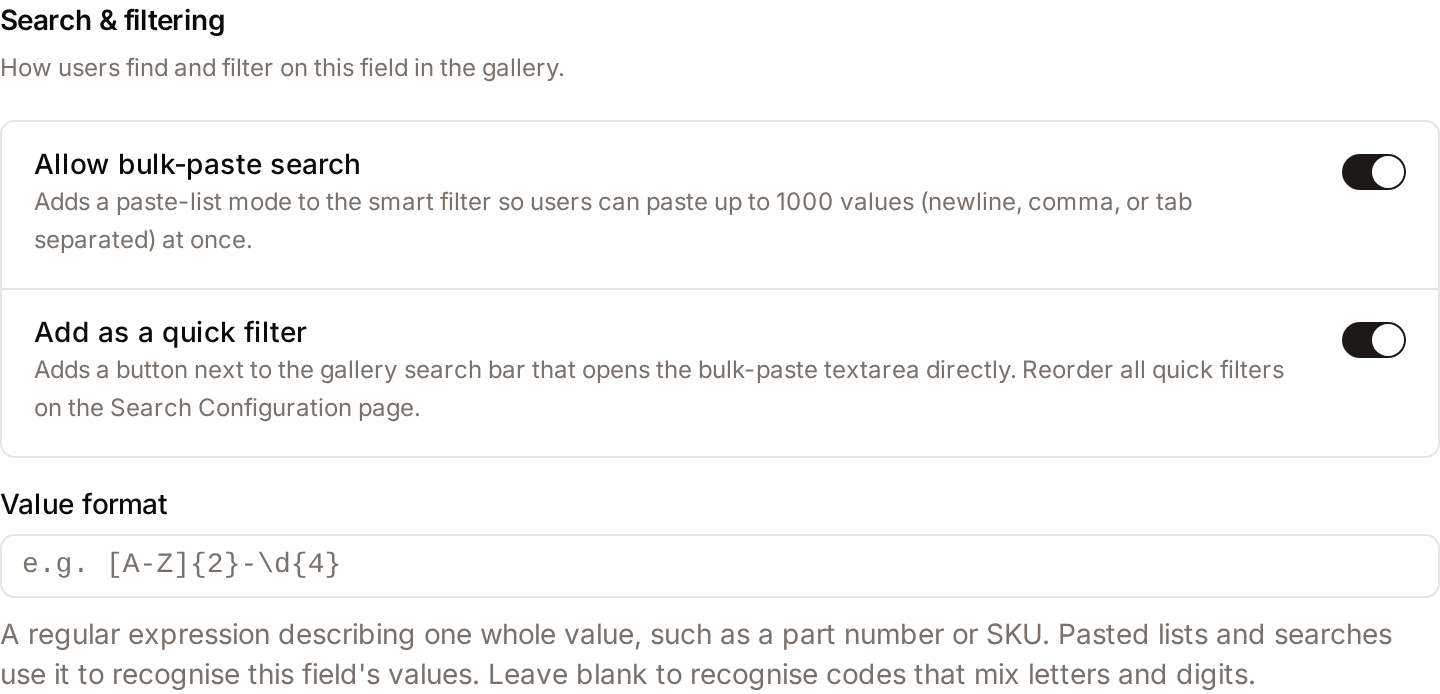
- In Search & filtering, turn on Allow bulk-paste search.
- (Optional) Turn on Add as a quick filter to add a button next to the gallery search bar that opens the paste textarea directly.
- (Optional) In Value format, describe one whole identifier as a regular expression, for example
\d{5}-\d{2}for10052-01or[A-Z]{2}\d{2}[A-Z]{4}\d{4}forCB12ACGR7114. Upper and lower case are treated alike. Leave it blank if your identifiers are at least four characters long and contain a digit. - Click Save changes.
- Expected result: When users open Advanced Filters, pick this field, and choose the Is one of operator, they see a multi-line paste textarea instead of the regular single-value box, plus a "matched of pasted" summary and a CSV export for unmatched values. See Bulk Paste Search for the end-user walkthrough. The 1000-value cap is configurable via the
BULK_PASTE_LIMITenvironment variable.
Who can use it
Managing metadata definitions requires the Manage metadata fields and forms permission. Users with only View assets can see the resulting fields on assets, but cannot add or modify them.
Field types available
When adding a field, you can choose from eight data types:
- Text for short strings
- Long Text for multi-line content
- Number for whole numbers
- Float for decimal numbers
- Boolean for yes/no toggles
- Date for calendar values
- JSON for structured data
- Vocabulary for a value picked from a controlled list
Only fields of type Vocabulary can be linked to a parent cascade, constrained to a term depth in a hierarchical vocabulary (Any depth or Level 1 to Level 4), or marked as a language field. Vocabulary fields and bulk-paste fields can be added as quick filters in the gallery. Multilingual support is offered on Text fields only. Show in gallery sort is offered on Text, Number, Float, Date and Vocabulary fields.
Limits and guardrails
- Deletion is blocked while configuration uses the field: A metadata field cannot be deleted while an access rule, automation rule, collection rule, field rule, dashboard, page, filename parsing rule or export naming rule names it, or while a data source column always writes to it. The Delete Field dialog lists each use. Change them first, then retry the deletion.
- Deleting a field deletes its values: Values that assets hold for the field are deleted with it, after you confirm. The dialog states how many assets are affected. This cannot be undone.
- Type change safety net: Changing a field's type triggers an impact check that counts how many assets would be affected and whether the data can be safely reinterpreted in the new type. If the conversion is unsafe (for example, text containing letters into Number), the save is blocked with a clear reason. Compatible changes are allowed and applied.
- Cascading rules: A child cascading field must point to a parent field that lives in the same asset class and uses the same vocabulary. A field cannot be its own parent, and the system detects and rejects circular chains (A → B → A).
- Quick filters need an eligible field: Show as quick filter is offered on Vocabulary fields. Add as a quick filter is offered on fields that have Allow bulk-paste search turned on.
- Value format belongs to bulk paste: The Value format input only appears while Allow bulk-paste search is on, and the format is removed when bulk paste is turned off. An expression that is not a valid regular expression is refused on save. The format does not validate the values entered in the field.
- Bulk paste toggle is scalar-only: The Allow bulk-paste search toggle is offered on Text, Long Text, Number, and Float fields, and is automatically cleared if a field's type is changed to one that isn't eligible.
What happens behind the scenes
- The Key is auto-generated from the label using underscores. Once set, it acts as the stable identifier for that field across the platform and in any API integrations, so editing it after data has been captured can disrupt downstream systems.
- When a field is deleted, its values, its labels and its place on the asset class form are removed, and the search index entries of the affected assets are rebuilt in the background.
- Translations you enter for field labels are saved per language. Removing a language from the translation list on update also removes the stored translation for that language.
- The list of fields on this page is ordered by the translated label in your current interface language, so admins browsing in different languages see the fields sorted for their own locale.
Tips and Best Practices
- Key Naming: The system uses underscores for keys (e.g.,
project_name). Avoid manual edits to the key unless you have a specific naming convention requirement. - Default Values: Use the Default Value field to speed up data entry for common values, such as setting a "Copyright" field to your company name by default.
- Help text vs. Field hint: Use Help text for long-form instructions (appears as a tooltip next to the field label) and Field hint for short, immediate guidance (appears below the input).
Troubleshooting
Issue: Cannot change a field type
- Symptoms: The warning dialog is titled "Type Change Blocked" and only offers OK.
- Cause: The new data type is incompatible with existing data (e.g., trying to change a "Text" field containing letters into a "Number" field).
- Fix: You must either delete the data from that field in all assets or create a new field with the correct type and delete the old one.
- Prevention: Finalize your data model before uploading large batches of assets.
Issue: Vocabulary field is empty
- Symptoms: The "Vocabulary" dropdown in the Add Field dialog says "No vocabularies available."
- Cause: No vocabularies have been defined in the system yet.
- Fix: Navigate to the Vocabularies administration page and create at least one vocabulary before returning to Metadata Definitions.
Issue: Cannot delete a field
- Symptoms: The Delete Field dialog states that the field is still in use and the delete button is disabled.
- Cause: A rule, dashboard, page or data source still names the field.
- Fix: Open each item listed in the dialog and remove the field from it, or delete the item. Then delete the field.