
Public Shares
The Public Shares administrative interface provides a centralized command center for overseeing every shared asset and collection within your organization. It allows administrators to monitor how content is being distributed, who is accessing it, and how long that access remains valid.
This tool is essential for maintaining security compliance and digital rights management. From this page, you can audit engagement metrics like views and downloads, instantly revoke access to sensitive materials, or extend deadlines for active projects.

Page Overview
- Purpose: To provide visibility and administrative control over all shared content across the platform.
- When to use it: Use this page to audit sharing activity, troubleshoot access issues for users, or perform bulk cleanup of expired or inactive shares.
- What you can do here:
- View real-time statistics on total shares, views, and downloads.
- Filter shares by type (External vs. Internal) and status (Active, Paused, Expired, Scheduled, Revoked).
- Modify or remove expiry dates for existing shares.
- Pause a share, or revoke access to any share immediately.
- Re-activate previously paused, revoked or expired shares.
- Set the default list of websites allowed to embed shared videos.
- Export the external shares that match the current filters to a CSV file.
Who can use it
Only people with the Manage all shares permission can open the Public Shares overview, change any share's expiry, and pause, revoke, or reactivate shares. A second permission, List everyone's shares, includes other people's shares when shares are listed. It does not open this page.
This page manages shares that already exist. Creating a public link needs Share publicly, and for a collection also Share own collections. See the permission reference.
Page Layout
- Top bar: Displays the "Shares Overview" title and the Export CSV button.
- Summary line: Above the filters, shows the total number of shares with the active count, the number of external and internal shares, and the total views and downloads.
- Main area: Contains the Default Embed Domain Allowlist card, the primary filter controls and the data table (or card view on mobile) listing all shares. The columns are Share, Type, Access, Status, Owner, Views, Downloads, Created and Actions. When the list is filtered to Internal Shares, Recipients and U / G (users and groups) replace the views and downloads columns.
- Row actions: Each row has a View Details icon (eye symbol) and a three-dot menu. For an active share the menu offers View Details, Change Expiry, Pause (external shares only) and Revoke. A paused or revoked share offers Activate. An expired share offers Extend Expiry and Activate.
- Right panel / dialogs: Contextual windows that appear when viewing detailed share information, updating expiry dates, or confirming revocation.
Main Features
Engagement Analytics
- What it's for: Tracking how often shared content is being interacted with.
- Typical use: Checking the "Views" and "Downloads" columns to see which assets are most popular or if a specific external link has been accessed.
- Result: Provides data-driven insights into content reach and usage. The summary line at the top shows the total number of shares, how many are currently active, how many are external and internal, plus total views and total downloads.
Expiry Management
- What it's for: Controlling the lifecycle of a share link.
- Typical use: Extending a link for a client who missed a deadline or removing an expiry date entirely to make a share permanent.
- Result: Updates the "Expires At" value and changes the share status (e.g., from Expired back to Active). Leaving the date field empty marks the share as never expiring; any date you choose must be in the future - past dates are rejected.
Access Revocation
- What it's for: Instantly killing a live link.
- Typical use: Terminating access to a collection if a contract ends or if a link was shared with the wrong recipient.
- Result: The share status changes to "Revoked" and the URL becomes immediately inaccessible to all users. Revocation records who revoked the share and when, and emails every listed address on an email-restricted share. Activate turns the link back on; use Pause instead if you only need to disable the link temporarily without notifying anyone.
Detailed Feature Documentation
Advanced Filtering
- Purpose: To narrow down thousands of shares to find specific content or high-risk links.
- Where to find it: In the filter bar, look for the Advanced button with the chevron icon.
- What you'll see: A secondary grid of dropdown menus allowing for granular filtering.
How to use it:
- Click the Advanced button to reveal more options.
- Use the Select type dropdown to filter by Collection, Asset, or Selection.
- Use the Select access type dropdown to find shares that are Public, Email (restricted to listed addresses) or Password (password protected).
- Use Select password protection to list shares With Password or with No Password.
- Select a specific user from the Select owner dropdown to see shares created by a particular team member.
- Choose No Expiry from Select expiry option to find shares that never expire.
- Choose "Inactive 30d+" from the Select activity filter to find stale links.
- Use Sort by to order the list by Creation Date, Last Accessed, Views, Downloads or Number of Assets.

Exporting Shares to CSV
- Purpose: To keep a record of external shares outside the platform, or to review them in a spreadsheet.
- Where to find it: The Export CSV button in the top bar.
- What you'll get: A file named
shares_export_<date>_<time>.csvwith one row per external share, newest first.
How to use it:
- Set the search, the filters and the advanced filters so the list shows the shares you want.
- Click Export CSV. The file downloads and a message reports how many shares it holds.
The file holds every external share that matches the filters, on all pages of the list, not only the page on screen. Its columns are Share ID, Share Token, Vanity URL, Content Type, Content ID, Access Level, Allowed Emails, Status, Start Date, Expiry Date, Created Date, Created By, Total Views, Unique Visitors, Downloads and Last Accessed. Column names are in English in every language.
Internal shares are not exported. When the list is filtered to Internal Shares, or when no external share matches the filters, no file downloads and a message says so.
Share Details & Audit
- Purpose: To view the full history and configuration of a specific share.
- Where to find it: In the table row for any share, click the View Details icon (eye symbol).
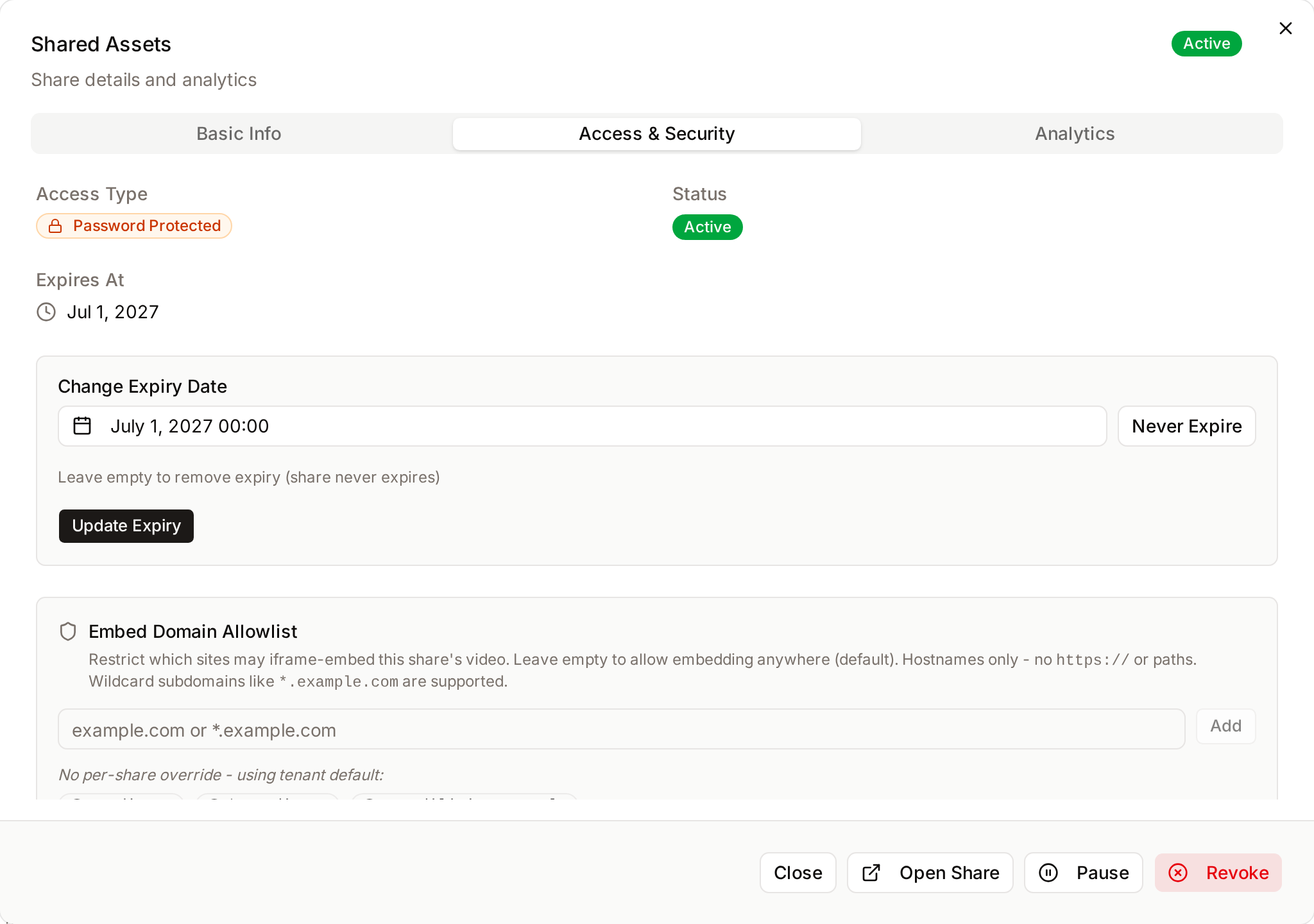
- What you'll see: A multi-tabbed dialog box containing "Basic Info," "Access & Security," and "Analytics." For an internal share, the second tab is "Recipients & Permissions" and there is no "Analytics" tab.
How to use it:
- Click the View Details icon on a share row.
- Navigate to the Basic Info tab to see the Share URL and the number of assets included.
- Switch to the Access & Security tab to see the permissions (View, Download), the access type, the status, and the Starts At and Expires At dates. On this tab you can also set a new date under Change Expiry Date and click Update Expiry, and set an Embed Domain Allowlist for this share with Save Allowlist.
- For external shares, open the Analytics tab to see Total Views, Total Downloads and the "Last Accessed" timestamp.
- Use the buttons at the bottom of the dialog to Open Share, Pause, Revoke or Activate the share.

Default Embed Domain Allowlist
- Purpose: To control which websites may embed videos from share links, across the whole workspace.
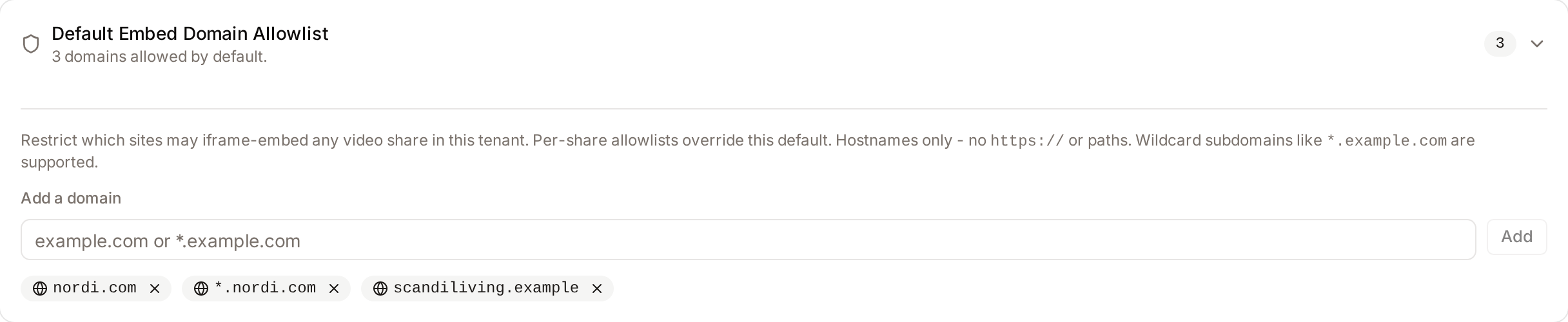
- Where to find it: The Default Embed Domain Allowlist card near the top of the page. Click it to expand.
- What you'll see: A summary line, either "No allowlist set - embedding is open to any origin by default." or the number of allowed domains, and when expanded, the list of domains with an Add a domain field.
Videos in a share link can be embedded in other websites with the Copy embed code action. Without an allowlist, any website can embed them. With an allowlist, browsers only play the embed on the listed sites.
How to use it:
- Click the card to expand it.
- Type a hostname in Add a domain, for example
www.example.com, or*.example.comfor every subdomain, and click Add. Enter hostnames only, withouthttps://or a path. - Repeat for each site, up to 50 domains.
- Click Save Default. Click Reset to discard unsaved changes.
To open embedding to any website again, remove every domain and click Save Default.
A share can have its own embed allowlist, which administrators set on the Access & Security tab of the share details dialog. When a share has one, it replaces this default for that share.
Complete Workflows
Workflow: Extending an Expired Share
- Goal: Restore access to a link that has reached its expiry date.
- Prerequisites: Administrative permissions to manage shares.
Steps:
- Select "Expired" from the Status filter dropdown in the main area.
- Locate the share in the list and click the three-dot button on its row.
- Select Extend Expiry from the menu.
- In the Expiry Date field, use the calendar picker to select a new future date.
- Click Update Expiry.
- Expected result: The share status changes from "Expired" to "Active" and the link is immediately usable again.
- If it doesn't work: Ensure the "Starts At" date (if set) is not in the future, which would keep the share in a "Scheduled" state.
Workflow: Auditing High-Risk Public Links
- Goal: Identify and secure shares that are public and have no password protection.
- Prerequisites: Access to the Advanced Filters.
Steps:
- Click Advanced to open the filter panel.
- Select Public from the Select access type dropdown.
- Select No Password from the Select password protection dropdown.
- Review the list for any sensitive collections.
- To secure a link, click View Details, go to Access & Security, set a date under Change Expiry Date and click Update Expiry.
- Expected result: A filtered list of all links accessible to anyone on the internet without a password.
Limits and guardrails
- Revoking a share emails its listed recipients. If you just need to disable a link for a few days, use Pause - it marks the share as paused while keeping the token, sends no email, and Activate restores it instantly. Filter the list by the Paused status to find them.
- The Inactive 30d+ filter uses the last-accessed timestamp on the share itself, so a link that has been created but never clicked will also appear in that list.
- Every share access - page views, downloads, password attempts - is logged with the visitor's IP address and user agent, which feeds the Analytics tab and the Views/Downloads counters.
What happens behind the scenes
- Extending a share's expiry takes effect immediately - anyone who still has the link can use it again. Listed recipients of an email-restricted share are emailed the new date, and get a reminder a day before a share expires.
- Revoking a share sets a revocation timestamp and records your identity so the change is traceable. Once revoked, the share token is treated as invalid everywhere in the product - visitors can no longer open the gallery, download an asset, or authenticate with the share password.
- Paused shares are not deleted - all analytics, password protection, email allowlists, and expiry settings are preserved - so reactivating restores the share in exactly the state it was in before.
- The overview covers both External shares (public or password-protected links to collections, individual assets, or selections) and Internal shares (collections shared with named users or groups inside the workspace). You can filter to one or the other, or view both together.
Tips and Best Practices
- Vanity URLs: Look for the code snippet icon in the "Share" column; these indicate custom "Vanity URLs" which are easier for clients to remember but should be monitored closely for security.
- Bulk Cleanup: Use the "Inactive 30d+" filter regularly to identify shares that are no longer being used and revoke them to reduce your organization's digital footprint.
- Internal vs. External: Use the primary category filter to toggle between "External Shares" (public links) and "Internal Shares" (content shared with specific system users/groups).
Troubleshooting
Issue: A share link is not working even though it is "Active"
- Symptoms: Users report a 404 or "Access Denied" error when clicking a link.
- Cause: The share may have a "Starts At" date in the future, or the underlying assets may have been deleted.
- Fix: Open View Details and check the Starts At field in the Access tab. If the date is in the future, the link will not work until that time.
- Prevention: Always check the "Scheduled" status in the main table before distributing links.
Issue: Unable to update the expiry date
- Symptoms: The "Update Expiry" button remains disabled or an error message appears.
- Cause: Invalid date format or network timeout.
- Fix: 1. Refresh the page. 2. Ensure you are using the calendar picker rather than typing the date manually. 3. If you want the share to never expire, ensure the field is completely empty.
- Prevention: To make a share permanent, leave the Expiry Date field empty. The dialog confirms this with "Leave empty to remove expiry (share never expires)".