
Brand Guide
The Brand Guide holds your organization's official logos, emblems, colors and typefaces, with the rules for using them. Team members and external partners use it to find the approved files and specifications.
This feature allows you to browse high-resolution logos, copy exact color values, preview typography, and download a complete brand kit in one click.

Page Overview
- Purpose: To provide a centralized, interactive repository of brand assets and usage rules.
- When to use it: Use this page when you need to download official logos, verify brand colors for a design project, or check typography requirements.
- What you can do here:
- Download the complete Brand Kit as a ZIP file.
- Download the color palettes as an ASE swatch file.
- Toggle between Light and Dark backgrounds to test logo visibility.
- Copy HEX, RGB, CMYK, and PMS color codes to your clipboard.
- Preview and download specific font files.
- Review "Do" and "Don't" usage examples for brand assets.
Page Layout
- Top bar: Contains the page title, a brief introduction to the guidelines, and the primary Download Brand Kit button.
- Navigation bar: A numbered menu that stays at the top of the screen as you scroll, with a link to each section: Logos, Emblems, Colors and Typography. A section that has no content is not listed.
- Main area: Displays detailed sections for each brand category, including interactive asset cards, color swatches, and font specimens.
- Asset Cards: One card per logo or emblem, with its variant (for example Full Color or Monochrome), the backgrounds it is meant for, preview images, size specifications, and a clear space diagram.
Main Features
Brand Kit Download
- What it's for: Obtaining all brand assets (logos, emblems, fonts, and color palettes) in a single organized package.
- Typical use: Onboarding a new creative agency or starting a large-scale project that requires all brand variations.
- Result: Downloads a ZIP file containing categorized folders for all approved assets.
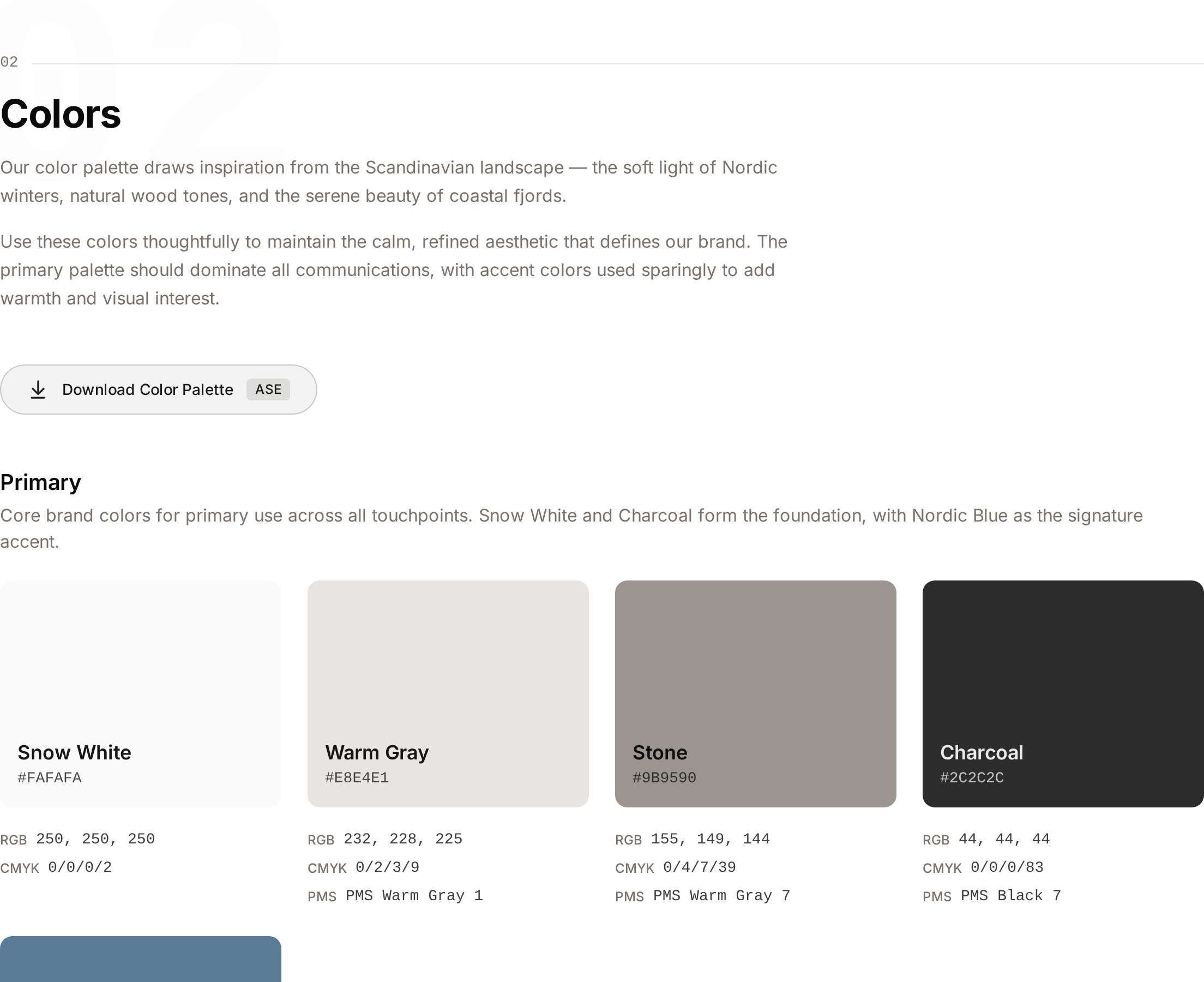
Interactive Color Swatches
- What it's for: Accessing precise color data for digital and print production.
- Typical use: Copying a HEX code for a web project or finding the correct PMS (Pantone) match for professional printing.
- Result: Copies the selected value to your clipboard and shows a confirmation, for example "HEX copied to clipboard".
Logo Specification & Clear Space
- What it's for: Ensuring logos are used at the correct size and with enough empty space around them.
- Typical use: Checking the Minimum Size to ensure a logo remains legible on a small business card.
- Result: The card shows the Minimum Size and Maximum Size when they are set, and a Clear Space diagram of the space to keep free around the asset.
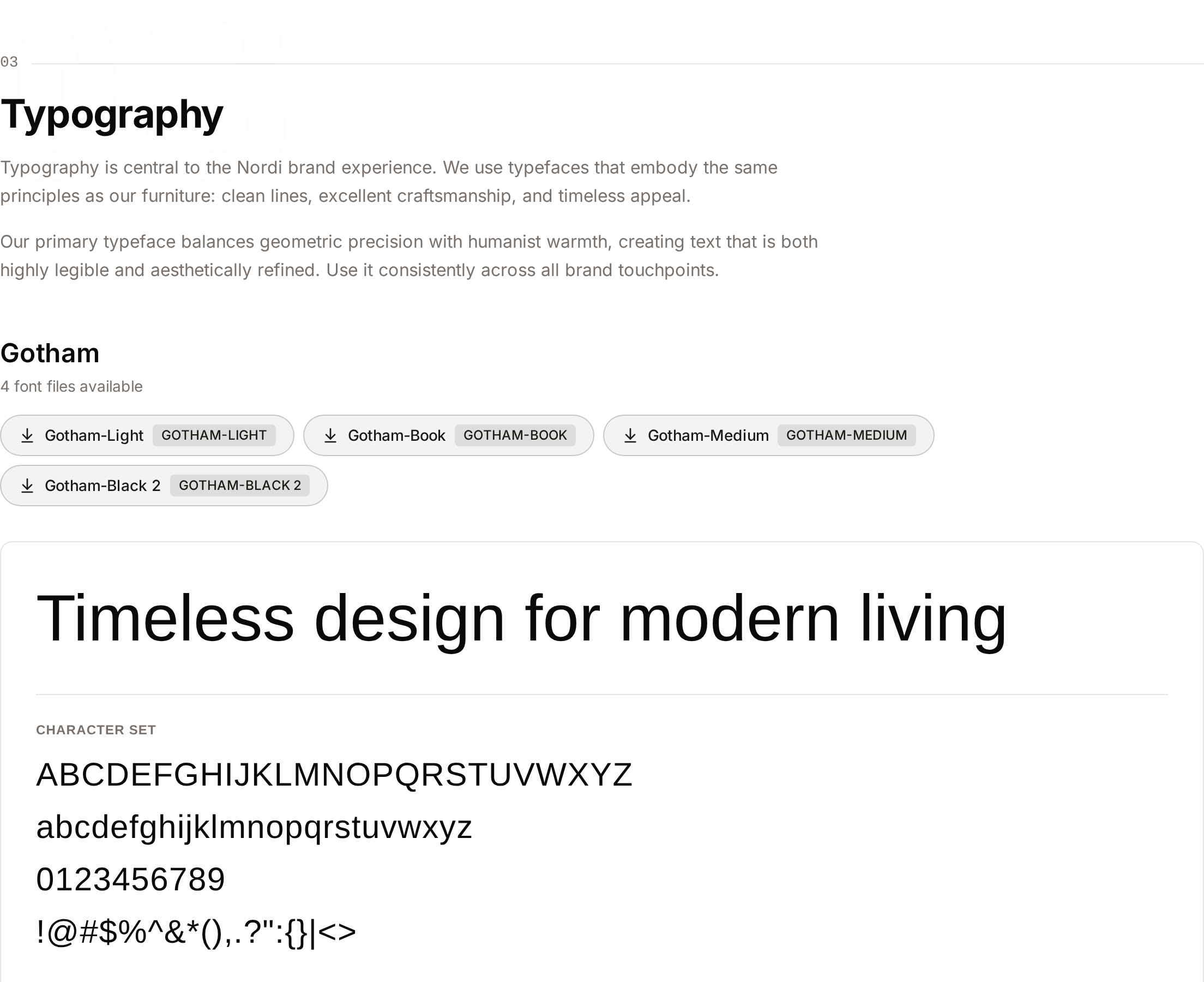
Typography Specimens
- What it's for: Previewing brand fonts and their various weights.
- Typical use: Checking how a specific font looks in "Bold" or "Thin" before installing the font files.
- Result: Shows a live preview of the character set, weight scale, and size scale for each brand typeface.
Detailed Feature Documentation
Background Toggle
- Purpose: To verify how a logo or emblem appears against different background intensities.
- Where to find it: On any Logo or Emblem card, look for the Light and Dark buttons (represented by Sun and Moon icons).
- What you'll see: The background of the asset preview area switches between light gray and dark navy. A card opens on Dark when its asset is meant for dark backgrounds.
How to use it:
- Locate a logo asset you wish to inspect.
- Click the Dark button to see how the asset looks on a dark background.
- Click the Light button to return to the standard view.

Color Value Copying
- Purpose: To quickly grab color codes without manual typing.
- Where to find it: In the Colors section, within any color palette.
- What you'll see: A list of values (HEX, RGB, CMYK, PMS) below each color swatch.
How to use it:
- Scroll to the Colors section.
- To copy the HEX code, click the large color block. Copy HEX appears on it when you move the pointer over it.
- To copy specific values like RGB or CMYK, click the specific row (e.g., RGB 255, 255, 255).
- A notification confirms the copy, for example "RGB copied to clipboard".
Asset Downloads
- Purpose: To download individual files in specific formats (e.g., SVG, PNG, WebP).
- Where to find it: Hover over any logo preview image, or look at the file list below the preview on mobile.
- What you'll see: A download button labelled with the format of the original file (such as SVG or PNG), and a WebP button.
How to use it:
- Hover your mouse over a logo preview to reveal the download overlay.
- Click the format of the original file, or WebP for a version optimized for the web.
- On mobile devices, use the buttons located directly below the image preview.
Complete Workflows
Workflow: Downloading the Full Brand Identity
- Goal: Get every approved asset for offline use.
- Prerequisites: Access to the Brand Guide page.
Steps:
- Navigate to the Brand Guide via the main menu.
- Locate the Download Brand Kit button at the top of the page.
- Click the button.
- Wait for the system to generate the package.
- Expected result: A ZIP file named with the current date (e.g.,
brand-kit-2026-10-12.zip) begins downloading. - If it doesn't work: Ensure you have a stable internet connection; large brand kits may take a few moments to prepare.
Workflow: Checking Logo Usage Rules
- Goal: Determine if a specific logo placement is permitted.
- Prerequisites: The logo must have "Usage Guidelines" assigned by an administrator.
Steps:
- Scroll to the Logos or Emblems section.
- Find the specific asset you intend to use.
- Look for the Usage Guidelines sub-section at the bottom of the asset card.
- Review the images marked with a green checkmark (Do) and those marked with a red X (Don't).
- Read the Caption below each image for specific instructions.
- Expected result: Clear visual examples of correct and incorrect logo applications (e.g., "Don't stretch the logo").
Who can use it
The Brand Guide is a plan-based feature. When it is part of your plan, every signed-in user in the workspace can view it and download from it. There is no separate view-only setting. If the page is missing from the navigation, the feature isn't part of your current plan.
When an administrator has turned on the Public Portal, visitors without an account can also open the Brand Guide and download from it. See Public DAM.
Editing the guide itself (uploading new logos, changing colour palettes, writing usage guidance) is restricted to administrators, in the Brand Guide tab of Administration → Branding. See Branding.
What's inside the guide
Everything shown on the Brand Guide page comes from a single curated set of brand assets maintained by your administrators:
- Logos: primary logo files. Each logo carries a variant label: Full Color, Monochrome, Dark, Light or Custom.
- Emblems: secondary marks such as crests, icons, or submarks.
- Typography: typefaces the brand approves for use, with preview text and downloadable font files.
- Colour palettes: named colour groups with HEX, RGB, CMYK, and PMS values.
- Usage guidelines: "Do" and "Don't" image examples attached to specific logos or emblems.
Download formats
Three kinds of download are available from the page:
- Brand Kit (ZIP): a single archive containing all approved logos, emblems, font files, and colour swatches, organised into "Logos", "Emblems", "Fonts", and "Colors" folders, with one sub-folder per logo, emblem or typeface. The filename includes today's date, so you can tell versions apart when you keep several copies.
- ASE colour swatches: an Adobe-compatible swatch file (
brand-palettes.ase) built from the guide's colour palettes, downloaded with Download Color Palette in the Colors section. It opens in Photoshop, Illustrator, and InDesign. The same ASE file is also included inside the ZIP. - Individual asset downloads: original file formats for each logo or emblem, plus an optimised WebP variant for web use where available.
What happens behind the scenes
- When administrators upload a new logo or emblem, the system automatically generates a lightweight web preview in the background. That preview is what you see on the Brand Guide page itself, so the page loads quickly while the originals stay downloadable at full quality. If a preview hasn't been generated yet for a newly added asset, you may briefly see a placeholder; it refreshes as soon as the preview is ready.
- Updating the guide (new logo variant, revised colour palette, replacement font) regenerates the previews automatically. The page shows the changes without a publish step.
- Every download is checked against your access to the Brand Guide. A download link copied from the page only works for people who can open the Brand Guide themselves: signed-in users, and visitors when the Public Portal is on.
Tips and Best Practices
- Use the Navigation Bar: On a long guide, use the navigation at the top to go directly to Typography or Colors.
- Check the ASE File: If you use Adobe Creative Cloud (Photoshop, Illustrator, InDesign), click Download Color Palette in the Colors section and import the ASE file into your Swatches panel.
- WebP for Web: When downloading logos for website use, choose the WebP option for better performance and smaller file sizes.
- Reference the "X": In the Clear Space diagrams, the unit "X" usually refers to a specific element of the logo (like the height of the icon). Use this as your proportional guide.
- Dated Brand Kits: The ZIP filename always includes the date. A kit you keep is a record of the brand assets on that day.
Troubleshooting
Issue: Font previews are not displaying correctly
- Symptoms: The typography section shows a standard system font instead of the brand's typeface, with the message "Font files could not be loaded. Showing fallback font."
- Cause: The font files could not be loaded, or your browser blocked them. While the files are loading, the preview shows "Loading font...".
- Fix: Refresh the page. If the message stays, ask an administrator to check the font files of the typeface.
- Prevention: Use a current browser that supports the WOFF2 and OpenType formats.
Issue: A download does not start
- Symptoms: Clicking a format button or Download Brand Kit does nothing, or opens the sign-in page.
- Cause: Everyone who can open the Brand Guide can download from it, so there is no download permission to ask for. The usual cause is an expired session. A large Brand Kit can also take a moment to prepare.
- Fix: Sign in again and retry. If one file still fails, tell an administrator, because the file may be missing from the guide.
Issue: Brand Guide link is missing from the menu
- Symptoms: The Brand Guide page cannot be found from the navigation.
- Cause: The Brand Guide is a plan-based feature and is not part of your workspace's plan.
- Fix: Ask your administrator. Plans are changed in Administration → Plan & Usage.
Issue: A new logo shows a placeholder instead of a preview
- Symptoms: An asset recently added by an administrator displays without a proper preview image.
- Cause: The lightweight web preview is still being generated in the background.
- Fix: Refresh the page after a minute or two. The preview regenerates automatically and does not need any manual action.