
Share Links
A share link gives people outside your workspace access to a set of assets, without creating an account for them. You decide who can open the link, whether they can download, at which quality, and for how long.
To give colleagues who already use Freedam access to a collection, use an internal share instead. See Collections.
What you can share
| Start from | What the link contains |
|---|---|
| A selection in the Gallery: select assets, then click Share in the selection bar | Exactly the selected assets. |
| An asset card's Share action | That one asset. |
| The Share button at the top of a collection page | The collection and all its sub-collections. Recipients move between them from a list of collections. |
| A selection inside a collection: click Select, tick files, then click Share in the bar | The selected assets only. |
Who can share
| What you share | Permission needed |
|---|---|
| An asset or a selection of assets, through a link | Share publicly |
| A collection, through a link | Share publicly and Share own collections |
| A collection, with People in your workspace | Share own collections only |
| A video embed code | Share publicly |
Share own collections applies to the collections you created. To share a collection that someone else created, you also need Manage other people's collections. A collection that was shared with you cannot be shared onward.
Without Share publicly, the Share action is not shown on assets and selections, and the share dialog of a collection offers only People in your workspace.
Recipients get the assets as they are stored, so you can only share assets you could download yourself as unwatermarked originals. Freedam refuses to create the share, and tells you how many assets are the problem, when your access rules hide an asset, block its download, watermark its previews or downloads, limit its downloads below the original or require a download request, or when its rights policy requires a watermark on downloads.
Create a share link
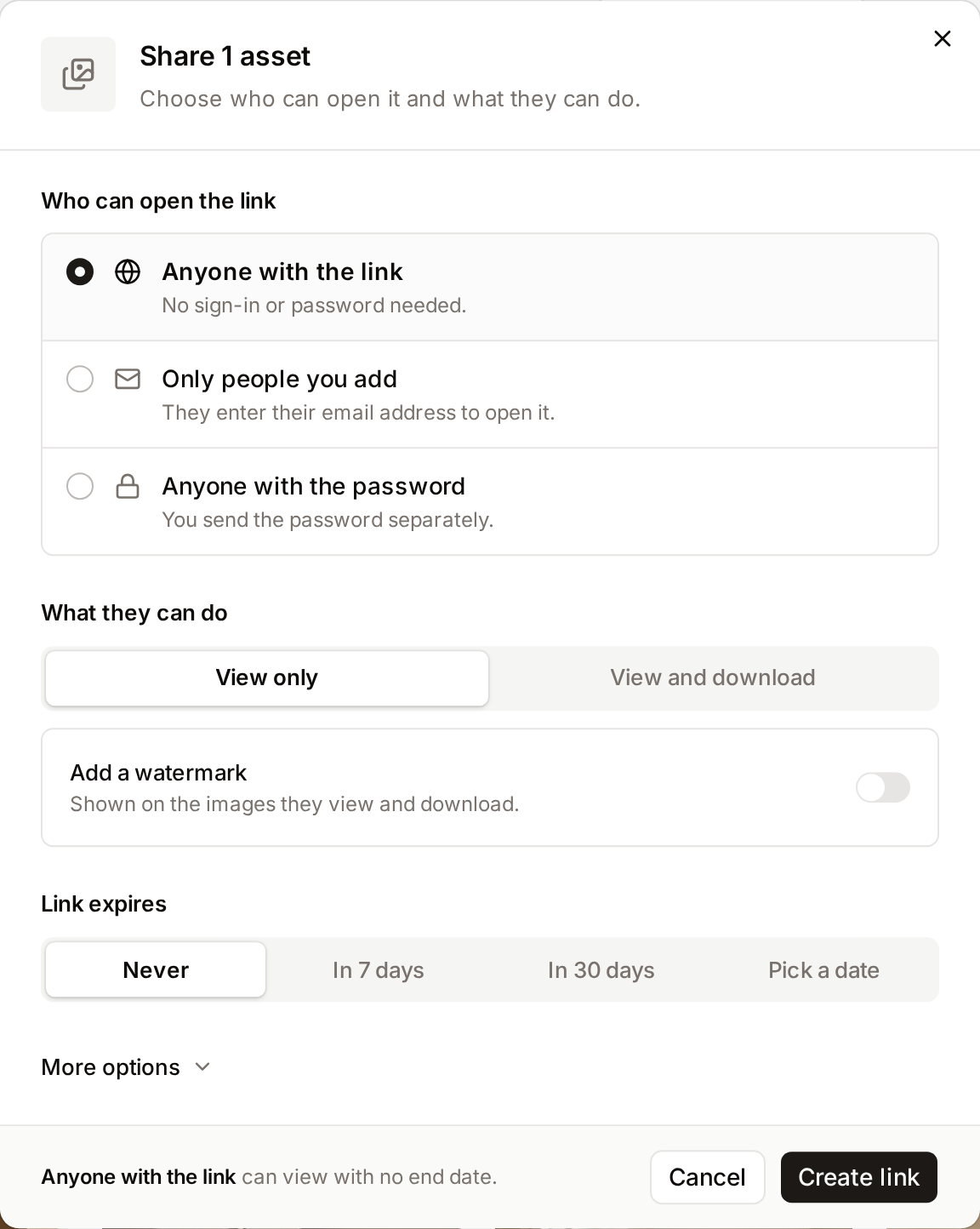
- Start a share from one of the places above. For assets, the share dialog opens with the safest link settings: anyone with the link can view, nothing can be downloaded, and the link never expires. For a collection, it opens on People in your workspace.
- Under Who can open the link, choose who gets in. See Who can open the link.
- Under What they can do, choose View only or View and download.
- Under Link expires, choose Never, In 7 days, In 30 days or Pick a date.
- Read the sentence at the bottom of the dialog. It says in plain words who will be able to do what, and until when.
- Click Create link.
- Freedam checks the usage rights of every asset. If some cannot be shared with the access you chose, the Some assets will be hidden dialog explains which, and lets you continue with the visible ones. See When rights hide assets.
- On Your link is ready, click Copy link, or Open link to see it as a recipient would.
Settings
Who can open the link
| Option | Who gets in |
|---|---|
| Anyone with the link | Anyone who has the link. No sign-in. |
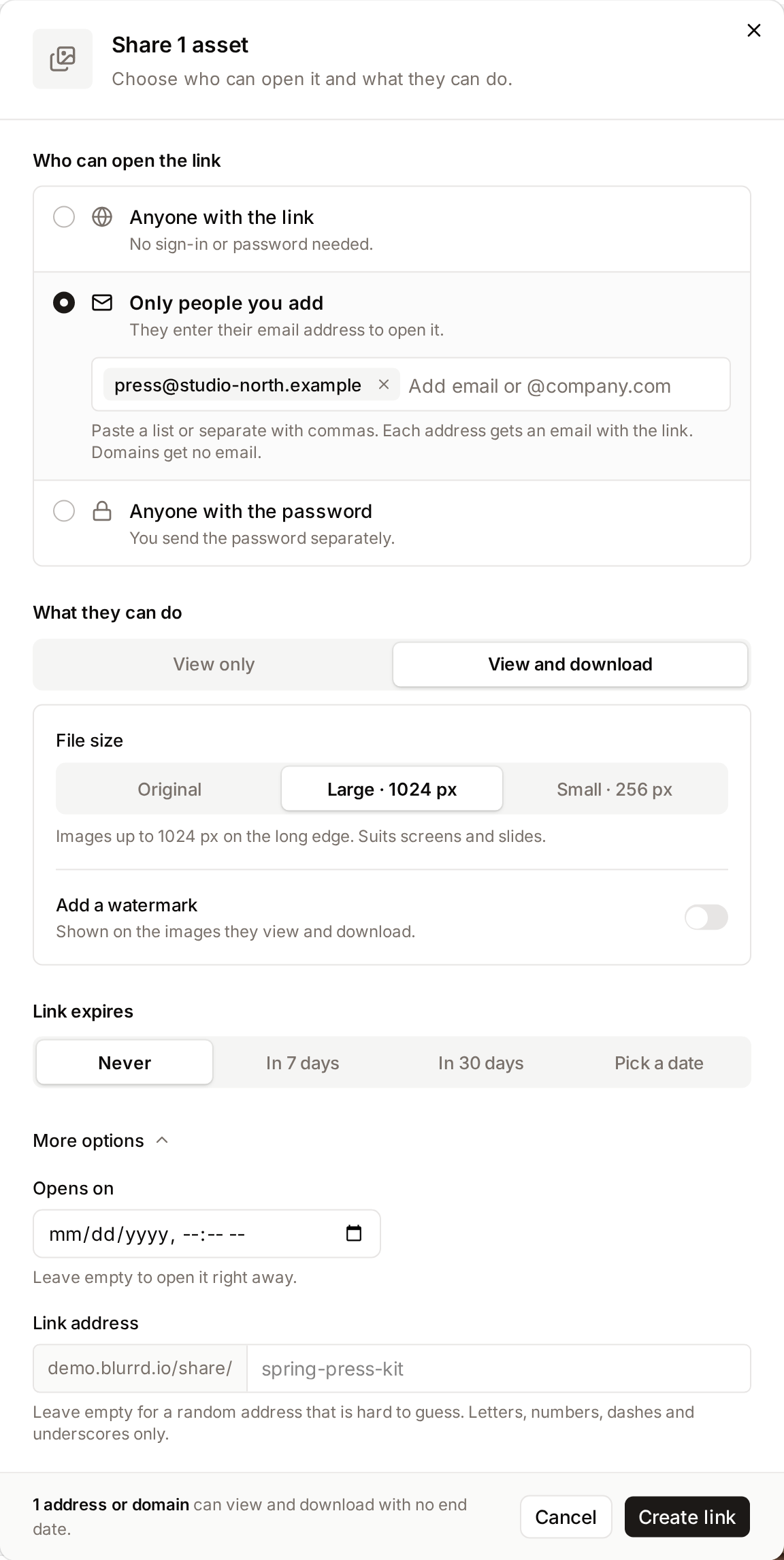
| Only people you add | Only people who enter an address you listed. Type or paste email addresses, and whole company domains such as @acme.com, in the same field. Press Enter, a comma or a space after each one. You need at least one. |
| Anyone with the password | Anyone who enters the password. Type one of at least 6 characters, or click Suggest one. |
| People in your workspace (collections only) | Freedam users and groups you pick, who sign in as usual. This creates an internal share. See Collections. |
For Only people you add, Freedam emails each listed address an invitation titled "[your name] shared content with you", with a View Shared Content button. Domains receive no email: send the link yourself. Recipients are not sent a code; they type their address to get in. Addresses and domains are not case-sensitive: [email protected] and [email protected] are the same recipient.
For Anyone with the password, Freedam does not send the password. Share it with recipients separately, ideally through a different channel than the link.
What they can do
Recipients can always view. Choose View and download to let them download too, then pick a File size:
| File size | What recipients get |
|---|---|
| Original | The files exactly as uploaded. |
| Large · 1024 px | Images up to 1024 pixels on the long edge. |
| Small · 256 px | Images up to 256 pixels on the long edge. |
Recipients can pick a smaller size than the one you allowed for any download, never a larger one.
Turn on Add a watermark and choose a watermark to show it on the images recipients view and download. The share cannot be created without a watermark once the switch is on. The list is empty until an administrator creates watermarks, see Watermarks. Watermarks may not be included in your plan.
Watermarks only apply to images. In a watermarked share, videos play in the browser without a watermark, and their embed code still works, but they cannot be downloaded. Audio files and PDFs are listed but cannot be previewed or downloaded. Leave out any video recipients must not watch without a watermark, and share files they need to download separately.
Link expires
Choose Never, In 7 days, In 30 days, or Pick a date to set an exact date and time. After that moment the link stops working. Dates use your computer's time zone.
More options
- Opens on: the link does not open before this date and time. Recipients who try earlier see "This share is not open yet". The expiry must be later.
- Link address: by default a link ends with a random code. To make it readable, type an address such as
spring-press-kit. Only lowercase letters, numbers, dashes and underscores are kept; spaces become dashes. Each address can only be used once in your workspace.
When rights hide assets
Assets can carry usage rights that restrict who may see them, for example "internal use only". When you click Create link, Freedam checks every asset against the access you chose.
- Some assets are blocked: the dialog shows how many are visible and blocked, and lists the blocked ones. Click Share [N] Visible Assets to create the link without them, or Cancel to change your settings.
- All assets are blocked: the dialog says so. You can still click Create Share Anyway, but recipients will see an empty share.
- A different access would help: for a public share, the dialog may suggest switching to email-restricted access, which some rights allow. Click Switch to [access] to change it.
A share is a live view of its assets. If rights change after you create it, recipients see the new state the next time they open the link. To hand over a fixed set of files, download them as a ZIP and send that instead.
Manage your share links
Freedam does not have a single list of all your share links. Where you manage a link depends on what you shared:
- Collection shares: open the collection, open its side panel and click the Sharing tab. The person who created the collection sees the tab, and so does anyone who may share the collection. On the classic Collections page, click View Shares in the collection header instead: the Collection Shares panel lists the same shares on an Internal tab and an External tab. See Collections.
- Asset and selection shares: ask an administrator. They are listed in Administration → Shares Management. See Shares Management.
In the Sharing tab, Links sent outside lists each link with its name, its status, the days left before it expires, and its number of views and downloads. The menu at the end of a link holds its actions:
| Status | Actions |
|---|---|
| Active | Copy link, Change expiry, Pause, Revoke |
| Paused, Expired or Scheduled | Copy link, Change expiry, Activate, Revoke |
| Revoked | Copy link, Change expiry, Activate |
A Scheduled link has a start date in the future.
- Change expiry opens a dialog with an End date field. Pick a new date, or leave the field empty for a link that never expires, then click Save.
- Pause stops the link for now, for example while you replace some files. Recipients who open it see "This share is no longer available", and nobody is emailed.
- Revoke asks for confirmation, then stops the link at once. Recipients who open it see "This share is no longer available" until you activate it again. On a link for listed people only, each listed address is told by email that access was revoked.
- Activate turns a paused or revoked link back on. The link address stays the same, so people who already have it can use it again. For an expired link, set a new date with Change expiry: activating alone does not change the expiry.
- New link opens the share dialog to create another link for the collection. It is shown when you may share the collection outside the workspace.
Shared with colleagues, in the same tab, lists the internal shares with Edit, Pause, Activate and Revoke, and Add people or groups to create one. See Collections.
Good to know
- Recipients never need an account. They open the link in a browser. See Receiving a Share for what they see.
- Email-restricted recipients are kept informed. Each listed address gets an email a day before the link expires, when you revoke it, and when you change something that affects them: the start or expiry date, downloads, download quality, the watermark or the password. Pausing sends nothing, and people who only match an allowed domain are never emailed.
- You are not notified when someone opens a link. Views and downloads are counted on each link in the Sharing tab of the collection. Integrations can receive them as
share.accessedevents, see Webhooks. - Access lasts a day per browser. After entering a password or email address, a recipient stays signed in to that share for 24 hours on that browser.
- Wrong passwords are limited. After 5 failed attempts from the same network, the share refuses new attempts for 5 minutes.
Troubleshooting
The Share button is missing
- On an asset or a selection, your role does not include Share publicly. Ask an administrator.
- On a collection, your role does not include Share own collections, or someone else created the collection and your role does not include Manage other people's collections. A collection that was shared with you cannot be shared onward.
The share dialog of a collection only offers people in your workspace
A link for people outside the workspace needs Share publicly as well as Share own collections. Ask an administrator to add Share publicly to your role.
"Share creation blocked: N asset(s) in this share are not accessible with your permissions."
Some selected assets are not available to you as unwatermarked originals: you cannot download them, or you only get them watermarked, below the original quality or after a download request, or their rights policy requires a watermark. Remove them from the selection, or ask an administrator for full download access.
"This custom URL is already taken. Please choose another."
Another share already uses that custom URL. Choose a different Link address, or leave the field empty for a random link.
A recipient cannot get in to an email-restricted share
Check that they type the same address you listed (capitalisation does not matter), or add their company domain, such as @acme.com, to the link.
Related pages
- Receiving a Share: what recipients see and can do.
- Collections: internal shares with Freedam users and groups.
- Download Dialog: downloading assets yourself.
- Shares Management: for administrators, every share in the workspace.