
Receiving a Share
Someone has sent you a link to files stored in Freedam. You don't need an account or any software: the link opens in your web browser. This page explains what you can do there.
Open the link
Click the link in the email or message you received.
- If the files show right away, the share is public. Skip to Browse the shared files.
- If the page asks for an email address or a password, the share is protected. Enter what it asks for, then click Open the share.
| The page asks for | What to enter |
|---|---|
| Email address | The address the sender shared with, usually the one the invitation email was sent to. Capitalisation does not matter. |
| Password | The password the sender gave you. Freedam never emails it: ask the sender if you don't have it. |
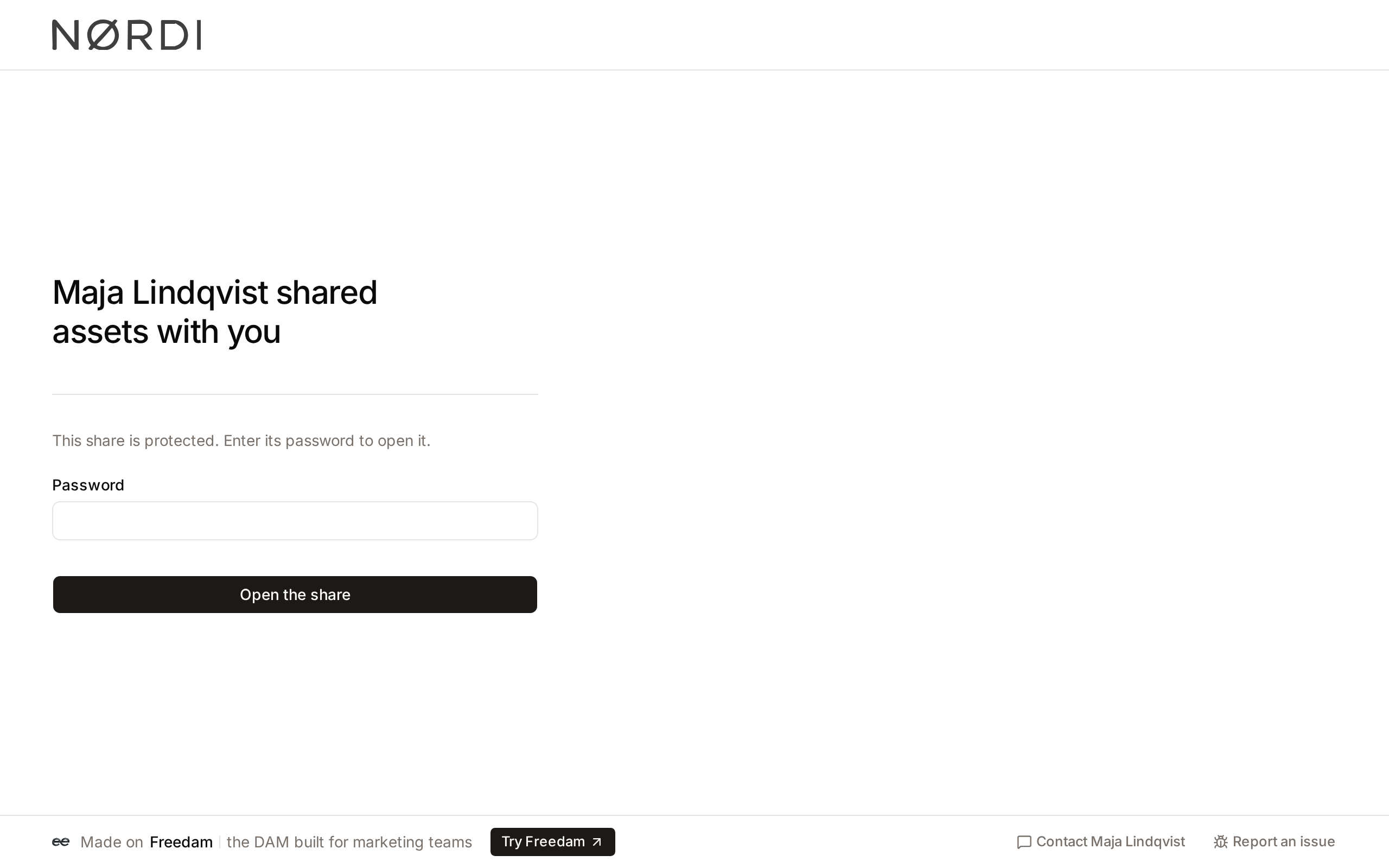
Once you are in, this browser remembers your access to the share for 24 hours.
After 5 wrong attempts, the share stops accepting new attempts for 5 minutes. Wait, then try again with the right details.
Browse the shared files
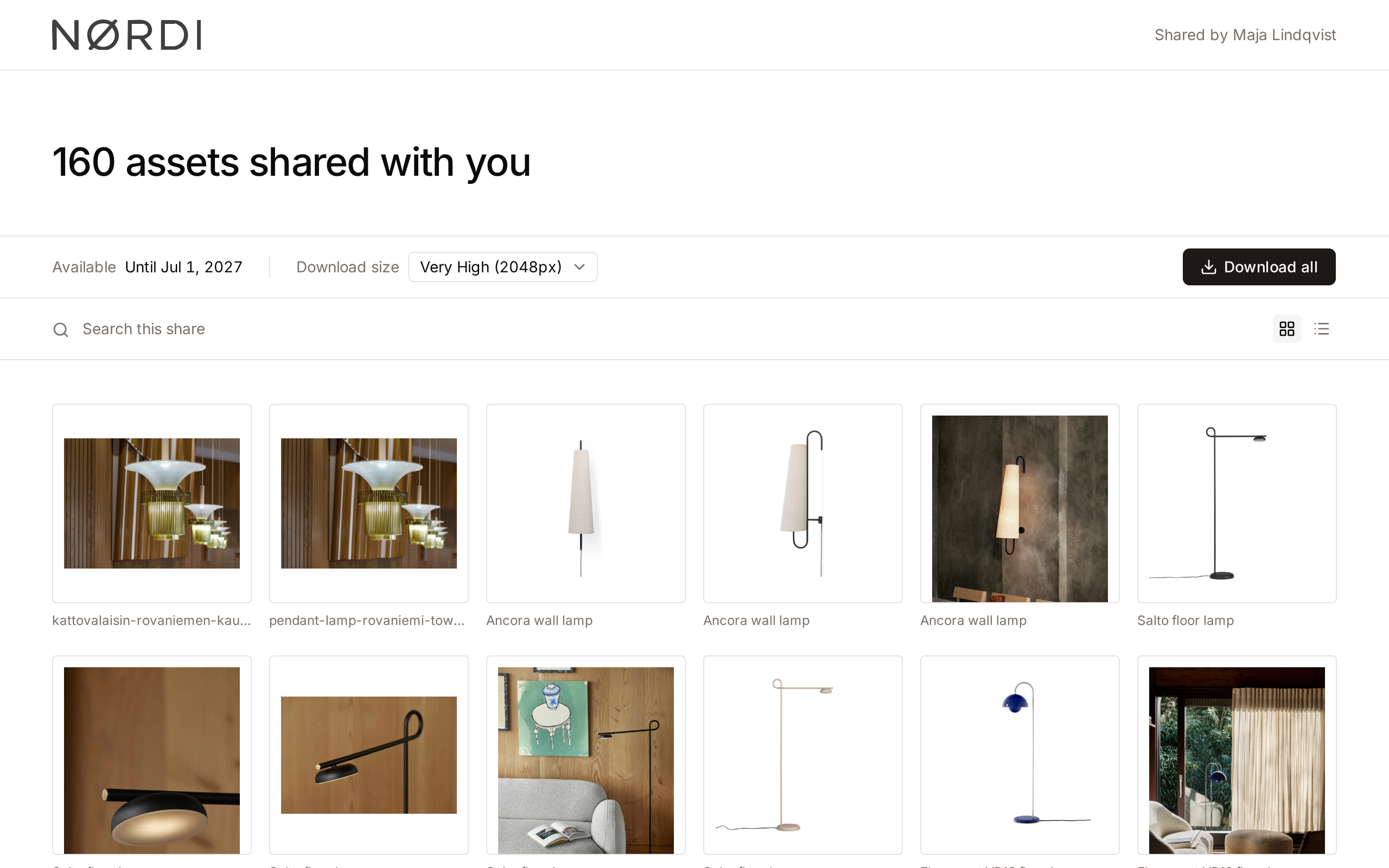
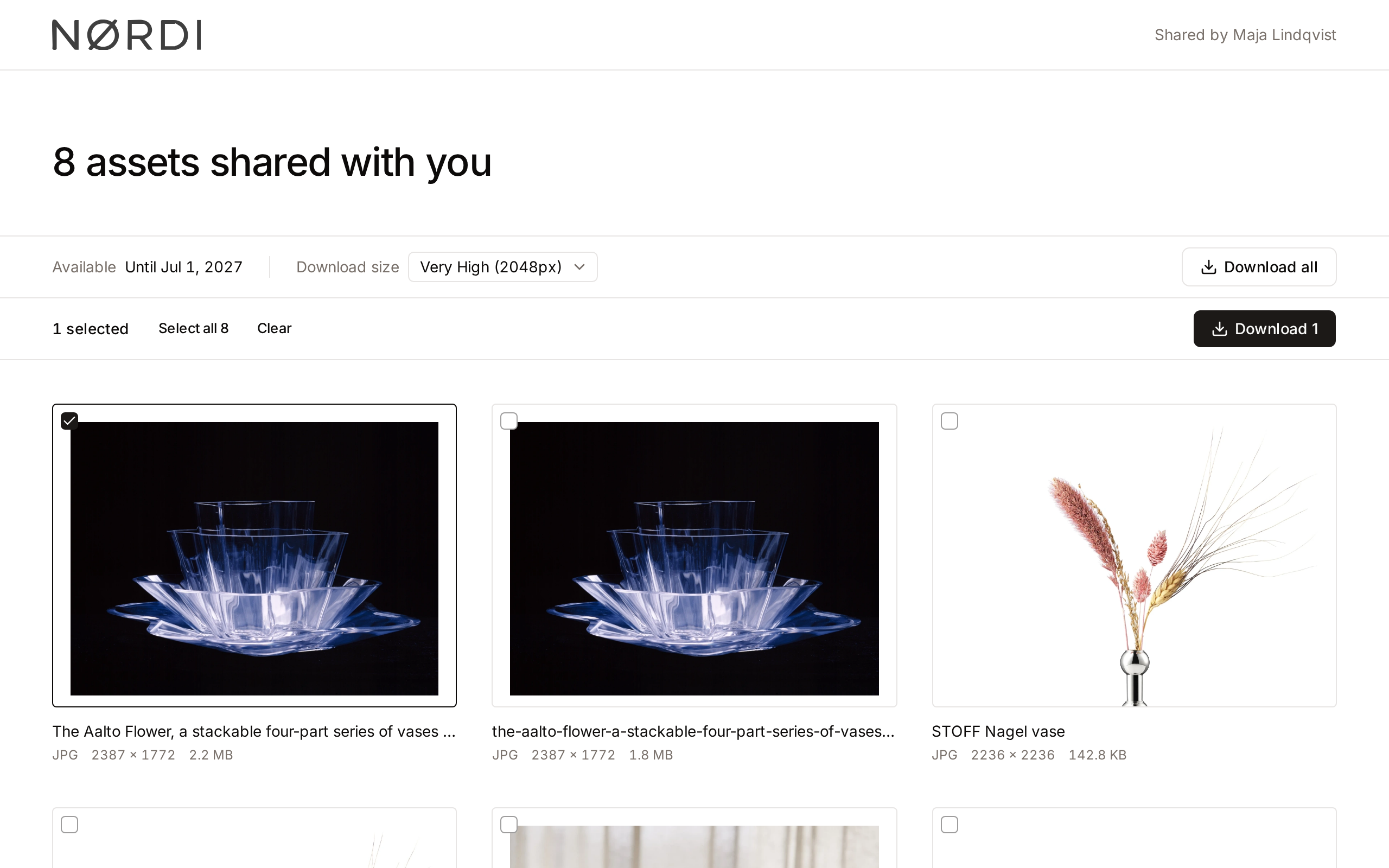
The top of the page shows the sender's logo and name, then a title: the name the sender gave the share, or the number of files shared with you. The row below it lists what you need to know before downloading:
| Label | What it tells you |
|---|---|
| Assets | How many files the share holds. A share of a collection also shows Collections. |
| Available | The date the share opens, the date it expires, or both. |
| Download size | The size your downloads are made in. See Choose a download size. |
| Watermark | Shown when images carry the sender's watermark. See Watermarked shares. |
| Access | View only when the sender did not allow downloads. |
What you see below depends on how much was shared:
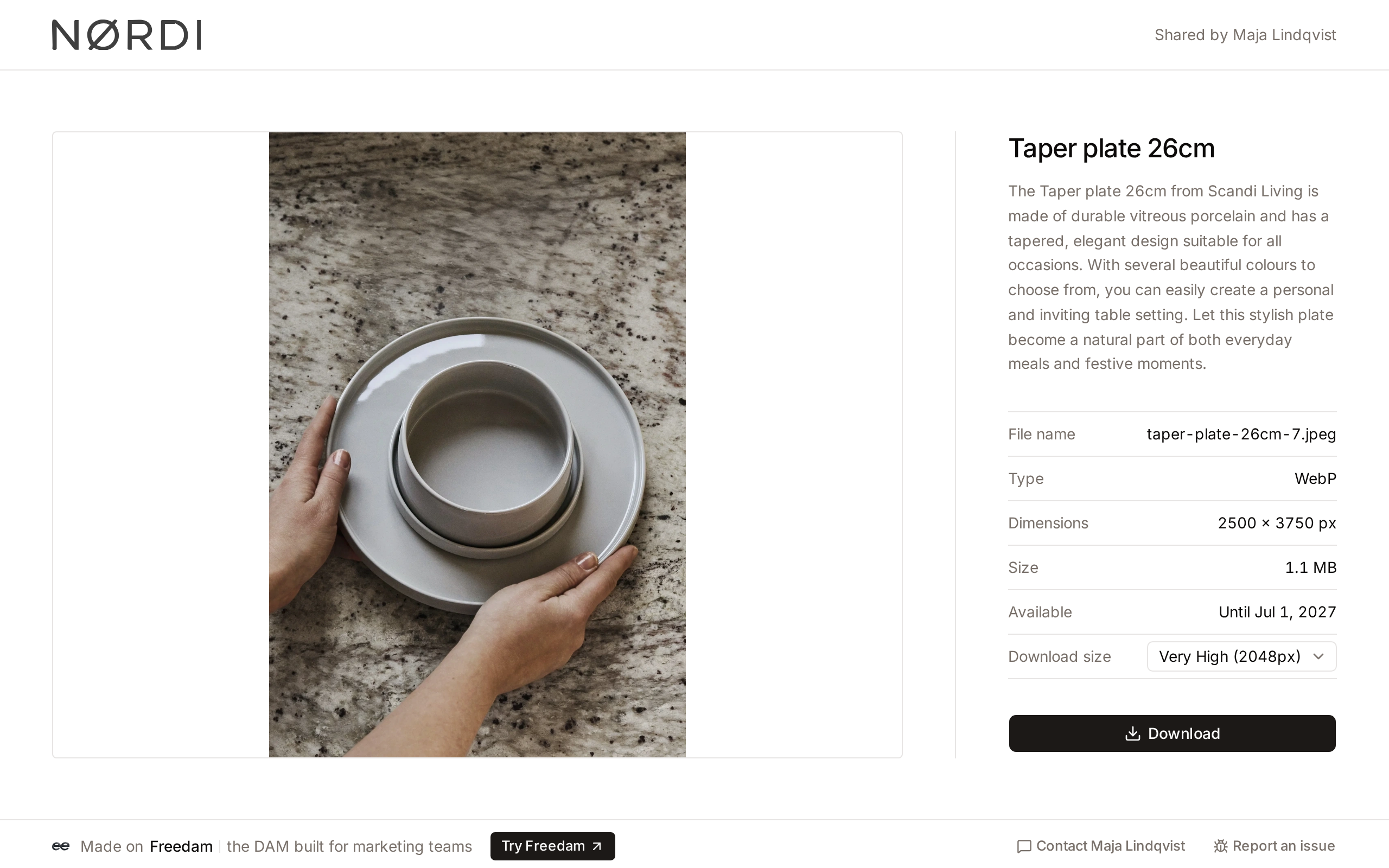
- One file: the file fills the page, with its file name, type, dimensions and size beside it.
- Up to 12 files: each file is shown large, with its name, type, dimensions and size.
- More than 12 files: a row of controls appears above the files. Type in Search this share to find files by file name, title or description, and switch between Grid and List. More files load as you scroll. The line at the end of the list shows how many are loaded, with a Load more button.
Click a file to open it full screen. Videos play in the browser, with subtitles when they have them.
Collections
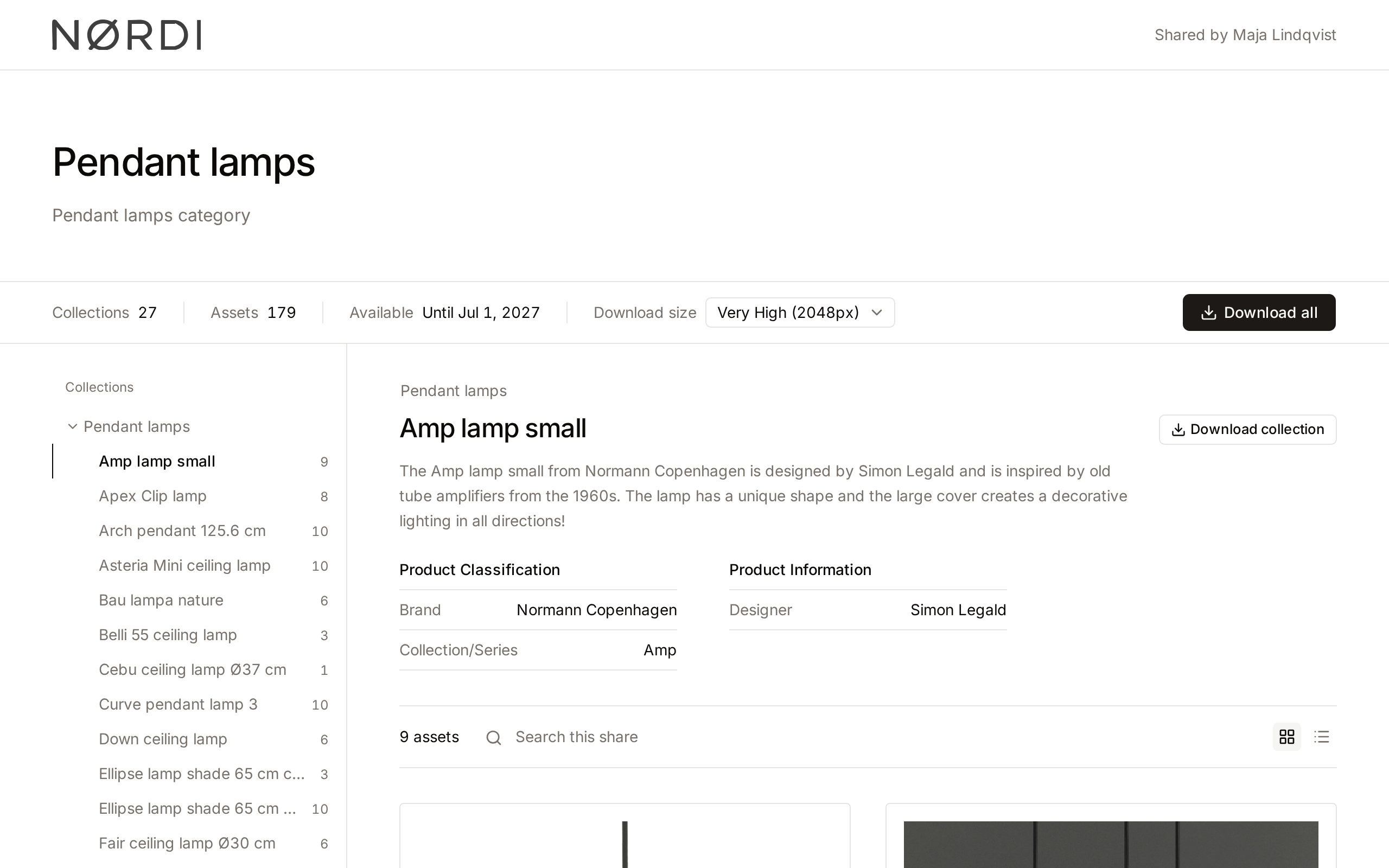
When a collection was shared with its sub-collections, the Collections list on the left shows all of them. Click one to see its files. On a phone, tap the Collections row to open the list.
The area on the right shows where the open collection sits, its name, its description and details such as brand or designer when the sender filled them in, and then its files. A collection that contains others lists them first: click one to open it.
A search covers the whole share, whichever collection is open. Each result shows the collection it comes from.
Download files
You can only download when the sender allowed it. If the page shows Access: View only and no download buttons, ask the sender for a link that allows downloads.
Choose a download size
Download size starts at the size the sender allowed, which is the largest you can get. Open it to pick a smaller size. Your choice applies to every download you make from the page: one file, several files, a collection or the whole share.
When the share offers a single size, Download size shows it without a list.
Download
- One file: move the pointer over the file and click its download button, at the top right of the picture. In the list view, the button is at the end of the row. On a share of one file, click Download.
- Several files: tick the box on each file you want, at the top left of the picture. Hold Shift and tick another box to select every file in between. The row above the files then shows how many are selected: click Download [N] to get them as one ZIP. Select all [N] ticks every file of the list or of the search results, and Clear unticks them.
- A collection: open it and click Download collection. The ZIP includes its sub-collections, as folders.
- Everything: click Download all. You get one ZIP, with collections kept as folders.
Watermarked shares
When the page shows Watermark: Applied to images, downloaded images carry the sender's watermark, and they are made in one size. The watermark only applies to images: videos still play in the browser, without a watermark, but cannot be downloaded, and audio files and PDFs cannot be previewed or downloaded. Ask the sender for another link if you need to download them.
Embed a video
On a video, click Copy embed code to copy an HTML snippet you can paste into a web page or content management system. In the grid, the button appears beside the download button when the pointer is over the video. Embedding only works for videos, and only for public shares: videos from password-protected or email-restricted shares cannot play inside another website.
Contact the sender
A Contact [sender] button sits at the bottom of the page. On a protected share it is there before you enter a password or an email address, so you can ask the sender for access.
- Click it and fill in Your name, Your email and Your message.
- Click Send message.
The sender receives your message by email, with your address set as the reply address, so they can answer you directly.
Report an issue, also at the bottom of the page, is for technical problems with the page itself. It sends a report to Freedam, the software provider, not to the sender, and includes a screenshot of the page and its address. For questions about the files, use Contact [sender] instead.
Emails about the share
If the sender gave access to your email address, Freedam may email you about the share:
- a reminder about a day before the link expires,
- a notice when the sender changes the dates, the download options, the watermark or the password,
- a notice when the sender revokes your access.
If the sender only allowed your company domain, you won't get these emails.
If the link does not work
| Message | What it means | What to do |
|---|---|---|
| This share was not found | The link is mistyped, or the share was deleted. | Check that you copied the full link, or ask the sender for a new one. |
| This share has expired | The share has passed its expiry date. | Ask the sender to extend it or send a new link. |
| This share is no longer available | The sender has revoked or paused the share. | Ask the sender whether they can turn it back on or send a new link. |
| This share is not open yet | The share has a start date that has not arrived yet. | Try again after the date the sender gave you. |
| The share could not be loaded | Your connection or the service had a problem. | Click Try again. |
| This share did not accept these details. Check them and try again. | The email address or password did not match. | Check the details with the sender. |
Related pages
- Share Links: for senders, how to create and manage links.