
Search Configuration
The Search Configuration page provides administrators with granular control over the Freedam search engine. It allows you to define which asset properties and metadata fields are searchable, how heavily they influence search results, and how the system handles complex queries across different languages.
By adjusting these settings, you can ensure that the most relevant assets appear at the top of search results, fine-tune the balance between keyword and semantic (AI-driven) search, and manage the performance of the search index.

Page Overview
- Purpose: To optimize search relevance and performance by controlling indexing behavior and scoring weights.
- When to use it: Use this page when adding new metadata fields, adjusting search ranking for specific properties, enabling multi-language search, or troubleshooting why certain assets aren't appearing as expected.
- What you can do here:
- Enable or disable indexing for specific asset fields (e.g., Filename, AI Tags).
- Assign "Boost" values to prioritize matches in specific fields.
- Configure default search behavior for custom metadata.
- Tune hybrid search parameters (BM25 vs. Vector fusion).
- Manage the order of Quick Gallery Filters.
- Trigger a full rebuild of the search index.
Page Layout
- Top bar: Displays the page title and description. Contains the Discard Changes and Save Settings buttons, which remain disabled until a change is detected.
- Main area: A tabbed interface organized by configuration category:
- Indexed Properties: Core asset fields.
- Metadata Defaults/Overrides: Custom field settings.
- Vocabulary: Hierarchy-based weighting.
- Language: Stemming and multi-language indexing.
- Hybrid Tuning: Advanced algorithm adjustments.
- Quick Filters: Gallery filter management.
- Rebuild index: System maintenance tools.
Main Features
Indexed Properties
- What it's for: Controlling the searchability of standard asset fields. The table lists Original Filename, Title, Description, Creator, Copyright, Location, Keywords, AI Tags, OCR Text, Extracted Text, AI Caption, Collections, People and Focus Point Descriptions, each with an Include checkbox and a Boost value.
- Typical use: If users find that "Original Filename" matches are cluttering results, you can lower its boost or exclude it entirely.
- Result: Changes how the search engine ranks assets based on where the search term was found.
Hybrid Tuning
- What it's for: Balancing traditional keyword matching (BM25) with AI-powered semantic similarity (Vector), and controlling how many candidates and final results a search may return.
- Typical use: Increasing the BM25 weight if users prefer exact keyword matches, or increasing Vector weight to prioritize conceptual similarity.
- Result: Adjusts the mathematical fusion of search results to change the final ranking order.
The tab also holds two coupled capacity controls:
- BM25 top-k - how many keyword candidates each search gathers before fusion.
- Final result cap (hybrid limit) - the maximum number of ranked results a single search can return.
The two form a protected pair: BM25 top-k can never exceed the final result cap, and the cap can go up to 10,000. The sliders enforce this as you drag - pushing BM25 top-k above the cap raises the cap with it, and pulling the cap below BM25 top-k lowers BM25 top-k. Both values are saved together as one validated pair; if a save would break the rule, it is refused with an explanatory error and nothing changes.

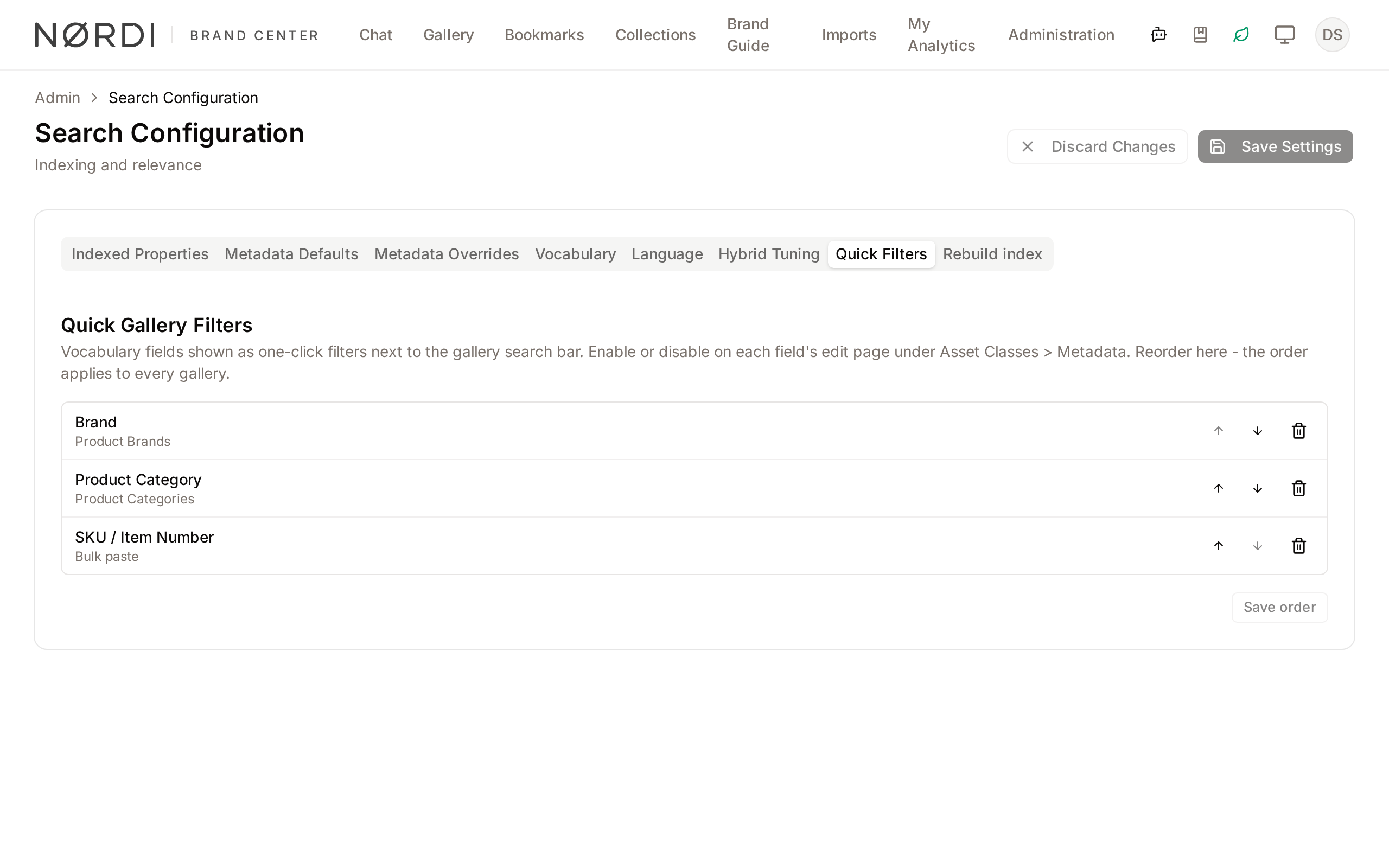
Quick Gallery Filters
- What it's for: Managing the one-click filters that appear next to the search bar in the main gallery. The list holds the vocabulary fields with Show as quick filter turned on, and the bulk-paste fields with Add as a quick filter turned on, which are marked Bulk paste.
- Typical use: Reordering filters so that "Department" appears before "Project Status."
- Result: Updates the visual order of filter buttons for all users in the gallery. Remove from quick filters takes a field off the list straight away. To add a field, turn the option on in the field's settings under Asset Classes.
Detailed Feature Documentation
Metadata Overrides
- Purpose: To give specific metadata fields (like "Product Name") higher priority than the default metadata settings.
- Where to find it: In the main area, click the Metadata Overrides tab.
- What you'll see: A searchable table of all text-based metadata fields with individual "Include" checkboxes and "Boost" sliders.
How to use it:
- Use the Search metadata definitions… field to find a specific metadata key.
- Toggle the Include checkbox to enable or disable search for that specific field.
- Adjust the Boost slider (0–5). A value of 5 makes matches in this field extremely important for ranking.
- Click Save Settings in the top bar.

Language & Indexing
- Purpose: To configure how the system handles different languages and spelling errors.
- Where to find it: In the main area, click the Language tab.
- What you'll see: Options for typo tolerance, multi-language indexing, and a mapping table for PostgreSQL configurations.
How to use it:
- Toggle Enable typo tolerance to allow fuzzy matching for misspelled search terms.
- Toggle Index all active languages if your DAM contains assets with metadata in multiple languages.
- In the Language Map table, use the PostgreSQL Configuration dropdown to select a stemming configuration for each active language: Simple (no stemming), English, French, German, Spanish, Italian, Portuguese or Russian.
- Click Save Settings.
Rebuild Search Index
- Purpose: To completely refresh the search index based on current settings and asset data.
- Where to find it: In the main area, click the Rebuild index tab.
- What you'll see: A Rebuild Search Index button and a warning about the operation's duration.
How to use it:
- Click the Rebuild index tab.
- Click Rebuild Search Index.
- A confirmation dialog will appear. Review the warning regarding system performance.
- Click Rebuild to queue the background job.

Complete Workflows
Workflow: Prioritize Product Names in Search
- Goal: Ensure that assets matching a specific "Product Name" metadata field appear at the top of results.
- Prerequisites: The "Product Name" metadata field must be a searchable type (string, text, or select).
Steps:
- Navigate to the Metadata Overrides tab.
- Type "Product Name" into the Search metadata definitions… field.
- Ensure the Include checkbox is checked for that field.
- Move the Boost slider to 5.
- Click Save Settings in the top bar.
- Expected result: Assets where the search term appears in the "Product Name" field will now rank higher than assets where the term only appears in the "Description."
Workflow: Reorder Gallery Quick Filters
- Goal: Change the sequence of one-click filters shown in the asset gallery.
- Prerequisites: At least two metadata fields must be set up as quick filters in their field settings.
Steps:
- Navigate to the Quick Filters tab.
- Locate the filter you wish to move.
- Click the Move up (Up Arrow) or Move down (Down Arrow) buttons to change its position.
- Click Save order.
- Expected result: The gallery search bar will immediately reflect the new filter sequence.
What each setting really does
Boost weights (0 to 5)
Every searchable field carries a small number between 0 and 5 that decides how much its matches count towards ranking. Freedam ships with sensible defaults:
- Title: 3 (matches in the title matter most).
- Description, keywords, extracted document text, OCR text: 2 (important, but a title match still wins).
- Original filename, creator, copyright, location, AI tags, AI caption, collection names: 1.
- People: 3. Focus point descriptions: 2.
- All custom metadata fields: 1 by default, unless you raise the boost for a specific field in the Metadata Overrides tab.
- Vocabulary hierarchy: 3 for broad ancestor terms, 2 for parent terms, 1 for the exact leaf term - so tagging an asset with "Rugby" lets it also surface under "Team sports".
Setting a boost to 0 keeps the field in the index but removes its influence from ranking. Unchecking "Include" removes the field from the index entirely.
Hybrid tuning defaults
Freedam blends two search approaches and these defaults are what you will find on a fresh install:
- Keyword weight (BM25): 1.0.
- Semantic weight (Vector): 1.0 - the two are balanced equally out of the box.
- Keyword candidates per search (BM25 top-k): 1000.
- Semantic candidates per search (Vector top-k): 200.
- Final result cap (hybrid limit): 1000 - a single search never returns more than this many ranked results. It is saved as a protected pair with BM25 top-k (BM25 top-k ≤ final result cap ≤ 10,000).
- BM25 k1: 1.2, and BM25 b: 0.75. They control how repeated terms and document length count in keyword scoring.
- Rank-fusion smoothing (RRF k): 60 - lower numbers give the top-ranked results of each method more influence.
- Adaptive Vector Similarity Thresholds: the semantic cut-off depends on the length of the query. Four sliders set it for very long queries, medium queries, single-word queries and short queries of two to five words (Default Threshold). A lower value is stricter and returns fewer semantic matches.
Did-you-mean and typo tolerance
- When typo tolerance is off, Freedam only returns exact matches.
- When it is on, Freedam automatically suggests close spellings: if you type "sumer holdiay", Freedam will quietly look up similar-looking words in its dictionary of indexed terms and offer "summer holiday" as a "Did you mean?" hint.
- Short words need a higher similarity to trigger a suggestion than long words, which can tolerate more typos. Defaults are 70% for short words, 60% for medium, and 50% for long.
- Freedam only shows the "Did you mean?" banner when the original query returned 3 or fewer results - this stops the hint from appearing on successful searches.
- The similarity levels and the result cut-off are not on this page. They are search settings in Settings.
- Typo tolerance is on by default.
- If the original search returned zero results, Freedam can also automatically fall back to the corrected spelling and show those results directly.
Who can use it
The Search Configuration page is limited to users with the Manage system settings permission. That covers workspace owners and senior administrators; regular content managers and marketers will not see the page in the Administration menu.
What happens behind the scenes
- Setting changes are applied live, but they only affect new searches. Historical search logs are not touched.
- Changes to what is indexed (the "Include" toggles), or changes to how content is broken into words (the Language Map) only take full effect after the search index has been refreshed. Freedam will re-index gradually on its own as assets are updated, but for a big change you should trigger a manual rebuild to bring everything in line immediately.
- Rebuilding the index runs in the background, one active language at a time. While it runs, searches continue to work - they use the current index until the fresh copy is ready. A rebuild can take from a few minutes on a small library to a couple of hours on very large libraries; it is safe to navigate away and come back.
- If you have no active languages configured, rebuilding will be blocked with a friendly error - activate at least one language first.
- Quick filter changes (reordering or removing) take effect immediately for every user in the gallery the next time they load the page. No re-indexing required.
- Cap changes show up in the change history. Every edit to the BM25 top-k / final result cap pair is recorded in the settings change history. If your operations team adjusts the caps through a maintenance rollout rather than this page, those entries appear attributed to System.
Good to know
- Boolean, date and numeric metadata fields are intentionally not shown in the Metadata Overrides table - it is not meaningful to "boost" a number or a date, so these fields use separate filter mechanisms rather than text relevance.
- Vector dimensions and embedding language strategy are advanced search settings that affect how AI understands your content. They are not on this page, and they are safe to leave on the defaults (768-dimensional multilingual embeddings) unless you are working with a specialist dataset.
- Accent handling is off by default: the "Remove accents from text before embedding" search setting is turned off.
- Searches with several words: when no asset contains every word of a search, Freedam shows the assets that match some of the words. A search in quotes stays strict. It is checked on stemmed words, and the assets that contain the phrase exactly as typed are ranked first. This behavior has no setting.
- Searches with filters that find nothing: the gallery offers the same search without one of the filters, or without any filter, when that finds assets. This behavior has no setting.
Tips and Best Practices
- Start with Defaults: Most boost values are set to 1 or 2 by default. Only increase a boost to 5 for highly unique identifiers like "SKU" or "Asset ID."
- Typo Tolerance: Enable this if your users frequently search on mobile devices or if your metadata contains complex technical terms.
- Stemming: In the Language Map, use the specific language configuration (e.g., "German") rather than "Simple" to ensure that searches for "Running" also find "Run."
- Rebuild Sparingly: You do not need to rebuild the index for every setting change. Only rebuild if search results seem inconsistent or after a large bulk import of legacy data.
Troubleshooting
Issue: Metadata field not appearing in Overrides
- Symptoms: A specific metadata field is missing from the Metadata Overrides table.
- Cause: Only text-based fields (string, text, textarea, select, vocabulary) are indexed for full-text search.
- Fix: Check the field type in the Metadata settings. Boolean, Date, and Integer fields cannot be configured for text-based boosting.
Issue: Search results are slow or irrelevant
- Symptoms: Search takes several seconds to load or returns unrelated assets.
- Cause: BM25 top-k, Vector top-k or the Final result cap may be set far above the defaults.
- Fix:
- Go to Hybrid Tuning.
- Bring BM25 top-k and the Final result cap back towards their defaults of 1000, and Vector top-k towards its default of 200.
Issue: Changes not taking effect
- Symptoms: Settings were changed but search behavior remains the same.
- Cause: The changes were not saved, or the index needs a refresh.
- Fix:
- Ensure you clicked Save Settings (the button should be disabled after a successful save).
- If behavior persists, click Rebuild Search Index on the Rebuild index tab.