
Users
The Users feature is the central hub for administrators to manage access to the Digital Asset Management (DAM) system. It provides a comprehensive interface for overseeing every person with an account, ensuring that only authorized individuals can view or modify your organization's assets.
From this page, administrators can import users from a CSV file, update profile information, assign roles, and monitor account activity. Single accounts are created through invitations, self-registration or account requests, depending on Access Settings. It also includes critical governance tools, such as setting account expiry dates and managing the transfer of asset ownership when a user is removed from the system.

Page Overview
- Purpose: To provide a centralized directory for managing user identities and system permissions.
- When to use it: Use this page when you need to onboard new team members, change a user's access level, deactivate accounts, or audit who has access to the system.
- What you can do here:
- Search and filter the user directory by name, email, role, or status.
- View detailed user profiles including verification status and account history.
- Assign or change system roles to control feature access.
- Set automatic account expiry dates for temporary contractors or partners.
- Perform bulk actions: status updates, deletion of several users, or CSV-based user imports.
- Securely delete users while transferring their owned assets to a new owner.
Page Layout
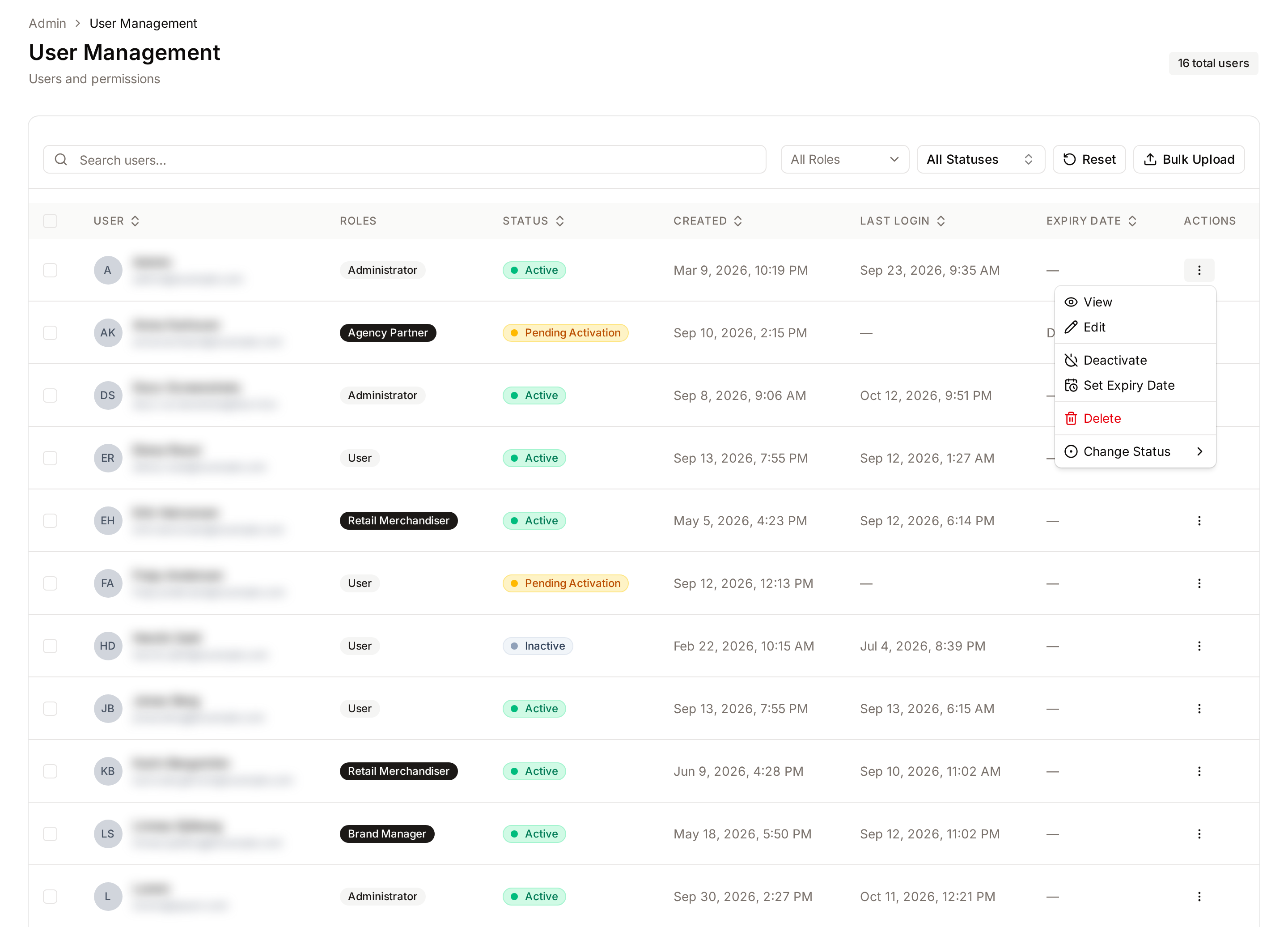
- Top bar: Displays the "User Management" title, a summary of total users, and breadcrumb navigation for system context.
- Main area: Contains the search bar, filter controls (Role and Status), and the primary user table.
- User Table: A list showing user avatars, names, emails, assigned roles, current status, and key dates (Created, Last Login, Expiry Date). The Status, Created and Last Login columns can be sorted. The table shows 20 users per page.
- Dialogs: Contextual pop-ups appear for viewing user details, editing profiles, confirming deletions, and managing CSV uploads.
Main Features
User Directory & Search
- What it's for: Quickly locating specific users within large organizations.
- Typical use: Type a name or email into the search field to find a specific account.
- Result: The table updates as you type to show only matching users.
Role Assignment
- What it's for: Defining what a user can see and do in the DAM.
- Typical use: Selecting a role (e.g., Administrator, User) from the dropdown within a user's profile.
- Result: The user gets the permissions of the selected role, including those the role inherits from its parent role. See Role Management.
- Who can do it: Changing a user's role needs the Assign roles to users permission in addition to Manage users. You cannot change your own role.
Account Status Management
- What it's for: Controlling whether an account is currently active or restricted.
- Typical use: Using Change Status in a user's Actions menu to choose one of the five statuses: Active, Inactive, Pending Activation, Rejected or Deleted. The same menu offers Activate or Deactivate, whichever applies to the user's current status.
- Result: The user's ability to log in or perform actions is updated, and a colored status badge appears in the table.
Bulk CSV Upload
- What it's for: Onboarding large groups of users simultaneously.
- Typical use: Uploading a formatted CSV file containing names and emails to create multiple accounts at once.
- Result: New accounts are created, roles are assigned, and welcome emails are sent automatically.
Detailed Feature Documentation
User Search and Filtering
- Purpose: To narrow down the user list based on specific criteria.
- Where to find it: At the top of the main card area.
- What you'll see: A search input field and dropdown menus for All Roles and All Statuses.
How to use it:
- Type a name or email into the Search users… field.
- Click the Role filter (dropdown) to show only users with a specific role.
- Click the Status filter (button) to select one or more account states (e.g., Active, Pending Activation). Clear inside the list removes the status selection.
- Click Reset to clear all active filters and show the full list.

Bulk User Upload
- Purpose: To create many user accounts at once using a spreadsheet.
- Where to find it: Click the Bulk Upload button in the top right of the main area.
- What you'll see: The Bulk Upload Users dialog with role selection, a file upload area, and a button to download a template.
How to use it:
- Click Download Template to download the required CSV format.
- Fill out the CSV with "name" and "email" columns.
- In the dialog, select a role from the Assign Role dropdown. Without the Assign roles to users permission, the dropdown is locked on the default role.
- Click CSV File to select your prepared file.
- Click Upload CSV. The dialog then shows the number of Users Created and Errors, with the line number and reason of each error.

Account Expiry
- Purpose: To automatically deactivate an account on a specific future date.
- Where to find it: In the user table, click the Actions (three dots) menu for a user and select Set Expiry Date.
- What you'll see: A dialog with a date field. If the user already has an expiry date, the field is prefilled with it and the current expiry is shown below.
How to use it:
- Select a date in the Expiry Date field. The earliest date you can pick is tomorrow.
- Click Save.
- To remove an existing expiry, open the dialog and click Remove Expiry, or clear the field and click Save.
Row Actions
- Purpose: To act on a single user.
- Where to find it: The Actions (three dots) menu at the end of each row.
- What you'll see: View, Edit, Activate or Deactivate, Set Expiry Date, Delete and Change Status. Deactivate and Delete are not offered on your own row.
View opens the User details dialog with the name, email address and its Verified or Unverified badge, assigned role, status, user ID and dates. Edit opens the Edit user dialog, where you can change the Full Name, Email Address, Assigned Role and Status, then click Save Changes.
Complete Workflows
Workflow: Deactivating a User and Transferring Assets
- Goal: Safely remove a user's access while ensuring their uploaded assets remain available under a new owner.
- Prerequisites: You must have the Manage users permission and know who the new asset owner should be.
Steps:
- Locate the user in the table and click the Actions (three dots) menu.
- Select Delete.
- If the user owns assets, the Delete User dialog states how many assets the user owns and asks for a new owner.
- In the Transfer assets to search field, type the name of the person who will take over the assets.
- Select the new owner from the results list.
- Click Delete.
- Expected result: The user is removed from the system, and all their assets are reassigned to the selected person.
- If it doesn't work: Ensure you have selected a valid new owner; the Delete button remains disabled until a new owner is chosen for users with assets.
Workflow: Changing Status for Multiple Users
- Goal: Update the status of several users at once (e.g., deactivating a group of seasonal workers).
- Prerequisites: Users must be visible in the current table view.
Steps:
- Click the Checkbox next to each user you wish to update.
- Click the {count} selected button that appears next to the filters.
- Select Change Status.
- Choose the new status (e.g., Inactive) from the sub-menu.
- Click Confirm in the confirmation dialog.
- Expected result: All selected users will show the new status badge in the table.
Workflow: Deleting Several Users
- Goal: Remove several accounts in one action.
- Prerequisites: Users must be visible in the current table view.
Steps:
- Click the Checkbox next to each user you wish to delete.
- Click the {count} selected button, then Delete Selected.
- Optionally choose a new owner in Transfer assets to (optional).
- Click Delete Users.
- Expected result: The selected users are deleted. Users who own assets are skipped unless you chose a new owner. Your own account, and users with other dependent records (for example rights policies, rules or API request history), are always skipped. A message lists the skipped users with the reason.
Who can use it
This page is reserved for people with the Manage users permission. It covers editing, deactivating, deleting and importing user accounts. Standard members see their own profile only.
Roles have their own permission:
| Action | Permission needed |
|---|---|
| Edit, deactivate or delete users | Manage users |
| Change the role of an existing user | Manage users and Assign roles to users |
| Import users with the default role | Manage users |
| Import users with any other role | Manage users and Assign roles to users |
The default role is the Default Role set in Access Settings. Nobody can change their own role, whatever their permissions.
People who hold Manage users also see every active collection, private attachments and all upload batches. What each role can do is set on the Role Management page.
Limits and guardrails
- Administrator seat cap: Your subscription plan sets the maximum number of administrators. A person counts as an administrator as soon as their role allows at least one administration permission, whatever the role is called. Role Management lists these permissions. If you try to promote someone past the cap, the change is blocked and an Admin Limit Reached dialog shows the limit along with a Request Upgrade button. The button shows a message asking you to contact your administrator about upgrading the plan. The cap is enforced when you edit a user, during bulk CSV upload, and when reassigning roles.
- Self-protection: You cannot delete, deactivate, or remove the administrator role from your own account. The system checks this silently and returns a clear message if you try, so you can never lock yourself (or the last admin) out of the admin console.
- Asset hand-off is mandatory: If the user you are removing still owns uploaded assets, deletion is refused until you pick a new owner. This protects your library from orphaned files.
- Status changes are logged: Every update - role swap, status change, expiry date - is attributed to the admin who performed it, so you always know who made the change.
What happens behind the scenes
- Welcome email flow: New accounts (single or bulk) are created with a random password and an automatically generated secure password-reset link. The user receives a branded welcome email with that link and sets their own password on first visit. The email also serves as email verification, so no separate "verify your email" step is needed.
- Bulk CSV upload - row-by-row rollback: Each row in your CSV is processed in its own transaction. If a row's welcome email fails to send (for example because your mail server is temporarily down), that single user is rolled back so you don't end up with accounts that never got their invitation. Good rows continue to be imported, and the result screen lists exactly which lines succeeded and which failed, with the reason. Duplicate emails within the same CSV are flagged without creating partial users.
- CSV validation: Uploads require a header row with a
nameand anemailcolumn. Header capitalisation does not matter, and comma, semicolon or tab separators are detected automatically. Names must be at most 255 characters, emails must be valid and unique against existing users, and empty rows are skipped automatically. - Email changes re-verify: If you change a user's email address, their verified status is cleared and they will need to verify the new address before some features work again.
Tips and Best Practices
- Use the Template: Always use the provided CSV template for bulk uploads to avoid formatting errors.
- Monitor Expiry: Users with an expiry date within the next 7 days will show a yellow warning badge in the table.
- Self-Protection: The system prevents you from deleting or deactivating your own account to ensure you aren't locked out of the admin panel.
- Verification Status: Check the user view dialog to see if a user has verified their email (indicated by a Verified or Unverified badge).
Troubleshooting
Issue: Cannot assign the Administrator role
- Symptoms: An Admin Limit Reached dialog appears when you save, or the bulk upload dialog shows an "Admin limit reached" warning.
- Cause: Your current subscription plan has a cap on the number of administrators, and the role you chose allows at least one administration permission.
- Fix: Either change an existing administrator to a different role to free up a seat, or ask the workspace owner to upgrade the plan from Plan & Usage.
- Prevention: Regularly audit your administrator list to ensure only necessary personnel have high-level access.
Issue: CSV Upload fails with errors
- Symptoms: The upload dialog shows a list of errors with line numbers.
- Cause: Missing headers, invalid email formats, or duplicate email addresses in the CSV file.
- Fix: Review the "Errors" section in the upload results, correct the specific lines in your CSV, and use the Upload Another button to retry.
- Prevention: Ensure the CSV has a header row with
nameandemailcolumns.