
Vocabularies
Vocabularies allow administrators to define controlled lists of terms that users select when tagging assets. By using vocabularies instead of free-text fields, you ensure data consistency across your entire digital asset library, making search and filtering more reliable.
This feature is designed for administrators to build everything from simple flat lists (like "Colors" or "Status") to complex hierarchical taxonomies (like "Product Categories" or "Organizational Structures"). It includes built-in support for multi-language translations and automated term generation.

Page Overview
- Purpose: To centralize the management of all metadata selection lists.
- When to use it: Use this page when you need to create a new set of tags, update existing category names, or translate metadata terms for international teams.
- What you can do here:
- Create flat or hierarchical (tree) vocabulary structures.
- Add, edit, and reorder terms within a vocabulary.
- Merge a term into another term, moving every reference to it.
- Auto-translate terms into multiple languages using integrated services.
- Protect critical vocabularies from accidental deletion.
- Convert flat lists into hierarchical structures as your data needs grow.
Page Layout
- Top bar: Contains the page title, a description of the feature, and the Add Vocabulary button.
- Main area: Displays a searchable table of all existing vocabularies, showing their name, unique code, structure type (Flat or Hierarchical), and current translation completion status.
- Search and Filter: A dedicated card above the table allows you to filter the list by vocabulary name or code.
- Dialogs: Contextual windows for creating vocabularies, editing terms, and confirming sensitive actions like deleting protected items.
Main Features
Vocabulary Structures
- What it's for: Defines how terms are organized.
- Typical use: Choose Flat List for simple, independent values. Choose Hierarchical Tree for categories that require parent-child relationships (e.g., "Electronics" > "Computers" > "Laptops").
- Result: Determines whether you can nest terms inside one another when managing the vocabulary.
Auto-Translation
- What it's for: Automatically filling in missing translations for terms.
- Typical use: When adding a new term in your primary language, use the Auto-translate action to instantly generate labels for all other active languages in the system.
- Result: Populates the translation fields, reducing manual data entry for global teams.
Smart Delete
- What it's for: Safely removing terms that are already assigned to assets.
- Typical use: When a category is no longer needed, you can choose to merge it into a different term or remove the value from the assets that use it.
- Result: Prevents broken metadata links and ensures assets remain correctly categorized after a term is removed.
Merging Terms
- What it's for: Combining two terms that mean the same thing (for example a duplicate or a misspelled entry) into one.
- Typical use: Open the actions menu of the term you want to remove and select Merge into…, then choose the term to keep.
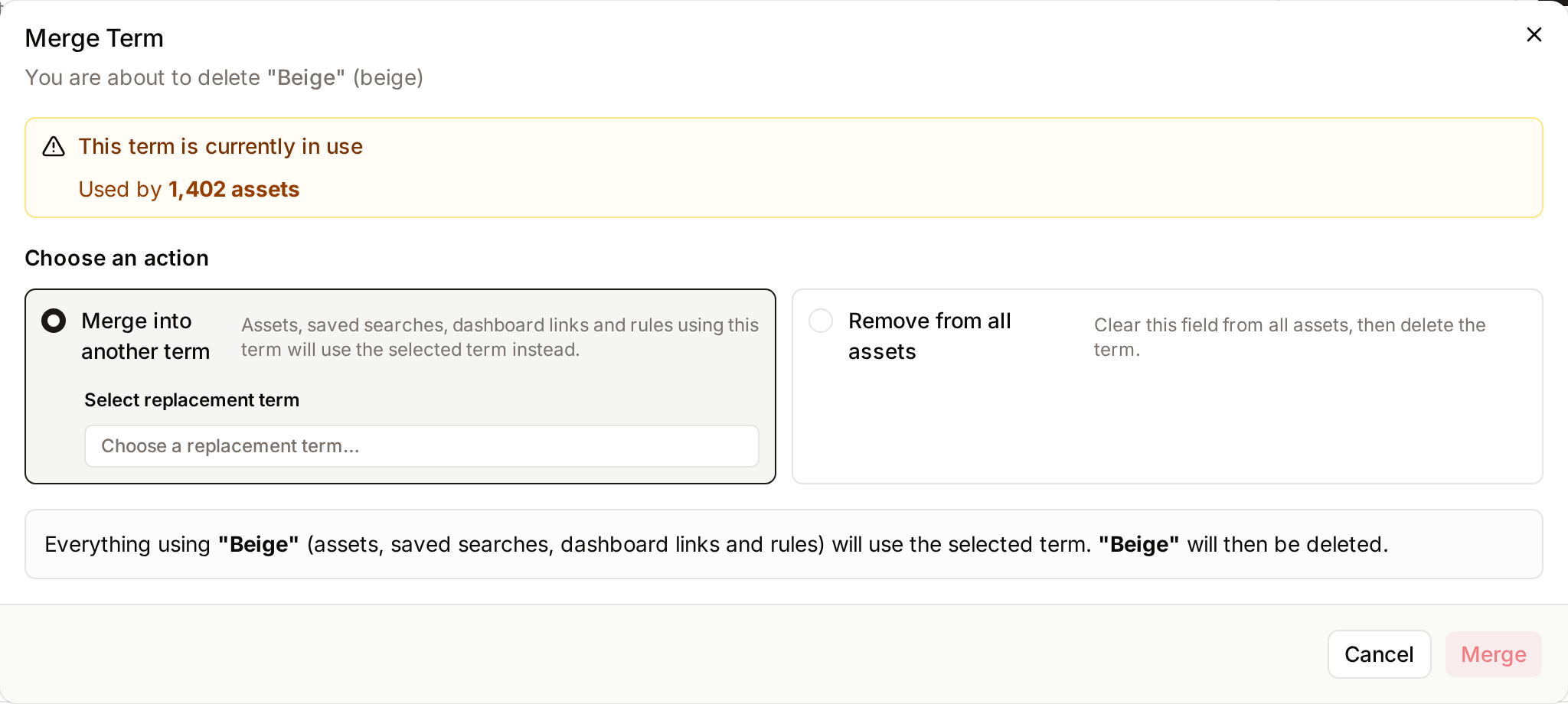
- Result: Assets, saved searches, dashboard links and rules that used the merged term use the selected term instead. The merged term is then deleted, together with its child terms.
Detailed Feature Documentation
Creating a Vocabulary
- Purpose: To establish a new container for metadata terms.
- Where to find it: In the top bar, click the Add Vocabulary button.
- What you'll see: A dialog appears asking for a name, code, and structure type.
How to use it:
- Enter a Name (e.g., "Department").
- The Code will auto-generate based on the name; you can manually edit this if a specific system ID is required.
- Provide an optional Description to help other admins understand the vocabulary's purpose.
- Select the Vocabulary Structure: Flat List or Hierarchical Tree.
- Click Create Vocabulary.

Managing Terms
- Purpose: To add the actual selectable values to a vocabulary.
- Where to find it: Click the Name of any vocabulary in the main table, or select View Terms from the actions menu.
- What you'll see: A dedicated management page for that vocabulary's terms, including search, sorting, density and language controls. The header shows the number of terms and whether the vocabulary is flat or hierarchical.
How to use it:
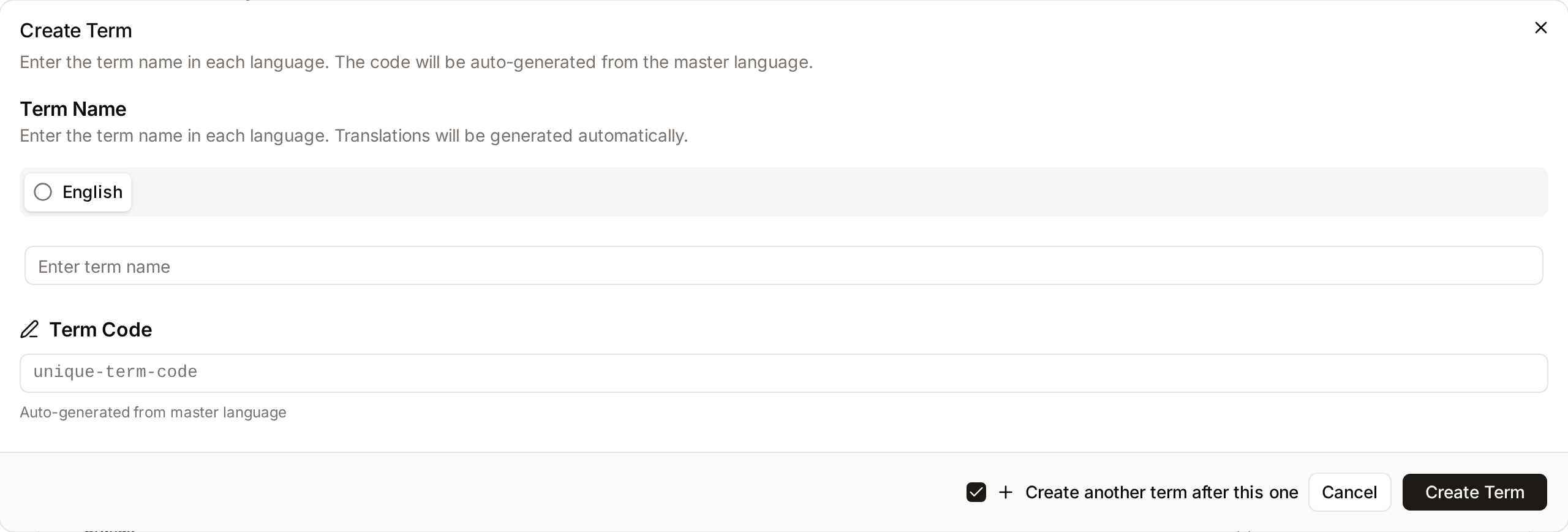
- Click Add Term to create a top-level value.
- In the Term Name section, enter the label in your default language.
- Missing translations for the other active languages are generated automatically when a translation service is configured. You can also type them yourself.
- Review the Term Code (auto-generated) and click Create Term.
- For hierarchical vocabularies, open the actions menu (vertical dots) of an existing term and select Add Child Term to add a term beneath it.
Each term's actions menu contains Edit, Merge into… and Delete. Hierarchical vocabularies also list Add Child Term.

Sorting and Display
- Purpose: To control how terms appear to end-users in the asset metadata panel.
- Where to find it: On the Vocabulary terms page, look for the sort dropdown and the Settings (gear icon).
- What you'll see: Options to change the sort order (Custom Order, Name A-Z, Newest First, Recently Updated), the view density (Compact, Normal, Large) and, when more than one language is active, the language the term names are shown in.
How to use it:
- Select Custom Order from the sort dropdown to enable manual reordering.
- Click and hold the Grip icon (vertical dots) next to a term and drag it to the desired position.
- To set the order in which terms appear wherever the vocabulary is used, click the Settings (gear icon) and set Default Sort Order to Custom Order or Name A-Z.
Complete Workflows
Workflow: Converting a Flat List to a Hierarchy
- Goal: Add nesting capabilities to a vocabulary that was originally created as a flat list.
- Prerequisites: The vocabulary must currently be a "Flat List" structure.
Steps:
- Find the vocabulary in the main list and click its Name.
- Click the Edit Vocabulary button in the top bar.
- Look for the Convert to Hierarchical button in the Vocabulary Structure section.
- Click Convert to Hierarchical.
- Confirm with Convert to Hierarchical in the warning dialog (Note: This cannot be undone).
- Expected result: The vocabulary structure changes to "Hierarchical," and you can now add child terms or nest existing terms.
Workflow: Replacing a Retired Term
- Goal: Delete a term without losing metadata on assets currently using it.
- Prerequisites: The term must be assigned to at least one asset.
Steps:
- Open the vocabulary and find the term you wish to remove.
- Select Delete from the term's actions menu.
- In the Delete Term dialog, notice the warning about asset usage.
- Select the option Merge into another term.
- Click Choose a replacement term… and select the new term from the list.
- Click Confirm Delete.
- Expected result: The old term is deleted, and the assets, saved searches, dashboard links and rules that used it now use the new term.
Workflow: Merging Two Terms
- Goal: Combine a duplicate term into the term you want to keep.
Steps:
- Open the vocabulary and find the term you wish to remove.
- Select Merge into… from the term's actions menu.
- In the Merge Term dialog, click Choose a replacement term… and select the term to keep.
- Read the summary. If the merged term has child terms, the summary states that they are deleted too and that everything using them moves to the selected term.
- Click Merge.
- Expected result: Everything that used the merged term (assets, saved searches, dashboard links and rules) uses the selected term, and the merged term and its child terms are deleted.
Who can use it
The Vocabularies page is restricted to people with the Manage vocabularies permission. Everyday users who can only view assets do not see this page, though the terms they produce appear throughout the metadata on assets and collections.
Limits and guardrails
- Deletion is blocked when in use: A vocabulary cannot be deleted as long as at least one metadata field still references it. Remove the references first, then retry.
- Terms with assets cannot be hard-deleted: Simple deletion of a term is refused whenever that term (or any of its descendants) is attached to one or more assets. In that case you must use the "Smart Delete" flow, which offers two safe choices: Merge into another term (which moves every asset, saved search, dashboard link and rule to the replacement) or Remove from all assets (which clears the field on those assets, then deletes the term). Both actions are applied inside a transaction so either all assets update or none do.
- Hierarchy safeguards: A term cannot be made its own parent, and the system detects and blocks any change that would create a circular chain.
- Large vocabularies are paginated: On vocabularies with more than 100 terms, the admin page loads terms in pages rather than all at once. You can request up to 200 terms per page. Tree vocabularies of that size load only the top-level branches first and fetch children on demand as you expand them.
- System rights vocabularies: Five built-in vocabularies - rights actions, territories, channels, prohibitions, and duties - power the Rights module. They remain editable, but edits to them refresh a system-wide cache automatically so that changes flow through rights evaluation.
- Merging deletes child terms: Merging a term that has child terms deletes the child terms too. Everything that used them moves to the selected term. A term cannot be merged into itself or into one of its own descendants.
- Flat-to-hierarchical conversion is one-way: Converting a flat list to a hierarchical tree cannot be undone. The confirmation dialog warns about this before the change.
What happens behind the scenes
- Auto-translation: When enabled, Freedam can auto-translate vocabulary terms into the workspace's other active languages. Translations for missing languages are generated automatically the first time you use the Auto-translate action, reducing manual data entry for global teams. If the translation service is unavailable or hits its quota, a clear message asks you to enter the labels manually. Languages automatic translation does not support are skipped, and the remaining languages are still translated.
- Freshness of term search: Term lookups and tree slices used by pickers elsewhere in the app are cached for up to five minutes for performance. Any edit, deletion, or reorder you make invalidates that cache immediately so users see your change on their next interaction.
- Code stability: Names and descriptions are free to change at any time, but the Code acts as the permanent identifier used by integrations. Once a code has been saved, editing the term name no longer regenerates it - you must update the code manually if you need it to change.
- Smart delete tracks asset counts: The Smart Delete dialog shows how many assets use the term and how many child terms it has, so you can confirm with full context. The resulting notification reports how many assets were updated and whether the term was replaced or cleared.
Tips and Best Practices
- Unique Codes: While names can be translated, Codes should remain constant. Use simple, hyphenated strings (e.g.,
marketing-assets) for codes to ensure compatibility with API integrations. - Protection: Use the Protect option in the actions menu for vocabularies that are critical to system workflows. A protected vocabulary shows a lock icon next to its name, and Edit and Delete in its actions menu ask for an extra confirmation first.
- Density Settings: If you have a vocabulary with hundreds of terms, use the Compact density setting to see more data on the screen at once.
- Auto-Generation: When creating many terms, check the Create another term after this one box in the term dialog to keep the window open for rapid entry.
Troubleshooting
Issue: Cannot delete a vocabulary
- Symptoms: The delete action asks for an extra confirmation, or it is refused with an error message.
- Cause: The vocabulary is marked as "Protected" to prevent accidental data loss, or at least one metadata field still uses it.
- Fix:
- For a protected vocabulary, click Proceed with Delete in the Protected Vocabulary dialog, or select Unprotect from the actions menu first.
- If the deletion is refused, open Metadata Definitions, point the fields that use this vocabulary to another vocabulary or delete them, then retry.
- Prevention: Only unprotect vocabularies that you are certain are no longer in use by any metadata definitions.
Issue: Term code is not updating
- Symptoms: Changing the Term Name does not change the Code.
- Cause: Once a code is manually edited or saved, the auto-generation link is broken to prevent accidental URL or API breaks.
- Fix: Manually type the new code into the Term Code field in the Edit Term dialog.
Issue: Translation service failed
- Symptoms: An error message appears saying "Translation service is temporarily unavailable. Please try again later or enter translations manually."
- Cause: The system cannot reach the external translation provider (e.g., DeepL) or the API limit has been reached.
- Fix:
- Enter translations manually in the provided language fields.
- Contact your system administrator to check the API configuration in the global settings.