
Asset Detail
The Asset Detail page is the central hub for managing a single digital asset within Freedam. It provides a comprehensive view of an asset's content, technical specifications, and associated metadata, allowing users to perform high-level actions such as versioning, rights assignment, and performance tracking.
This feature is designed for creative teams, marketing managers, and administrators who need to ensure asset accuracy, track engagement, or prepare assets for distribution across various channels.

Page Overview
- Purpose: To provide a deep-dive view and management interface for a specific digital asset.
- When to use it: Use this page when you need to update metadata, download specific resolutions, see what the asset is linked to, or upload a new version of a file.
- What you can do here:
- Preview images, videos, audio, PDF and office documents.
- Edit descriptive metadata and custom fields.
- See the asset's workflow status, rights, collections, linked assets and renderings.
- Select related assets and act on them with the Gallery's bulk actions.
- Manage version history and restore previous file versions.
- View engagement analytics and search trends.
- Export crops for social media and apply brand templates.
Page Layout
- Top bar: Back, the editable asset title with its GAID and a copy button underneath, Previous and Next asset buttons, then the asset's actions. See The top bar.
- Left column: this asset. The preview with a toolbar under it, then seven tabs: Details, Rights, People, AI, Attachments, Technical and History.
- Right column: what is related to this asset. The status card, Collections, Linked assets, Renderings, Visually similar and, for images, Near-duplicates. The column is shown on every asset.
- Selection bar: when you select assets on the page, the Gallery's selection bar appears at the bottom.
On a screen narrower than 1024 pixels, the two columns are stacked: this asset first, then the related column. See On smaller screens.
Main Features
The top bar
- Back returns to the Gallery, collection or upload you came from. After you open a linked asset from the right-hand column, Back returns to the asset you came from.
- Title: click the title to rename the asset without entering edit mode.
- GAID: the unique asset ID, under the title. Click the copy icon next to it to copy it.
- Previous and Next move to the previous or next asset of the list you came from. When you opened the asset from the Gallery, they continue past the page of results that was loaded, in the Gallery's sort order, up to the first and the last asset of your search. When the Gallery was showing the files of one upload, they stay inside that upload. A button is greyed out when there is no asset in that direction.
The asset's actions follow, from left to right:
| Action | What it does |
|---|---|
| Comments (speech-bubble icon) | Opens the comments panel. See Comments. |
| Bookmark (bookmark icon) | Adds the asset to your bookmarks, or removes it. The icon is filled while the asset is bookmarked. |
| Studio | Opens the asset in Studio, when Studio is available to you. |
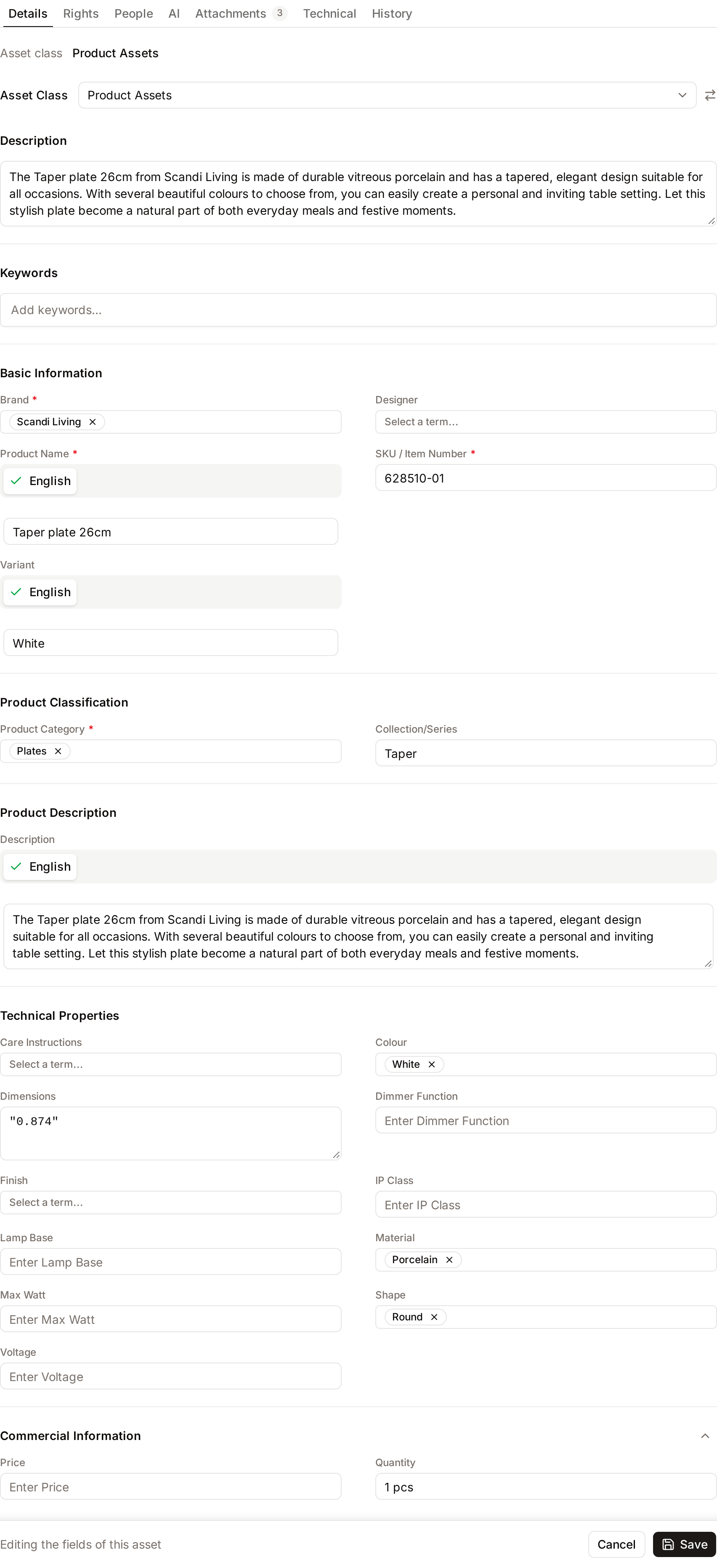
| Edit | Makes the fields of the Details tab editable. See Editing metadata. |
| Download | Opens the Download dialog. When downloads of the asset need a request, Request Access is shown instead. |
| More | Opens a menu with the less frequent actions. See below. |
The workflow status is not in the top bar: it is in the status card at the top of the right-hand column.
The More menu
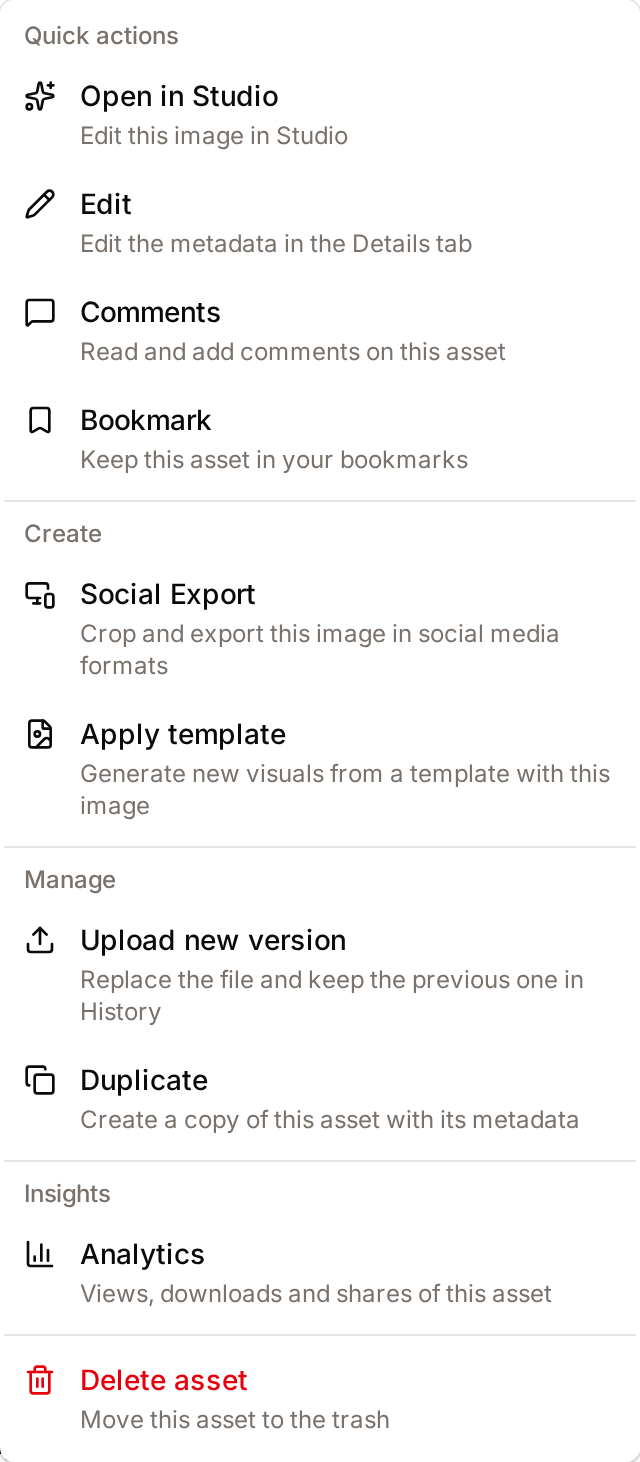
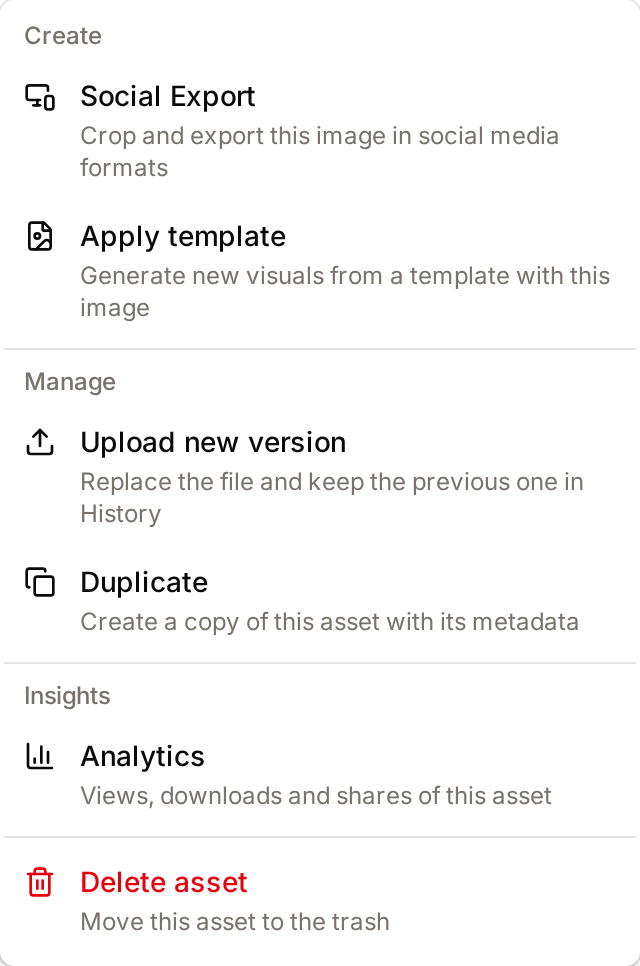
More groups its items by purpose. Each item shows a one-line description under its name.
| Group | Items |
|---|---|
| Create | Social Export: crop and export the image in social media formats. Apply template: generate new visuals from a template with the image. |
| Manage | Upload new version: replace the file and keep the previous one in History. Duplicate: create a copy of the asset with its metadata. |
| Insights | Analytics: views, downloads and shares of the asset. |
| Delete asset, shown in red: move the asset to the trash. |
You only see the actions and items you are allowed to use. Your administrator sets them in your role:
| Action | Permission needed |
|---|---|
| Studio | Use Studio. The access rule that applies to you must also allow AI editing of the asset. |
| Edit, the E shortcut and the Asset class selector | Edit asset metadata |
| Download | Download assets. Access rules decide the sizes, the watermark and whether a request is needed. |
| Social Export | Add and edit attachments and Edit asset metadata |
| Apply template | Manage and use templates |
| Upload new version | Replace asset files |
| Duplicate | Upload assets |
| Delete asset | Delete assets. Edit rights are not needed. |
| Embed, for videos | Share publicly |
| The Attachments tab | View attachments |
On a narrow screen, More also holds the top-bar actions that no longer fit, in a first group named Quick actions. See On smaller screens.
On smaller screens
The page adapts to the width of the window, down to a phone:
- Top bar: below 1024 pixels, the title and the GAID move to their own row, under the buttons. Below 768 pixels, Studio and Edit move into the More menu. Below 640 pixels, Comments and Bookmark move there too. They are listed first in the menu, under Quick actions. Download always stays in the top bar.
- Columns: below 1024 pixels, the related column comes after the tabs instead of beside them.
- Tabs: when the tab bar is too narrow for every tab, Technical and History move into a More tab at the end of the bar. On a phone, Attachments moves there too. When one of these tabs is open, the More tab shows its name.
- Preview: on a phone, the preview is shorter, so the tabs start sooner.
- Swipe: on a touch screen, swipe left for the next asset and right for the previous one. Swiping is off while you edit.
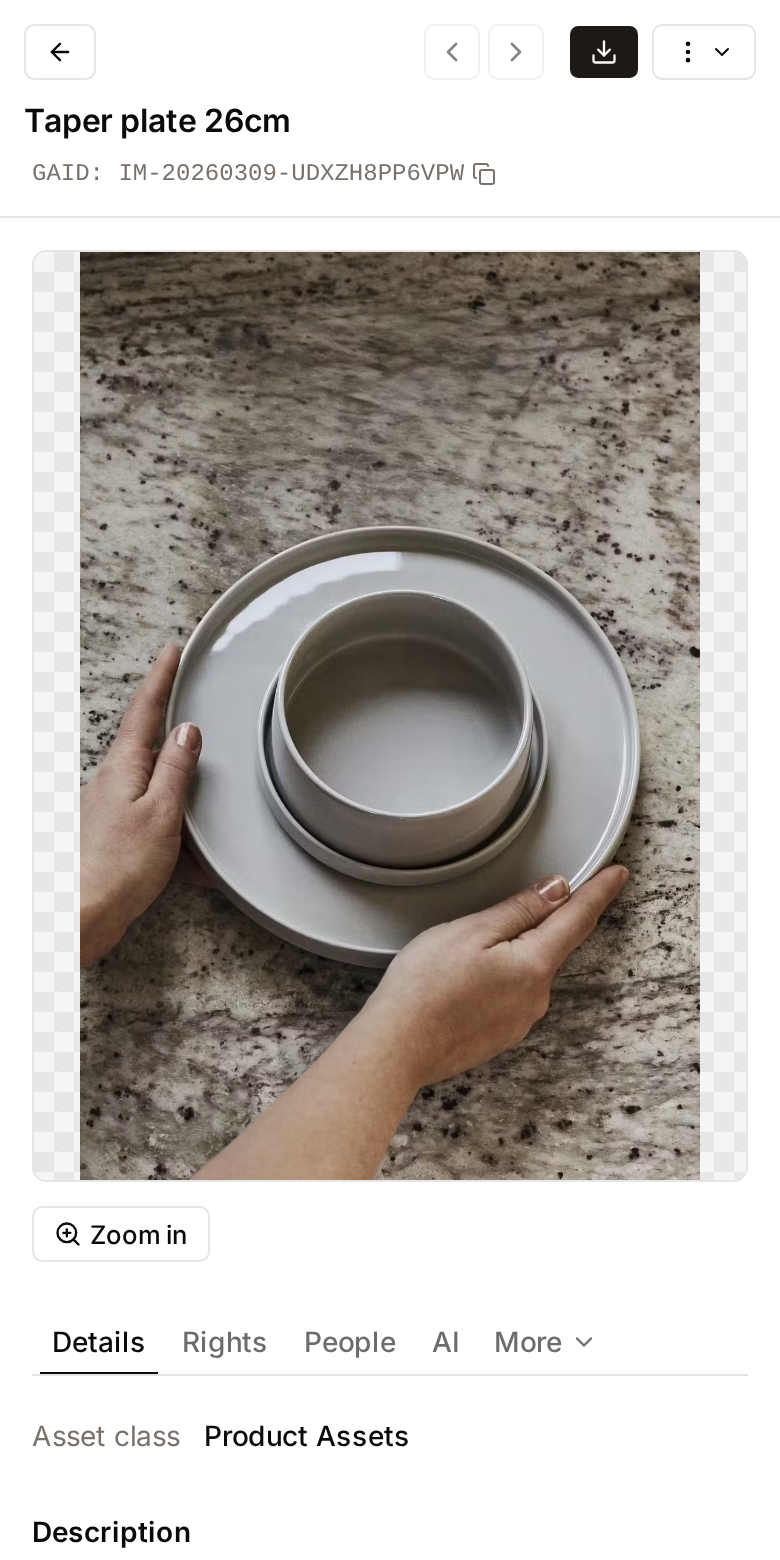
Asset Preview and Zoom
- What it's for: Inspecting the asset: images, videos, audio, PDF files and office documents are shown in the left column.
- Typical use: Click Zoom in in the toolbar under an image, click the image itself, or press Ctrl/Cmd + Z to open the high-resolution viewer.
- Result: A full-screen viewer opens where you can pan across the image or select specific areas to inspect.
The toolbar under the preview depends on the file:
- Zoom in for images.
- Embed for videos, when your role includes Share publicly. See Video Posters and Subtitles.
- Edit thumbnail for videos, when you can edit the asset.
- Manage subtitles for videos, or View subtitles when you cannot edit the asset. The number of subtitle tracks follows the label, for example Manage subtitles (2).
The tabs
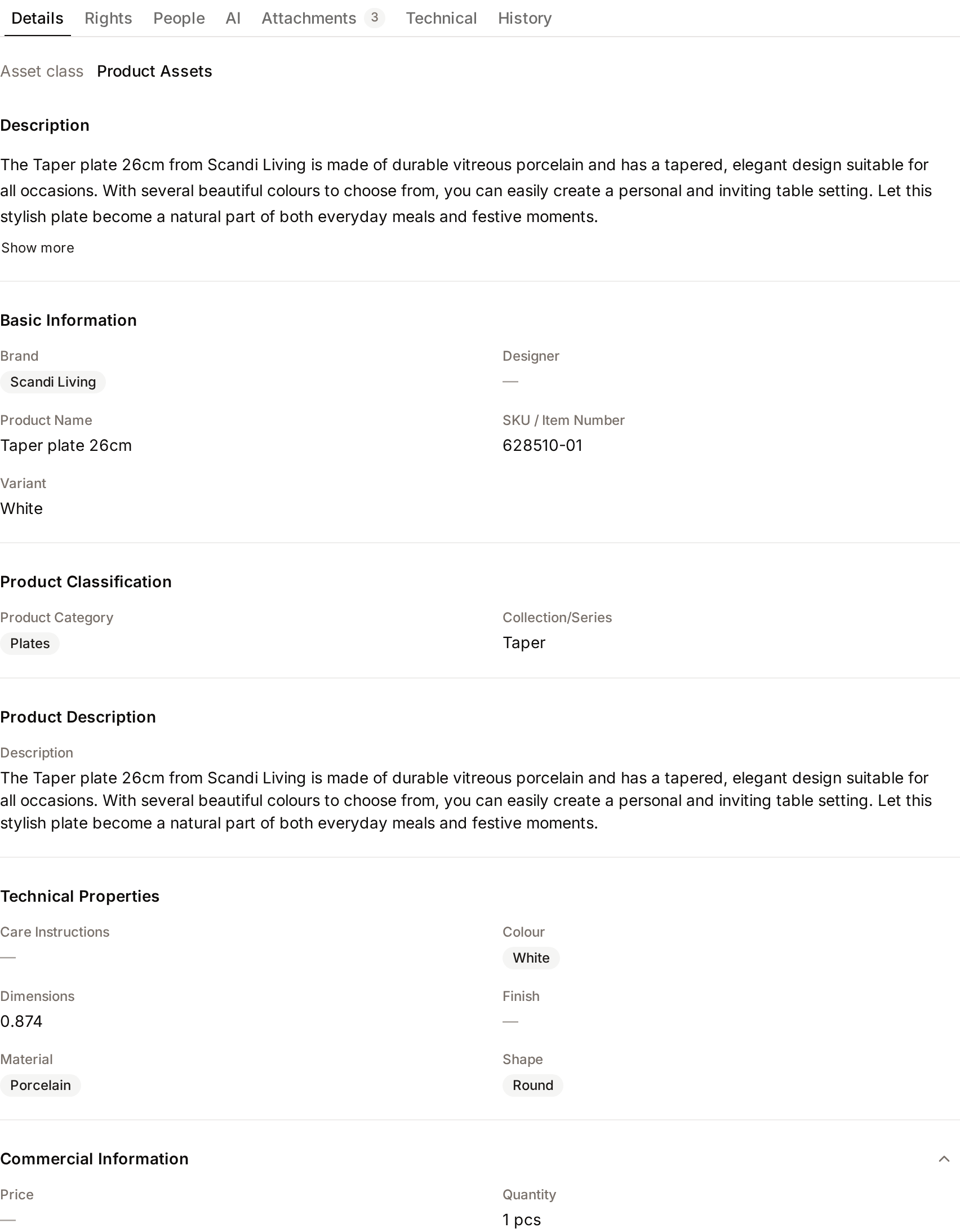
Seven tabs sit under the preview. They are shown on every asset, except Attachments, which needs the View attachments permission. When a tab has nothing to show, it explains why. People and Attachments show a count next to their name when the asset has detected faces or attached files.
| Tab | What it contains |
|---|---|
| Details | The Asset class, and a Language selector for the metadata when your workspace has several languages. Then Description and Keywords, the metadata sections exactly as your administrator laid them out in Form Studio (sections, order, columns and collapsible sections). When the description is empty and the asset has an AI caption, Use AI caption copies the caption into the description. When required fields are empty, an Incomplete metadata notice lists them. |
| Rights | The asset's usage policy: its name, the date until which the asset can be used (with a dot: green while the policy is in force, amber when it ends soon, red once it has ended), the channels it allows and its duties, with Manage at the top right. |
| People | The faces detected in the image, which you can name. Without faces, it says "No people detected in this asset". When face detection is not part of your plan, it shows an upgrade notice. See Faces and People. |
| AI | Three sections: Caption, Tags, and Text in image (the text read from the image, with Copy). Until the asset has been analysed, it says so. |
| Attachments | The files attached to the asset, and the upload form. See Attachments. |
| Technical | File (format, size, dimensions, aspect ratio, original filename), Colors (a color wheel of the image's palette: click a color in the wheel or in the list next to it, then Copy its hex value or Find similar colors in the Gallery), camera data, EXIF and IPTC data (creator, copyright, capture date, location, GPS), and Content Credentials (C2PA) when your plan includes them. |
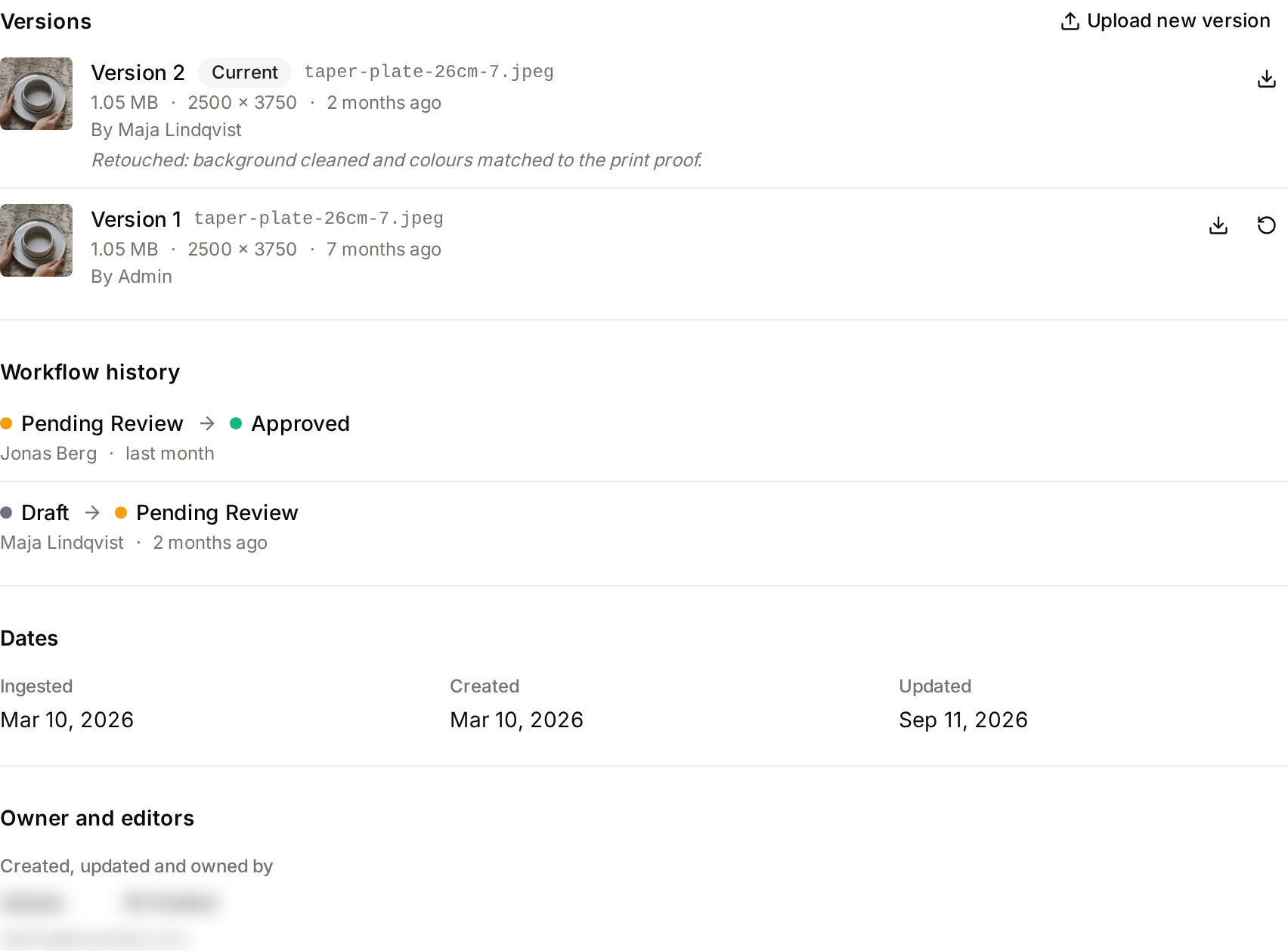
| History | Versions, with download, restore and Upload new version; Workflow history, the list of the asset's status changes (see below); the asset's Dates; and Owner and editors (owner, uploader and editors, with Contact for the owner). |
Editing metadata
- What it's for: Organizing assets with searchable information.
- Typical use: Click Edit in the top bar, or press E. The Details tab opens and its fields become inputs in place.
- Result: A Save bar appears at the bottom of the window, with Cancel and Save. It stays there while you scroll through the fields. Click Save, or press Ctrl/Cmd + S, to save your changes. Click Cancel to discard them. Saving and cancelling happen only in this bar. While you edit, the selection bar is hidden so it does not cover the Save bar; your selection is kept and the bar comes back when you save or cancel.
The related column
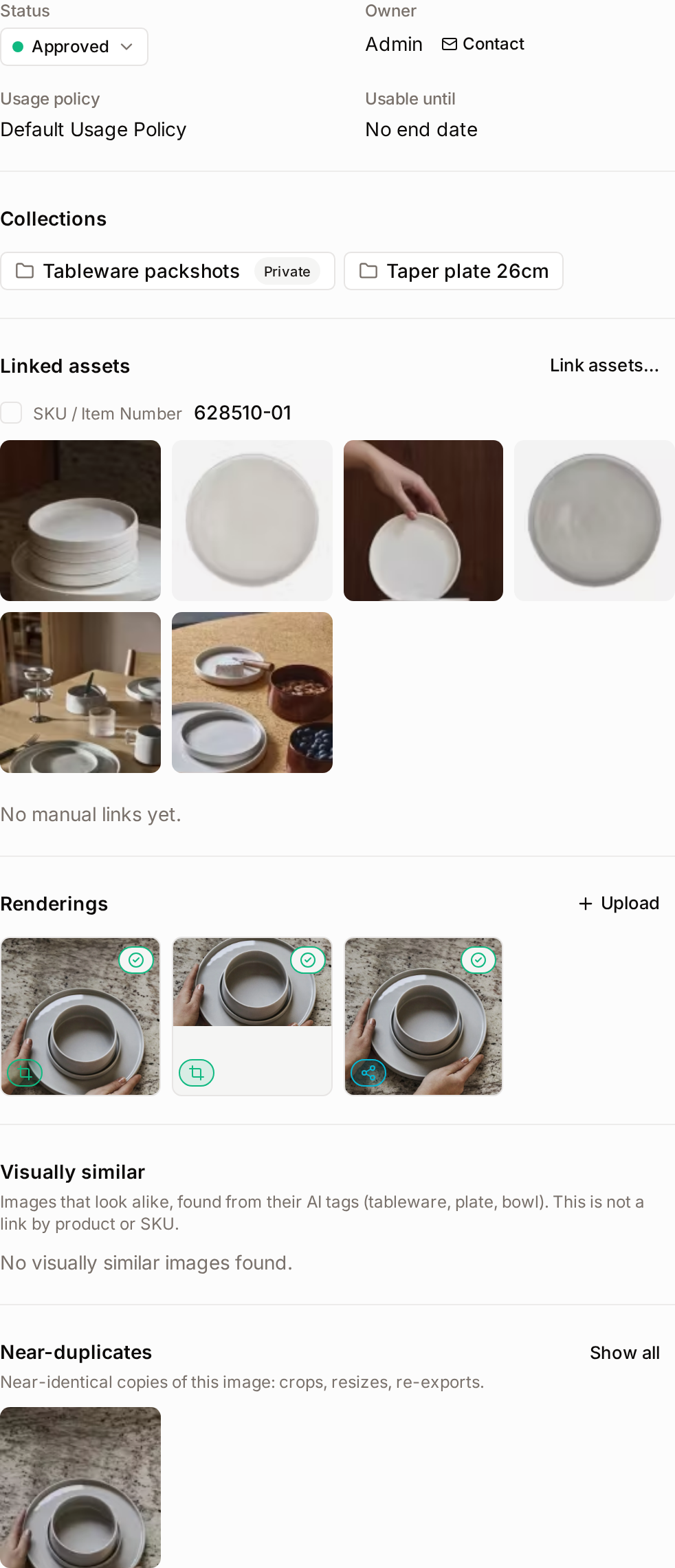
The right-hand column shows, from top to bottom:
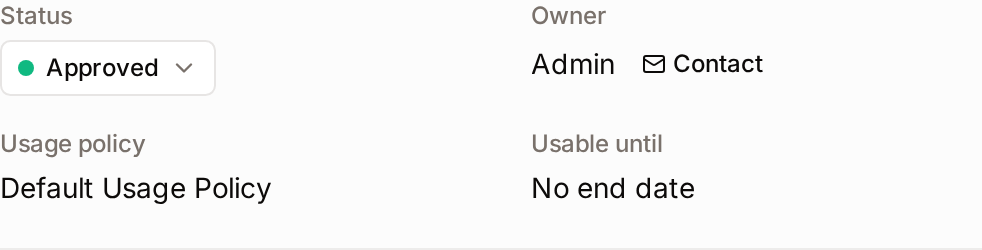
- The status card:
- Status: the workflow status. If you can change it, it is a button: click it to open the Change Status menu, which lists the statuses the asset can move to. When the workflow asks for a confirmation or a reason for the change, a dialog titled "Change status to [status]?" opens: type the Reason if the dialog asks for one, then click Change status. Otherwise it is a label. An asset whose class has no workflow shows "No workflow".
- The owner, with a Contact button. See Contacting the owner.
- Usage policy: the rights policy, or "No rights policy".
- Usable until: the end date of the policy, with a dot (green, amber when it ends soon, red once it has ended), or "No end date".
- Collections: the collections the asset belongs to. Private collections are marked.
- Linked assets: the assets linked to this one by hand, then the assets that share a linking metadata value with it, such as the same SKU. See Linked and Related Assets.
- Renderings: crops, exports and other variants of the asset, 4 per row. See Renderings.
- Visually similar: images that look alike, found from the asset's AI tags, with the first 4 matches and Show all. This is not a link by product or SKU, and it needs the asset to have AI tags.
- Near-duplicates, for images only: near-identical copies of the image, such as crops, resizes and re-exports, with the first 4 matches and Show all.
Show all opens the Gallery with the same search.
Selecting assets from the asset page
Every thumbnail in the right-hand column has a checkbox. What you tick goes into the same selection as the Gallery, and the Gallery's selection bar appears at the bottom of the asset page, with Download (with a choice of resolution), Share, Add to Collection, Edit Metadata and, under More, the other bulk actions.
- The first time you select something on an asset page, the asset you opened is added too, and a notification says "Added to your selection". If you don't want it in the selection, click the count in the selection bar and remove it from the list.
- The selection is kept while you move between searches and asset pages, and after a reload in the same browser tab, until you clear it. Signing out clears it.
- Bulk actions keep the selection when they finish, so you can download, share and create a collection from the same selection. Only Delete clears it.
- The same selection continues in the Gallery, on collection pages and on your Bookmarks page.
See How the selection is kept for the details.
Versions
- What it's for: Tracking changes to the underlying file over time.
- Typical use: Open the History tab to see every version, newest first. The live file is marked Current, and each entry shows who created it and the note they left with it. Hover an earlier version to Download this version or Restore this version. Upload a new version with Upload new version in the same tab, or with More › Upload new version.
- Result: The old file is kept in the list and the new one becomes current. Restoring asks you to confirm first, then keeps a copy of the current file in the list; the restored file gets its own entry marked "Restored from version N". Restoring and uploading versions need the Replace asset files permission. Downloading an earlier version also needs Download assets and an unrestricted download of the original: no watermark, no size limit and no download request.
Workflow history
- What it does: Lists every status change the asset went through in its workflow, newest first: the status it left and the status it entered, who made the change and when. Hover the date for the exact date and time. A reason is shown when the transition asked for one.
- When it appears: Only when the asset class of the asset has a workflow, and only for people who hold the View workflow history permission. On any other asset the History tab has no such section.
- Typical use: Open the History tab and read the Workflow history section under Versions. A long history shows the five most recent changes; click Show all, which is followed by the number of changes, for the rest. An asset that has not changed status yet shows one line with its current status and the date it entered the workflow.
See Workflows for how statuses and transitions work.
Asset Analytics
- What it's for: Measuring the performance and engagement of an asset.
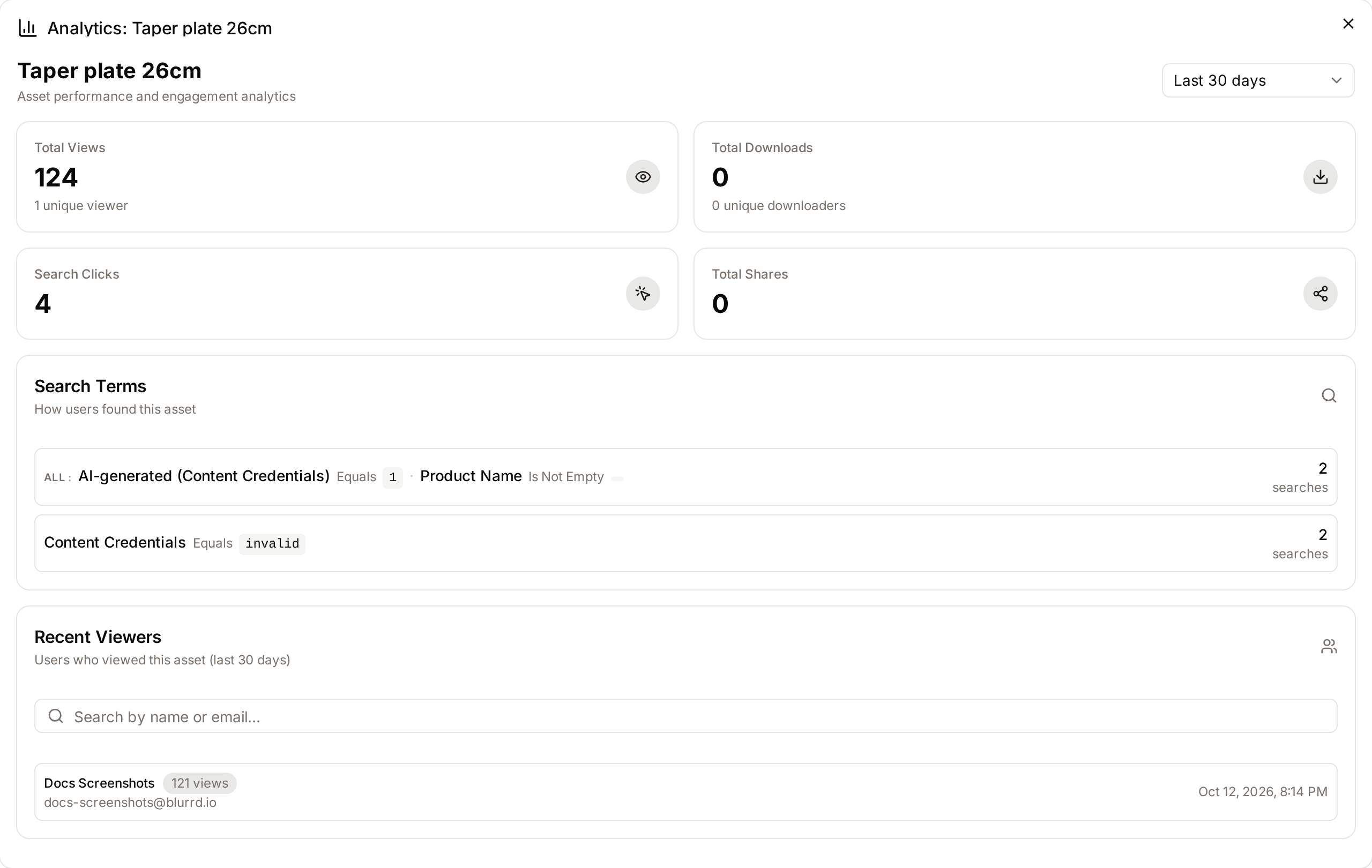
- Typical use: Click More in the top bar and choose Analytics under Insights to view total views, downloads, and the specific search terms users used to find the asset.
- Result: The Analytics dialog opens with the trend, totals, Search Terms and Performance Over Time for the last 7, 30 or 90 days or the last year. Recent Viewers and Recent Downloaders, listed by name and email address, and the search by name or email only appear for users with the View system health and analytics permission, the one that also opens the administration analytics dashboard. Everyone else sees the totals and search terms, without names.
- How the figures are calculated:
- Total Views, Total Downloads and Total Shares count the views, downloads and shares of the asset recorded in the selected period, today included. Unique viewers and unique downloaders count each signed-in user once.
- Search Clicks counts the searches made in the selected period from which a user opened this asset. Search Terms lists the 10 most frequent terms of those searches.
- Performance Over Time plots the views and downloads of each day, from the asset's first day of activity in the period to the last day calculated. Daily figures are calculated every night for the previous day (midnight to midnight, UTC), so today's activity appears on the chart tomorrow. A day without activity is plotted as zero.
- The trend compares the asset's views over the 7 days ending on its latest day of activity with its views over the 7 days before. More than 20% above is Trending Up, more than 20% below is Trending Down, and anything in between is Stable. Views after a week without any are Trending Up. No trend is shown until daily figures exist for both weeks.
Detailed Feature Documentation
Social Media Export
- Purpose: To generate crops of an image sized for social platforms.
- Where to find it: Click More in the top bar and choose Social Export under Create. You need the Add and edit attachments and Edit asset metadata permissions.
- What you'll see: The Export for Social Media dialog with formats grouped by platform, then Adjust Framing to position each crop.
Exports are saved as renderings on the asset. The full walkthrough is in Renderings.

Rights & Usage Management
- Purpose: To ensure assets are used according to legal or brand guidelines.
- Where to find it: The Rights tab. The status card in the right-hand column shows a one-line summary.
- What you'll see: The asset's usage policy, the date until which it can be used, the channels it allows and its duties, with Manage at the top right.
How to use it:
- Click Manage in the Rights tab.
- Keep Attach Policy selected to apply a policy, or choose Detach Policy to remove the current one and fall back to the default policy.
- Select a policy in Rights Policy. Its default expiration is shown under the list.
- Optionally tick Override expiration date for these assets and pick 60 days, 1 to 3 years, Perpetual, or a custom date. Freedam then creates a copy of the policy with that expiration, titled for example "Standard Commercial Use (Expires 2027-03-01)".
- Click Attach Policy.
An asset has one rights policy: attaching a policy replaces the current one. You need the Assign rights policies to assets and Edit asset metadata permissions; you do not need Manage rights policies, the list shows every active policy. To change many assets at once, select them in the Gallery and click Rights in the selection bar.
When you detach a policy from several assets, only the assets that carry it are changed, including assets that carry one of its copies with an overridden expiration. The confirmation message counts the assets that were detached and, separately, the ones that did not have the policy.

Template Generation
- Purpose: To place the asset into brand templates, such as banners and social cards.
- Where to find it: Click More in the top bar and choose Apply template under Create.
- What you'll see: The Generate from Template dialog, with templates and template sets.
Results are drafts that are deleted after 24 hours unless you save or download them. The full walkthrough is in Template Generation.
Contacting the owner
Click Contact next to the owner in the status card, or next to the owner in the History tab. Write a message of 10 to 2,000 characters and click Send Message. The owner receives it by email, with your address to reply to. You can send up to 10 messages an hour. An asset whose owner account no longer exists cannot be contacted, and you are told so.
Translating Multilingual Fields
- Purpose: To fill a field's other languages from the text in the main language.
- Where to find it: In edit mode, in the Details tab, on text and vocabulary fields marked as multilingual. Each language has its own tab, with the workspace's main language first.
- What you'll see: A translate icon in the language tabs, and a translate button inside each other language's input.
How to use it:
- Type the text in the main language tab.
- When you leave the field, Freedam translates it into the other languages automatically. You can also click the translate icon in the tabs, or press Enter in a single-line field (Cmd/Ctrl+Enter in a multi-line field), to fill only the empty languages.
- Languages that were empty are filled straight away.
- Languages that already have text are not overwritten. They turn amber with the suggested translation; click into one and choose Replace with Translation or Keep Current.
- Review the translations, then save the asset.
Translations use the AI model your administrator chose, and follow the workspace Glossary. If the service is unavailable, you can still type translations by hand.
- Freedam translates into as many workspace languages as you have configured, a few at a time.
- A language automatic translation does not support is skipped, and a message names it so you can fill it in by hand. The other languages are still translated.
- If translation is not configured, or you have sent too many requests in a short time, a message says so instead of a generic error.
Complete Workflows
Workflow: Updating an Asset Version
- Goal: Replace an outdated file with a new version while keeping all metadata intact.
- Prerequisites: You need the Replace asset files permission.
Steps:
- Click More in the top bar and choose Upload new version under Manage, or upload a new version from the History tab.
- Drag and drop your new file into the upload zone or click to browse.
- In Version note, type a brief description of what changed (e.g., "Updated logo for 2024"), up to 255 characters.
- Click Upload Version.
- Expected result: The dialog shows Processing… and closes. The new file is checked and processed in the background, so the preview updates after a short while. In the History tab the new version sits at the top, marked Current, with your name and note; the previous file appears just below it.
Workflow: Downloading an asset and the assets linked to it
- Goal: Download a product image together with the other images of the same product.
- Prerequisites: Your workspace links assets by metadata, for example by SKU.
Steps:
- In Linked assets, tick the checkbox of the band that holds the assets you want, for example the SKU band.
- The asset you opened is added to the selection too, and a notification says so.
- Click Download in the selection bar at the bottom of the page and choose the resolution.
- The selection is kept after the download. Click Share or Add to Collection in the same bar to act on the same assets again, or clear the selection with the X.
- Expected result: A ZIP with the asset and the assets of the band.
Workflow: Requesting Download Access
- Goal: Obtain permission to download an asset that is currently restricted.
- Prerequisites: The asset must be configured with a request workflow.
Steps:
- Click the Request Access button (lock icon) where the Download button usually appears.
- In the Why do you need it? field, type at least 10 characters explaining your need for the asset.
- Click Send request.
- Expected result: A success message appears. You will receive an email once an administrator approves or denies your request.
Workflow: Analyzing Search Trends
- Goal: Understand how users are discovering a specific asset.
- Prerequisites: Analytics feature must be enabled on your plan.
Steps:
- Click More in the top bar and choose Analytics under Insights.
- Select a timeframe from the Select period dropdown (e.g., "Last 30 days").
- Scroll to the Search Terms card.
- Review the list of terms and the number of searches for each.
- Expected result: You see a list of keywords or filters users applied to find this asset, helping you refine your metadata strategy.
Actions available on the asset
- Download the original file - click Download in the top bar. The Download dialog lets you pick the size and capture any required usage details before the file is delivered.
- Download a rendition - grab a specific pre-generated size or format (for example, a web-friendly preview or a thumbnail).
- Generate a social-media export - More › Social Export produces cropped variants sized for popular platforms (Instagram, Facebook, LinkedIn and more). Exports are kept as renderings, and exporting the same format with the same framing again reuses the existing one. See Renderings.
- View and manage versions - in the History tab, see every version with its author and note, download one, upload a new version, or restore an earlier version as the current file.
- Name the people in a photo - on images where faces were detected, the People tab lets you name each face, identify the same person in similar photos, or remove a wrong name. See Faces and People.
- Bookmark the asset - the bookmark icon in the top bar adds the asset to your personal bookmarks, so you can find it again on the Bookmarks page in the main navigation.
- Share the asset - share it from its card in the Gallery, select it on its asset page and click Share in the selection bar, or add it to a collection and share the collection. Videos also have an Embed button under the player, see Video Posters and Subtitles. See Share Links.
- Comment on the asset - the Comments icon in the top bar opens the comments panel, where you leave notes for your team, reply to existing threads, or @mention a teammate to notify them directly. See Comments.
- Link assets, see visually similar images and near-duplicates, duplicate the asset or change its class - see Linked and Related Assets.
- Select related assets - tick thumbnails in the right-hand column and use the selection bar. See Selecting assets from the asset page.
- Attach supporting files such as releases and contracts, in the Attachments tab - see Attachments.
- Contact the asset owner - see Contacting the owner.
- Upload renderings and apply templates - add crops, translations and edits next to the asset, or generate branded images with More › Apply template. See Renderings and Template Generation.
- Delete the asset - More › Delete asset moves it to the trash after you confirm.
Which actions you actually see depends on your workspace role, your plan, and the asset's rights policy. If an action is hidden, check with your administrator.
What happens behind the scenes
- Focus-point detection runs automatically after upload. Once the system has generated previews for a new image or document, an AI vision step analyses the preview and sets an optimal focus point so that thumbnails and social-media crops stay centred on the important part of the picture. This works for photos and for Adobe PDFs, vector files, and office documents that are rasterised during ingestion. You don't need to trigger anything - it simply happens in the background during the minute or two after upload.
- Face detection also runs automatically after upload for image assets, whenever the face-recognition service is available to your workspace. Detected faces are stored with the asset so face-tagging can be used later, even if the face-search feature isn't part of your current plan.
- Restoring a previous version asks you to confirm, then snapshots the current file into the version history (so you can undo the restore) and promotes the older file to become the live version. The restored file gets its own entry, marked "Restored from version N". The asset keeps its metadata, rights, collections, and share links - only the underlying file and its preview are replaced. The system then re-runs AI enrichment, preview generation, and focus-point detection on the restored file in the background, so give it a moment before everything is back to normal.
- Viewing an asset is recorded. Each time you open the detail page, a view event is logged toward your personal analytics and toward the asset's performance statistics. If you clicked through from a search, the system links the view back to that search so administrators can tell which searches led to which assets.
- Analytics calls respect a time range. The period dropdown in the Analytics dialog accepts values between 1 and 365 days; anything outside that range falls back to 30 days. Figures are cached and refresh every few minutes.
Tips and Best Practices
- Keyboard Shortcuts: Use
ArrowLeftandArrowRightto navigate between assets in your current search results without leaving the detail view. PressEto enter edit mode,Ctrl/Cmd + Sto save while editing,Ctrl/Cmd + Zto open the zoom viewer, andEscapeto close the page and return to your previous view. Apart fromCtrl/Cmd + S, the shortcuts do nothing while you type in a field or while a dialog or menu is open. The arrow keys are off in edit mode, andEscapedoes not close the page while you have unsaved changes. - GAID Copy: Click the small copy icon next to the GAID under the title to grab the unique ID for support requests or external linking.
- Inline Editing: You can click directly on the asset title in the top bar to rename it without entering edit mode.
- Version restores are reversible: Because the system snapshots the current file before restoring, you can always walk the asset back to where it was by restoring the version listed just below Current.
Troubleshooting
Issue: "Preview Not Available" message
- Symptoms: The main preview area shows a generic file icon instead of the image or video.
- Cause: The system is still processing the file, or the file format is not supported for web preview.
- Fix: Wait 60 seconds and reload the page.
- Prevention: Ensure files are uploaded in standard formats (JPG, PNG, MP4, etc.).
Issue: Cannot save metadata changes
- Symptoms: Save in the Save bar is disabled, or an error message appears after clicking it.
- Cause: One or more required fields are empty, or a field contains invalid data (e.g., text in a number field).
- Fix: Look for red highlighting on the fields of the Details tab. Fill in all fields marked with a red asterisk (*). The Incomplete metadata notice at the top of the tab lists the required fields that are still missing.
Issue: "Analytics requires an upgraded plan"
- Symptoms: A dialog appears stating the feature is blocked.
- Cause: Your current subscription level does not include advanced engagement tracking.
- Fix: Contact your administrator to discuss upgrading your Freedam plan.
Issue: Restore button says "Version file is no longer available"
- Symptoms: Clicking Restore on an old version returns an error instead of rolling back.
- Cause: The underlying file for that historical version has been removed from storage (for example, by a retention cleanup).
- Fix: Restore a different version from the list, or ask an administrator whether the file can be recovered from backups.
Issue: Focus point or face tags haven't appeared yet
- Symptoms: A newly uploaded image still shows default centre cropping, or no faces are listed.
- Cause: Focus-point detection and face detection run in the background shortly after previews are generated.
- Fix: Wait a minute or two and reload the page; both processes typically finish within the first few minutes after upload. If nothing appears after several minutes, ask an administrator to check the processing queues.