
Workflows
A workflow is the shape of the journey your assets follow - from the moment someone starts a draft to the day an asset is published, archived, or expired. Your administrator designs that journey once, and Freedam keeps every asset on the path.
Workflows are how your team agrees on questions like:
- Does every campaign photo need sign-off before it can be shared?
- Who approves product imagery - marketing, legal, or both?
- What happens to an asset the day its model-release expires?
This page explains how workflows work for the people who use them day-to-day: owners submitting for review, reviewers approving, and administrators tuning the shape of the flow.

Page Overview
- Purpose: Keep assets moving through a clear, auditable approval and lifecycle path - no stray files shared before they're ready, no expired content quietly staying live.
- When to use it: Every time an asset needs sign-off from someone other than its creator, or needs to expire automatically after a period.
- What you can do here:
- Submit your own assets for review.
- Approve or reject assets assigned to your reviewer group.
- Work through a Review Mode in the Gallery that shows only the assets waiting for review.
- Show the workflow status of every asset on its Gallery tile.
- Follow the history of every status change of an asset, in its History tab.
The Three Kinds of Status
Every workflow is a small map made of statuses (the boxes) and transitions (the arrows between them). Each status is one of three kinds.

- Start - where every asset begins. A workflow has exactly one start status, usually Draft.
- Process - any number of intermediate steps. This is where approvals happen, where assets sit while they're live, where time-limited content sits before it expires.
- End - where the journey ends. A workflow has at least one end status. Typical examples: Published, Archived, Expired.
An asset in an end status is "done" - it can still be browsed and shared, but it won't move forward again on its own.
What an Asset's Status Tells You
The status of an asset at any moment answers three questions your team often asks:
- Is it ready to share externally? (Usually Approved or Published, not Draft.)
- Does someone need to act on it? (Usually In Review - but only if you're in the assigned reviewer group.)
- Is it still licensed for use? (Usually not, once it's reached Expired.)
Review Steps
A review step is a status where an asset is paused, waiting for a person or a team to approve or reject it before it can move forward. This is where your team's quality-control happens.

Under the hood, a review step is a normal status with one flag turned on - plus a reviewer group attached. That flag changes three behaviours at once:
- Group assignment. Every review step is assigned to a user group (for example Marketing Reviewers, Legal Reviewers). Reviewer assignment is per-group, not per-asset - there is no "assign Sarah specifically to this asset".
- Email notification. When an asset lands in a review step, every person in the assigned group gets an email with a direct link to it.
- Review Mode visibility. The Gallery's Review Mode opens on the review steps assigned to the groups you belong to (see later on this page).
A review step does not lock the asset to its reviewer group. Anyone with the Edit asset metadata permission can move an asset along the transitions its workflow defines, in a review step as in any other status. See Who Can Do What.
Multiple Review Gates
Your workflow can chain more than one review step in sequence. A common shape:
Draft → Content Review (Marketing) → Legal Review (Legal) → Final Approval → Published
Each gate is independent: Marketing approves, the asset moves to Legal, Legal approves, and so on. There is no built-in "two of three reviewers must agree" logic in a single step - if you need multiple sign-offs, model them as sequential review steps, each with its own group.
The Life of a Review

From the moment an owner submits to the moment a reviewer clicks Approve:
- Owner edits the asset. Metadata, file, rights, anything that needs to be ready.
- Owner clicks Submit for review. The asset moves to the review step.
- Reviewer group is notified. Everyone in the group gets an email, and the asset appears in their Review Mode in the Gallery.
- Any reviewer approves or rejects. It only takes one - the first decision wins.
- The asset moves. Approve sends it forward (usually to Approved); Reject typically sends it back to Draft so the owner can edit and resubmit.
What Reviewers See
As a reviewer, you can:
- Click the direct link in the email to jump straight to the asset.
- Or turn on Review Mode in the Gallery to see all assets waiting for review at once.
- Move an asset directly from its card, without opening the asset page: in Review Mode, hovering a card shows one button per status the asset can move to, named after that status (for example Approved or Rejected). When the card is too narrow for them, one Change status button lists them. In the list view, the same entries are at the top of the menu of each row.
- On the asset page, open the status in the status card, at the top of the right-hand column, and pick the next status in the Change Status menu.
Review Mode in the Gallery
Review Mode is a Gallery filter designed for the people who approve things. It shows only the assets currently in the review steps of your reviewer groups, or in the statuses you tick.

How to Turn It On
Review Mode is offered when at least one active workflow has a review step, to users with the Edit asset metadata permission. The button is in the Gallery toolbar on a screen at least 768 pixels wide; it is not shown on a phone.
- Open the Gallery.
- Click Review mode in the toolbar.
A banner appears across the top of the Gallery, titled Review mode active, and the grid re-filters to match. The banner is yellow in the light theme and grey with a yellow icon in the dark theme. Click Review mode again, or Exit review mode on the banner, to leave it.
What Shows Up
Review Mode opens on the review steps assigned to the reviewer groups you belong to, in every active workflow. The banner then reads "Showing assets currently in review statuses assigned to your reviewer groups."
If you belong to no reviewer group, as is often the case for an administrator, Review Mode opens on every review step of every active workflow. The banner then reads "Showing assets in the selected workflow statuses." It reads the same once you change the ticked statuses.
Next to Review mode, a button shows how many statuses are included, for example 2/19 statuses. Click it to open the Review statuses menu, which lists every status of every active workflow, grouped by workflow. Tick or untick statuses to change what Review Mode shows, for example to add a review step assigned to another group. At least one status stays ticked.
With the default selection, Review Mode does not show:
- Assets in Draft (no reviewer is expected yet).
- Assets that have already been approved or rejected (they've moved on).
- Assets in a review step assigned to a group you do not belong to, when you belong to at least one reviewer group.
What the Cards Show
In Review Mode every card shows the workflow status of its asset as a pill: a dot in the status color and the status name. Hover a card to see one button per status the asset can move to, each with a dot in the color of that status. When the card is too narrow to give each button at least 80 pixels, it shows one Change status button instead, which lists the statuses as "Move to [status]". Click a button or an entry to move the asset. If the transition asks for a confirmation or a reason, a dialog opens first, as described under Transitions - How Assets Move below. The asset leaves the list when its new status is not one of the ticked statuses.
In the list view, open the menu at the end of a row: it starts with the same "Move to [status]" entries.
Combining with Filters
Review Mode respects every other filter in the Gallery, except a filter on the workflow status, which the ticked review statuses replace. A few useful combinations:
- Review Mode + Collection - only assets in the "Spring Campaign" collection waiting for your review.
- Review Mode + Oldest first - tackle the assets that have been waiting longest.
- Review Mode + File type - approve a batch of videos, then a batch of photos.
Exiting Review Mode
Click Exit review mode on the banner at any time. The Gallery returns to normal.
Workflow Status on Gallery Tiles
Outside Review Mode, the Gallery can show the workflow status of each asset on its tile, as the same pill: a dot in the status color and the status name.
- For yourself: open the Gallery's Display options and turn on Workflow status.
- For everyone: an administrator sets the default with Workflow status on the Display defaults page of the administration area. Each user can still change it in their own display options.
An asset whose class has no workflow shows no pill. The Status field, which you can add to the card caption and to the columns of the list view, also shows the workflow status. It is blank for an asset without a workflow, and it is not offered when no asset class follows a workflow.
Transitions - How Assets Move
A transition is an arrow between two statuses (for example Draft → In Review). Every arrow in your workflow carries some configuration:
- Who can trigger it? Sometimes anyone, sometimes only reviewers, sometimes only administrators, sometimes only the system itself.
- Does it need confirmation? An administrator can mark a transition as Confirmation required.
- Does it require a reason? An administrator can mark a transition as Log reason from user, so that a reason is stored with the change in the asset's history.
When you pick a transition marked with one of these two options, on the asset page, on a Gallery card in Review Mode or in a row menu of the list view, a dialog titled "Change status to [status]?" opens before anything changes. It states the status the asset leaves and the status it enters. If the transition is marked Log reason from user, the dialog has a Reason field of up to 1,000 characters, and Change status stays disabled until you type something. Click Change status to make the change, or Cancel to leave the asset as it is.
A bulk status change from the Gallery's selection bar always opens a confirmation dialog, which counts as the confirmation. When at least one selected asset reaches the new status through a transition marked Log reason from user, that dialog also has a Reason field, and you cannot confirm until it is filled in. The reason is stored in the workflow history of each asset.
Freedam never fills in a reason for you. A status change sent without the confirmation or the reason its transition asks for is refused, and nothing is changed.
Manual vs Automatic Transitions
Transitions come in two flavours:
- Manual - a person picks the next status. You see the statuses the asset can move to in the Change Status menu of the status card, at the top of the right-hand column of the asset page. Each entry is named after the status it leads to.
- Automatic - the system runs them without anyone clicking. These are used for things like expiry.
Automatic Transitions in Practice

An automatic transition is an arrow between two statuses with a rule attached. The rule is a question - "has the rights policy expired yet?", "does this asset have more than two approval tags?" - and every time an asset changes, Freedam evaluates the rules that apply to its current status.
If a rule matches, the transition fires and the asset moves. No reminder is sent, no one has to remember to click anything. The rule simply runs in the background.
Common automatic transitions:
- Approved → Expired, when the rights policy on the asset has passed its expiry date.
- Draft → In Review, when a metadata field becomes non-empty (some teams use this to submit automatically once a form is complete).
Who Can Do What
Not everyone can move an asset wherever they want. Three things decide it:
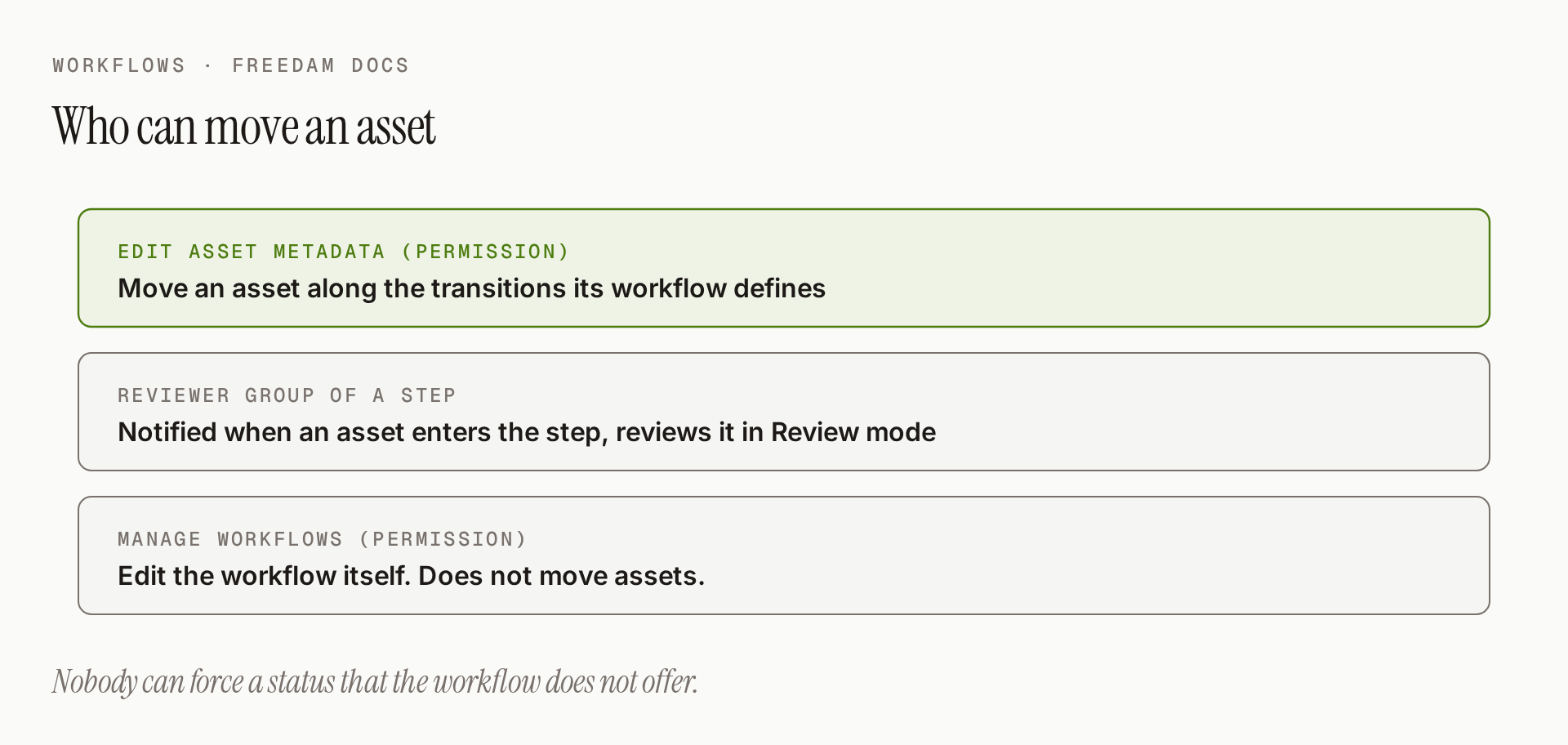
- Anyone who can edit the asset (the Edit asset metadata permission) - can move it along the transitions the workflow defines from its current status.
- Reviewer (in the assigned group) - is notified when an asset enters their review step, finds it in Review mode, which opens on the steps of their groups, and approves or rejects it. This also needs Edit asset metadata.
- Workflow administrator (the Manage workflows permission) - can edit the workflow itself. This permission does not move assets.
Nobody can force an asset into a status that the workflow does not offer from its current status, administrators included. A system-only status like Expired cannot be set by hand unless your administrator allowed it on that status in the workflow.
Bulk Status Changes: Some Move, Some Skip
You can change the status of many assets at once with Change Status, in the More menu of the Gallery's selection bar. Two things to know:
- Freedam checks each asset individually. If you select 50 assets and click Approve, each asset is checked on its own. Only the ones whose current status allows that move will actually advance.
- Skips are silent. There's no error dialog listing what didn't move. Assets that couldn't advance are just left alone.

The safest way to use a bulk status change is to filter the Gallery by current status first. If you filter to In Review, then pick the assets, then click Approve, every selected asset will move. Nothing will silently skip.
Expiry
Some assets have a lifespan. A model photo is licensed until a specific date. A product shot is only valid for one season. A limited-time campaign is published, then archived.
Freedam handles this through expiry transitions - automatic moves into an Expired (or similarly-named) status when a condition is met.

How Expiry Works
- Your administrator attaches an expiry rule to a transition that points into an Expired end status.
- The rule typically checks the rights policy on the asset. For example: "If the rights policy's expiry date is in the past, move this asset to Expired."
- When an asset changes (any update), Freedam re-evaluates the rule. If the condition now matches, the asset moves automatically.
What Expiry Does
When an asset enters Expired:
- Its status badge changes in the Gallery (often a red or amber colour).
- Depending on your organisation's access rules, it may stop being downloadable or shareable.
- It remains in the library - expiry is not deletion. You can still see its history, and move it out of Expired along a transition the workflow defines, for example when a licence is renewed.
A Tip for Campaigns
If the contents of a share must stay the same even after rights change (for example, for a campaign retrospective), download the assets as a ZIP and share that file instead. A live Freedam share always reflects the current rights - it won't keep showing assets whose licence has expired.
Workflow History
Every time an asset moves from one status to another, by hand or automatically, Freedam records the change on the asset.

Where to Find It
Open an asset and go to the History tab. The Workflow history section sits under Versions.
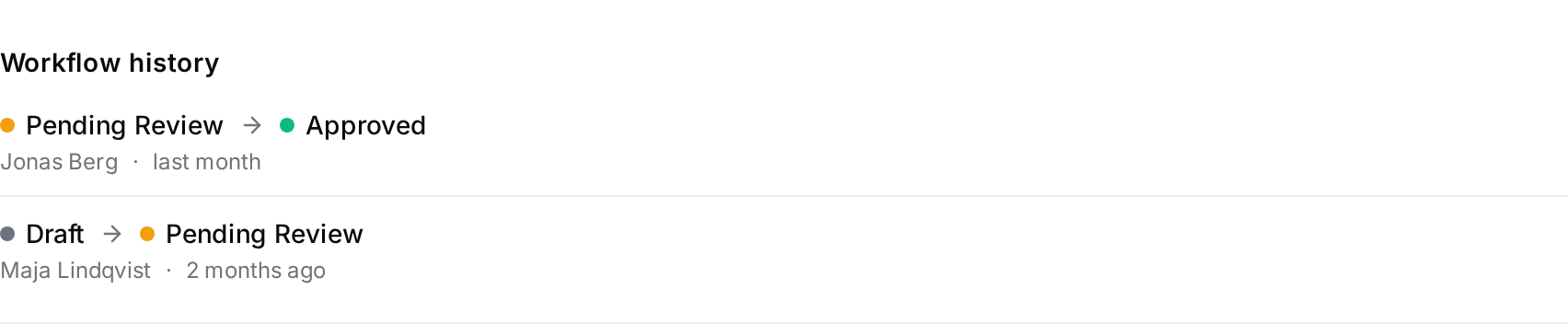
The section appears only when both of these are true:
- The asset class of the asset has a workflow. An asset whose class has no workflow has no status to follow, so the section is not shown at all. If an administrator removes the workflow from an asset class, the section disappears from the assets of that class.
- You hold the View workflow history permission. The User role has it by default. Without it, the History tab shows the other sections only.
What It Shows
The list starts with the most recent change. Each line shows:
- The change: the status the asset left and the status it entered, with the names and colors your administrator gave them in the workflow.
- Who made it: the name of the person. A change made by a rule, such as an automatic expiry, reads Automatic change. A change made by someone whose account no longer exists reads Deleted user. A bulk status change shows the person who started it. Bulk status changes made before October 2026 were stored without a person and read User not recorded.
- When: how long ago. Hover the date to see the exact date and time.
- The reason, when the transition asks for one and the person typed it.
A long history shows the five most recent changes. Click Show all, which is followed by the number of changes, to see the rest in place, and Show fewer to fold the list again.
An asset that has not changed status yet shows one line: its current status, with Set when the workflow started and the date the asset entered the workflow.
The history is:
- Complete. Every transition, manual or automatic, is recorded.
- Read-only. There is no way to edit or delete a line. A correction is a new transition, which adds a new line.
Reasons and Comments
When a transition asks for a reason, for example a rejection, the reason the person typed is shown under the line of that change.
Permissions at a Glance
As summarised earlier, these decide what you can do with workflows:
- Edit asset metadata - the permission needed to change the status of an asset. The User role has it by default. Review mode in the Gallery is offered only to people who hold it.
- Membership of the reviewer group - assigned to a review step by your administrator. Its members are notified by email when an asset enters that step, and Review mode opens on the steps of their groups.
- Manage workflows - the permission needed to create, edit, duplicate, activate and delete workflows in the administration area.
- View workflow history - the permission needed to see the Workflow history section on an asset. The User role has it by default.
There is no permission that forces an asset into any status.
If you're ever unable to perform a transition you expected to, the most common reasons are:
- You don't hold the Edit asset metadata permission, or an access rule keeps you from editing that asset.
- The target status is system-only (automatic) and no rule has matched yet.
- The workflow has no transition from the asset's current status to the status you expected.
Admin: Designing and Editing a Workflow
If you're an administrator, you build and tune workflows from Admin → Workflows. See the Workflows admin page for the full reference. A few principles to keep in mind when designing:
- Start simple. A Draft → In Review → Approved → Published chain covers most needs.
- One start, at least one end. Every workflow must have exactly one start status and at least one end status, and every status must be reachable from the start.
- Reviewer groups are reusable. You can assign the same group (e.g. Marketing Reviewers) to multiple review steps across multiple workflows.
- Don't delete reviewer groups that are in use. Assets currently in a review step assigned to a deleted group will have no reviewers and will get stuck until an administrator reassigns the step.
- Deactivate, don't delete. When a workflow becomes obsolete, set it to inactive. Existing assets keep working under it; new assets can no longer be assigned to it.
Troubleshooting
I can't find the button to approve an asset
- The buttons are named after the status they lead to, for example Approved, not "Approve".
- On a Gallery card they appear only in Review Mode, when you hover the card. A narrow card shows one Change status button that lists them. In the list view they are at the top of the row menu. Outside Review Mode, open the asset page and use the status in the status card.
- Check that you hold the Edit asset metadata permission. Without it the status is a label, not a menu.
- Confirm the asset is in the status you expect. Only the statuses its workflow allows from the current status are offered.
I approved an asset but it didn't move
- If a dialog titled "Change status to [status]?" opened, the status changes only after you click Change status in it. When the dialog has a Reason field, the button stays disabled until you type a reason.
- The workflow may have changed since the page was loaded. Reload the page and try again.
An asset expired that I didn't expect to expire
- Look at the asset's Rights policy - an expiry date in the past is the usual trigger.
- Check the Workflow history section in the asset's History tab. A line that reads Automatic change was made by a rule, not by a person.
- If the rights date was wrong, an administrator can update it and move the asset back to Approved. The new status will stick as long as the rule no longer matches.
A reviewer left the company and our approvals stopped
- Reviewer assignment is per-group, not per-person, so there should always be other people in the group.
- If the departing reviewer was the only one in the group, ask an administrator to add new members - every asset currently in that review step will become actionable as soon as someone qualifying is added.
"Review Mode" doesn't appear in my Gallery
- Review Mode is offered only when an active workflow has at least one review step, and only to users with the Edit asset metadata permission.
- The Review mode button is not shown on a phone. Use a wider screen.
Review Mode does not show an asset I expected
- Review Mode opens on the review steps of the reviewer groups you belong to. An asset in a review step assigned to another group is not listed until you tick that status in the Review statuses menu.
- If you should be a reviewer of that step, ask an administrator to add you to its reviewer group.
Tips and Best Practices
- Design for rejection, not just approval. Make sure the path from a review step back to Draft is clearly labelled ("Send back for edits" is clearer than "Reject") so the owner knows what to do.
- Keep names short and human. In Review, Approved, Published work better on cards and in emails than PENDING_REVIEWER_APPROVAL or LEGAL_SIGNOFF_REQUIRED.
- Use Review Mode daily. Reviewers with hundreds of pending assets often benefit from sorting by Oldest first to tackle the most-waited ones first.
- Use bulk approve sparingly and intentionally. It's powerful, but easy to accidentally skip assets. Filter by current status first.
- Let expiry do the watching for you. If your library has any seasonal or licensed content, set up expiry rules and stop relying on humans to remember dates.
- Audit the audit log. For regulated content, export or screenshot an asset's history before a major release - you'll have proof that sign-off happened.