
Orphan Assets
The Orphan Assets feature is an administrative tool designed to help you maintain a lean and sustainable digital library. It identifies "orphaned" files - assets that have had no user activity for an extended period - allowing you to reclaim storage space and reduce the environmental impact of hosting unnecessary data.
By pruning these assets, you can significantly lower your organization's digital carbon footprint. The interface provides real-time sustainability metrics, showing you the equivalent energy and emissions savings achieved through your cleanup efforts.

Page Overview
- Purpose: To identify, export, and delete assets that are no longer being used.
- When to use it: During routine maintenance or when storage limits are being approached.
- What you can do here:
- View a summary of reclaimable storage and environmental impact.
- Search for specific orphans by filename, title, or ID.
- Export a list of orphaned assets to CSV for external review.
- Bulk delete selected assets to move them to the trash.
- Track how many days have passed since an asset's last activity.
Page Layout
- Top bar: Displays the "Prune your orphaned assets" banner, featuring the total reclaimable storage, the date of the last orphan report, sustainability equivalence chips (showing savings in km driven, kWh, and trees), and the Export CSV button.
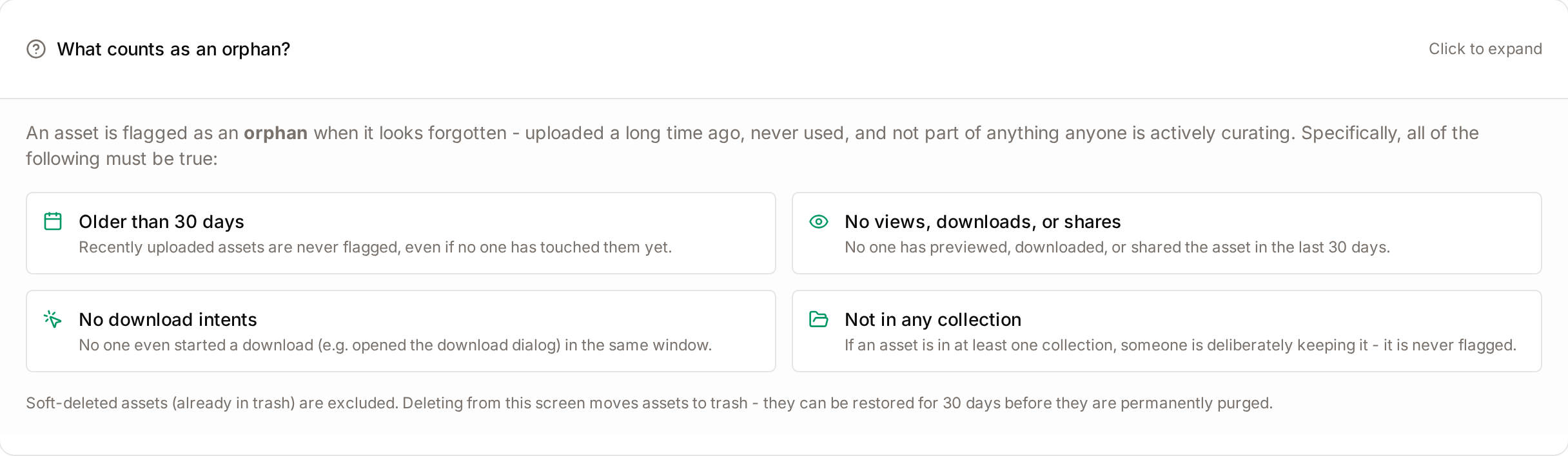
- What counts as an orphan?: A collapsible panel below the banner that lists the conditions an asset must meet to be flagged.
- Main area: Contains the search filter, bulk action controls, and the primary data table listing all orphaned assets, 50 per page.
- Right panel / dialogs: A confirmation dialog appears when deleting assets, providing a final summary of the storage and CO2 savings for the selected items.
Main Features
Sustainability Impact Tracking
- What it's for: Visualizing the environmental benefits of data cleanup.
- Typical use: Reviewing the "Equivalence Chips" in the top banner to see how much CO2 is saved by deleting unused files.
- Result: Provides context on how storage management contributes to sustainability goals.
Orphan Search and Filter
- What it's for: Finding specific files within the orphan list.
- Typical use: Typing a filename or Global Asset ID (GAID) into the search field to isolate specific records.
- Result: The table updates in real-time to show only matching assets.
What counts as an orphan?
- What it's for: Reading the detection rules without leaving the page.
- Where to find it: Below the banner, click What counts as an orphan? to expand the panel.
- What you'll see: Four conditions, with the number of days used by your workspace: Older than {days} days, No views, downloads, or shares, No download intents, and Not in any collection. A note reminds you that assets already in the trash are excluded and that deleting from this page moves assets to the trash.
Bulk Deletion
- What it's for: Removing multiple unused assets simultaneously.
- Typical use: Selecting multiple rows via checkboxes and clicking the delete action.
- Result: Selected assets are moved to the trash for 30 days before permanent removal.
Detailed Feature Documentation
Orphan Asset Table
- Purpose: To provide detailed metadata for every asset identified as an orphan.
- Where to find it: In the Main area, occupying the central card.
- What you'll see: Four columns: Asset (name and ID), Size, Last activity (days since the last activity) and Owner.
How to use it:
- Review the Last activity column to see how long a file has been idle (e.g., "300 days ago").
- Identify the Owner to consult them before deletion if necessary.
- Click the Checkbox next to any individual asset to prepare it for deletion.

CSV Export
- Purpose: To generate an offline report of all orphaned assets.
- Where to find it: In the Top bar, look for the Export CSV button.
- What you'll see: A browser download prompt for a CSV file containing the current report data.
How to use it:
- Click Export CSV.
- Save the file to your computer.
- Use this file to share with department heads for manual verification before performing deletions.
Complete Workflows
Workflow: Performing a Bulk Cleanup
- Goal: Reclaim storage by deleting a specific group of inactive assets.
- Prerequisites: The Clean up orphaned assets, View assets and Delete assets permissions.
Steps:
- Open Administration → Prune your orphaned assets, under Operations.
- Use the Filter by filename, title, or GAID… field to find specific assets, or browse the list.
- Click the Select all checkbox in the table header to select all items on the current page, or click individual checkboxes.
- Observe the selection summary (e.g., "10 selected - 1.2 GB") next to the delete button. While nothing is selected, it shows the number of rows on the page instead.
- Click Delete selected.
- In the confirmation dialog, review the storage and CO2 savings summary.
- Click Move to trash.
- Expected result: The selected assets disappear from the list, and a success message appears. The summary banner updates to reflect the new total of orphaned assets.
- If it doesn't work: Ensure your role includes Delete assets. If the "Delete selected" button is greyed out, ensure at least one checkbox is checked.

Workflow: Searching for Specific Orphans
- Goal: Locate a specific file to determine if it is safe to delete.
- Prerequisites: None.
Steps:
- Locate the search bar with the placeholder Filter by filename, title, or GAID….
- Type the name of the file or the Asset ID.
- Wait 400ms for the list to filter automatically, or press Enter.
- To clear the search, click the X icon on the right side of the search field.
- Expected result: The table displays only the assets matching your search criteria.
How it works
An asset is classified as "orphaned" only when every single one of these conditions has been true for the full inactivity window (180 days by default):
- Nobody has viewed it.
- Nobody has downloaded it (or even initiated a download).
- Nobody has shared it.
- It is not a member of any collection.
Additionally, the asset must have been created before the cutoff - freshly uploaded files never appear in the orphan report, even if they have not yet been viewed.
The page you see is built from the most recent snapshot, not a live query, which is why the banner shows the "report date" at the top. One check is live: an asset that was viewed, downloaded, shared or added to a collection since the snapshot is left out of the list, the totals and the CSV export, and cannot be deleted from this page.
How often Freedam looks for orphans
- The orphan sweep runs automatically once a week, every Sunday morning at 05:30 UTC, for every workspace.
- Each run replaces the previous snapshot, so the report always shows the freshest picture of what has been idle.
- The page has no button to start a detection. The system operator of the installation can run one outside the weekly schedule, for example after a large cleanup.
The inactivity threshold
- The default inactivity window is 180 days of continuous silence (no views, no downloads, no shares, not placed in a collection).
- The threshold is part of the installation's configuration, not a setting on this page. A new value takes effect on the next weekly sweep.
Who can use it
- The Orphan Assets page requires the Clean up orphaned assets permission together with View assets. Users missing either permission will not see the link in the Administration menu. Deleting assets also requires the Delete assets permission.
- The list, the totals in the banner and the CSV export only include assets you are allowed to view. Assets hidden from you by access rules, and assets moved to the trash or archived since the last sweep, are left out, so your totals can be lower than the workspace-wide orphan count shown on the Sustainability page.
- Because deletion goes through the regular trash flow, anything you remove from here is recoverable for 30 days before it is permanently purged.
Sustainability impact in plain English
The numbers shown in the banner and in the delete confirmation dialog are calculated from public-domain carbon figures and humanised through several equivalences:
- Storage footprint: roughly 0.02 kg of CO2-equivalent per gigabyte stored per year (covering both the datacenter running cost and its share of the hardware manufacturing).
- km driven: every 1 kg of CO2 is translated into roughly 8.3 km driven by an average petrol car (based on the European average of ~120 g CO2 per km).
- kWh: every 1 kg of CO2 is translated into roughly 3.6 kWh of European grid electricity.
- Trees: every 1 kg of CO2 takes roughly one mature tree about 17 days to absorb (a mature tree absorbs ~22 kg per year).
The banner and the confirmation dialog on this page always use these default factors.
What happens when you click "Move to trash"
- Freedam checks again, per asset, that you have permission to delete it.
- Each asset is soft-deleted (moved to the trash). The original file, its previews, its metadata and its history are all kept intact in case a restore is needed.
- The assets disappear immediately from the report so the page stays in sync with reality.
- The trash itself handles the 30-day retention and the eventual permanent purge - you do not need to intervene.
CSV export contents
The exported file contains one row per orphan you are allowed to view, with: the Global Asset ID (GAID), the original filename, the title, the size in bytes, the last recorded activity timestamp, the number of days since that activity, and the email address of the original owner. This makes it easy to circulate to department heads before you decide which ones to remove.
Tips and Best Practices
- Verify before deleting: Use the Export CSV feature to send lists to asset owners if you are unsure if a file is still needed.
- Check the "Never" badge: Assets with a "never" badge in the Last activity column have had no recorded activity since they were uploaded. These are often the best candidates for deletion.
- Soft Deletion: Remember that assets are moved to the trash first. They can be restored within 30 days if a mistake is made.
- Timing your cleanups: Because the snapshot is regenerated every Sunday, deleting a large batch on Monday will not immediately shrink next week's report - the next sweep will simply pick a fresh list of assets that have now crossed the inactivity threshold.
Troubleshooting
Issue: No assets are appearing in the list
- Symptoms: The main area displays "No orphans found" with a file search icon.
- Cause: Either there are no orphaned assets in your system, the weekly detection has not yet produced a snapshot for this workspace, or every orphan in the latest snapshot is an asset you are not allowed to view.
- Fix: Wait for the next scheduled Sunday sweep, or ask the system operator of your installation to run a detection outside the weekly schedule. If you expect to see orphans, ask an administrator to check the access rules that apply to you.
- Prevention: The weekly sweep runs automatically every Sunday at 05:30 UTC - no manual scheduling is required in a standard installation.
Issue: Delete button is disabled
- Symptoms: The Delete selected button is visible but cannot be clicked.
- Cause: No assets have been selected in the table.
- Fix: Click the checkbox next to at least one asset in the list.
- Prevention: Use the "Select all" checkbox in the table header to quickly select all items on the current page.