
Sustainability Dashboard
The Sustainability Dashboard provides a transparent look at the environmental cost of your digital asset management. Every file stored and every megabyte downloaded requires electricity; this feature estimates the resulting carbon footprint for both your individual activity and your entire organization.
The page draws these figures as trees: an impact tree per footprint and one tree per rendition size. It shows where storage is used and what you can do about it, such as deleting unused assets, to reduce your digital CO₂ emissions.
What the numbers actually measure
- Storage impact is calculated from how many gigabytes you own, multiplied by a per-GB-per-year CO₂ factor, then pro-rated for the window you're viewing.
- Transfer impact is calculated from the gigabytes moved during downloads and previews, multiplied by a per-GB bandwidth factor.
- Equivalences translate each kilogram of CO₂ into relatable units - roughly 8.3 km driven by an average petrol car, 3.6 kWh of grid electricity, or the amount a mature tree absorbs in about two and a half weeks.
Workspace admins can override the default factors per-tenant, so your organization's dashboard may use figures tuned to your hosting region.
How often the numbers refresh
Totals, trends and the rendition breakdown are cached for five minutes. If you've just deleted a lot of files or run a big download and don't see the change straight away, give it a few minutes and refresh. The rendition file sizes and the orphan report are both measured once a week, on Sunday morning.

Page Overview
- Purpose: To quantify the environmental impact of digital storage and transfer.
- When to use it: Use this page to audit your storage growth, compare your impact against the organization's total, and identify opportunities to save energy by deleting unnecessary files.
- What you can do here:
- View your personal CO₂ footprint based on assets you own and download.
- Compare your impact to the shared organization-wide footprint.
- Adjust the reporting window to see trends over different time periods.
- Identify which file sizes (renditions) are consuming the most storage.
- Access cleanup tools for "orphaned" assets that are no longer in use.
Page Layout
- Top banner: Displays the "Your digital footprint" badge, the heading "Every asset has a climate cost. Here's yours.", and a time-range selector to filter data by 30 days, 90 days, 6 months, or 1 year.
- Main area: Contains the Your footprint and Our shared footprint cards, followed by the storage and bandwidth trend chart with the Size advice panel on its right.
- Lower section: Contains the Where your storage lives card with the rendition forest, the Orphaned assets ready to prune card, and a footnote stating the reference factors used.
Main Features
Time Range Selector
- What it's for: Filtering all dashboard data to a specific historical window.
- Typical use: Switching from the default 90-day view to a 1-year view to see long-term growth.
- Result: The footprint cards and impact trees update to reflect the selected duration. The trend chart shows at most the last 90 days, also when you select 6 months or 1 year.
Impact Trees & Equivalences
- What it's for: Translating abstract CO₂ kilograms into relatable real-world data.
- Typical use: Checking how many kilometres driven or trees per year your digital activity equates to.
- Result: Displays tree drawings that grow larger as impact increases, alongside three chips: "km driven", "kWh" and "trees/yr".
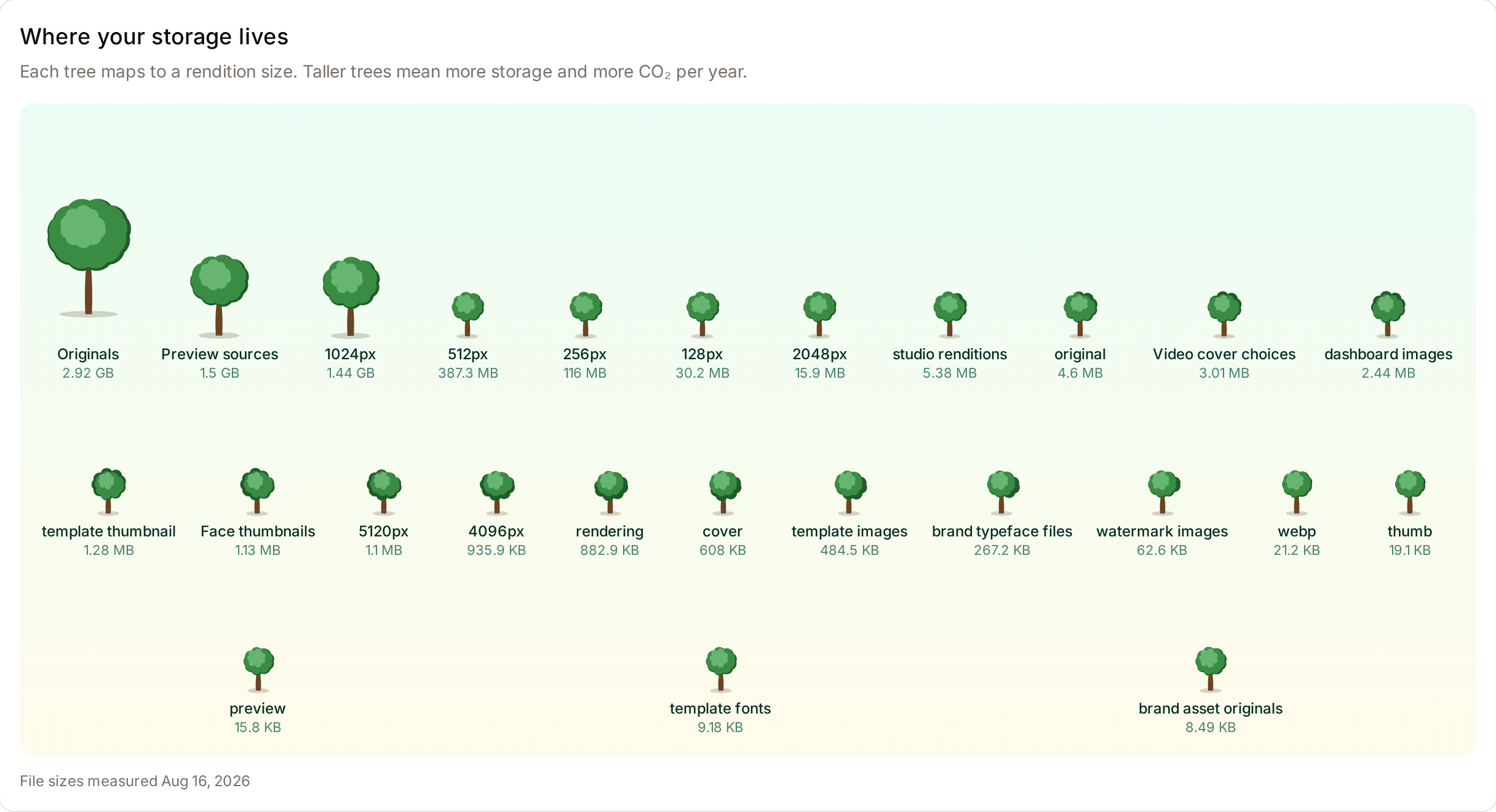
Rendition Forest
- What it's for: Visualizing which file versions occupy the most space.
- Typical use: Checking whether the large renditions, such as "2048px", take up more space than the Originals.
- Result: A row of trees where taller trees represent larger storage tiers. Tiers are named Originals, by pixel width for image renditions (for example "640px"), Responsive images, Preview sources, Video cover choices, Face thumbnails and Other renditions. A line under the trees gives the date the file sizes were measured.
Orphaned Assets Pruning
- What it's for: Identifying files that have had no activity for months and can be safely deleted.
- Typical use: Reclaiming storage space and reducing ongoing CO₂ costs by removing "dead" files.
- Result: Shows the number of orphaned assets, the reclaimable size and the estimated CO₂ savings per year, with the date of the last scan.
By default, Freedam flags an asset as "orphaned" when it has had zero activity for 180 days; the threshold is configurable for your workspace. The Review & clean up button is only visible to users who can open the orphan cleanup page, which requires the Clean up orphaned assets permission together with View assets - everyone else sees a message prompting them to ask an administrator.
Detailed Feature Documentation
Footprint Comparison Cards
- Purpose: To show a side-by-side comparison of your individual impact versus the total organization impact.
- Where to find it: In the main area, look for the "Your footprint" and "Our shared footprint" cards.
- What you'll see: On each card, the total kg of CO₂ for the selected window, an impact tree, two figures and the equivalence chips.
How to use it:
- Locate the Your footprint card to see the impact of the assets you own and of your downloads.
- Read the Assets you own and Your downloads rows.
- Compare these figures to Total stored and Bandwidth served on the Our shared footprint card, which covers the whole workspace over the same window.

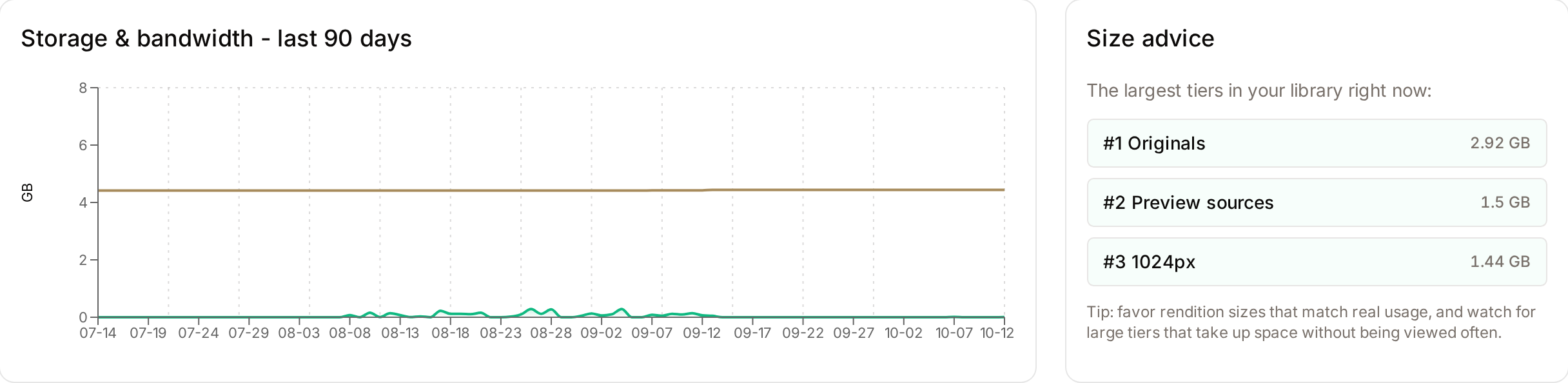
Storage & Bandwidth Trend Chart
- Purpose: To track how storage and data transfer fluctuate over time.
- Where to find it: In the middle of the page, in the card titled "Storage & bandwidth - last 90 days" (or "last 30 days" when that window is selected).
- What you'll see: A line showing storage and a green shaded area showing bandwidth (transfer) usage, day by day.
How to use it:
- Hover your mouse over any point on the chart.
- View the tooltip to see the Storage and Transfer figures, in GB, for that date.
- Look for spikes in the green shaded area to identify days with high download activity.
Rendition Forest
- Purpose: To show which rendition sizes take up the most storage.
- Where to find it: Below the trend chart, in the card titled "Where your storage lives".
- What you'll see: One tree per rendition tier. Taller trees mean more storage and more CO₂ per year. Until the first weekly measurement has run, the card says the rendition file sizes haven't been measured yet.
Orphaned Assets Cleanup
- Purpose: To reduce environmental impact by deleting unused files.
- Where to find it: At the bottom of the page in the "Orphaned assets ready to prune" section.
- What you'll see: A summary of assets with no activity and a button to review them (if permitted).
How to use it:
- Check the summary text to see how many assets are "orphaned."
- Note the reclaimable size and the kg CO₂/yr saved estimate, and the Last scanned date.
- Click Review & clean up (if available) to manage these assets.
When the last scan found nothing, the card reads "Last scan found no orphans" with the number of assets scanned.

Complete Workflows
Workflow: Optimizing Storage Tiers
- Goal: Identify which file renditions are wasting the most space to consider more efficient formats.
- Prerequisites: None.
Steps:
- Scroll to the Where your storage lives section.
- Identify the tallest tree.
- Look at the Size advice panel, next to the trend chart, to see the 3 largest tiers and their sizes.
- Note the specific tier name (e.g., 2048px).
- Expected result: You identify which preview sizes are the primary drivers of storage costs.
Workflow: Reclaiming Space from Unused Assets
- Goal: Delete assets that are no longer being used to lower the organization's carbon footprint.
- Prerequisites: The Clean up orphaned assets and View assets permissions (typically administrators). Deleting assets also requires the Delete assets permission.
Steps:
- Navigate to the Sustainability Dashboard.
- Scroll to the bottom section titled Orphaned assets ready to prune.
- Click the Review & clean up button.
- Follow the prompts on the subsequent page to confirm deletion of inactive files.
- Expected result: The total storage count decreases and the "reclaimable" estimate in the dashboard resets after the next weekly scan.
Tips and Best Practices
- Check Weekly: Orphan reports are generated once a week, on Sunday. Check back every Monday to see if new assets have been flagged for pruning.
- Format Efficiency: If your "Originals" tree is significantly taller than others, consider uploading files in more efficient formats like WebP or AVIF to reduce the baseline footprint.
- Window Comparison: Compare the "30 days" view to the "1 year" view to see if your sustainability efforts are trending downward over time.
Troubleshooting
Issue: The "Review & clean up" button is missing
- Symptoms: You see a message saying "Ask an administrator to run the cleanup." instead of a button.
- Cause: Your role does not include both the Clean up orphaned assets and View assets permissions.
- Fix: Contact your system administrator to request access or ask them to perform the cleanup.
Issue: "No scan yet" message
- Symptoms: The Orphaned Assets section shows no data and says "No scan yet. One is generated weekly. Come back next week."
- Cause: The system has not yet completed its first weekly scan of your asset library.
- Fix: Wait for the next Sunday scan. The section then shows a "Last scanned" date.
Issue: Data seems outdated
- Symptoms: Recent uploads or downloads aren't reflected in the CO₂ totals.
- Cause: Totals are cached for five minutes, and rendition sizes and the orphan report are measured once a week.
- Fix: Wait five minutes and refresh the page. For the rendition forest and the orphan count, wait for the next Sunday scan.