
Asset Access Rules
Asset Access Rules allow administrators to define granular permissions for who can see, preview, and download specific assets. By combining user conditions (like roles or departments) with asset filters (like tags or asset classes), you can automate complex security requirements across your entire library.
This feature is essential for organizations managing sensitive brand assets, licensed content, or department-specific media. You can enforce watermarks on previews, restrict high-resolution downloads to specific teams, or require a formal approval workflow before an asset can be used.

Page Overview
- Purpose: To manage the logic that governs asset security and availability.
- When to use it: Use this page when you need to hide assets from certain users, protect assets with watermarks, or set up "Request Access" workflows.
- What you can do here:
- Create and prioritize access rules.
- Define visibility (Visible vs. Hidden) for specific user groups.
- Configure preview types (Full, Watermarked, or None).
- Set download restrictions and resolution limits.
- Allow or block AI editing.
- Establish request workflows for restricted assets.
- Test rule logic against specific users or assets.
Who can use it
Only people with the Manage asset access rules permission can open, create, edit, duplicate, toggle, or delete rules - and only they can use the Access Tester. Regular users and editors never see this page. The AI-powered Explain Rules button and both Access Tester tabs share the same permission.
Page Layout
- Top bar: Contains the page title, the Add Rule button, and utility tools like Explain Rules and Test Access.
- Main area: A searchable table listing all rules, with the columns Priority, Name, Conditions, Policy, Status (Active/Inactive) and Actions. The Policy column shows four marks per rule, Visible, Preview, Download and AI, so you can compare what each rule grants without opening it.
- Search and Filter: A search bar to find rules by name and a dropdown to filter by status (All Rules, Active Only, or Inactive Only).
- Actions menu: The three-dot menu on each row offers View, Edit, Deactivate or Activate, Duplicate and Delete. Built-in rules only offer View.
- Rule Dialog: A multi-tab interface (Basic Info, User Conditions, Asset Filters, Access Policy, Request Workflow, Download Intent) used for creating or editing rules.
Main Features
Access Policy
- What it's for: Defining the specific permissions granted when a rule matches.
- Typical use: Setting an asset to be "Visible" but only allowing "Watermarked Previews" and no direct downloads.
- Result: Users matching the rule will see the asset in search results but cannot access the original file without further permission.
Request Workflow
- What it's for: Creating a bridge for users who need higher access than their default permissions allow.
- Typical use: Setting a rule with the Ask asset owner workflow type, so that users must request access to download high-res files.
- Result: A "Request Access" button appears on the asset, and a notification is sent to the owner or admin team upon clicking.
Access Tester
- What it's for: Verifying that your rules are working as intended without needing to log in as different users.
- Typical use: Entering a user's email and an Asset ID to see exactly which rule is granting or denying access, or clicking Test as guest to see which rules apply to Public Portal visitors who are not signed in.
- Result: A detailed breakdown of the "Effective Policy" and a list of all matching rules.
Detailed Feature Documentation
Creating an Access Rule
- Purpose: To establish a new set of permissions for a specific scenario.
- Where to find it: In the Top bar, click the Add Rule button.
- What you'll see: A large dialog window with six tabs to configure the rule details.
How to use it:
- In the Basic Info tab, enter a Name and set a Priority (higher numbers take precedence). The Active switch decides whether the rule applies as soon as it is saved.
- Navigate to User Conditions to define who this rule applies to (e.g., User Role is "Marketing"). With no condition, the rule applies to all users.
- Navigate to Asset Filters to define which assets are affected (e.g., Asset Class is "Logo"). With no filter, the rule applies to all assets.
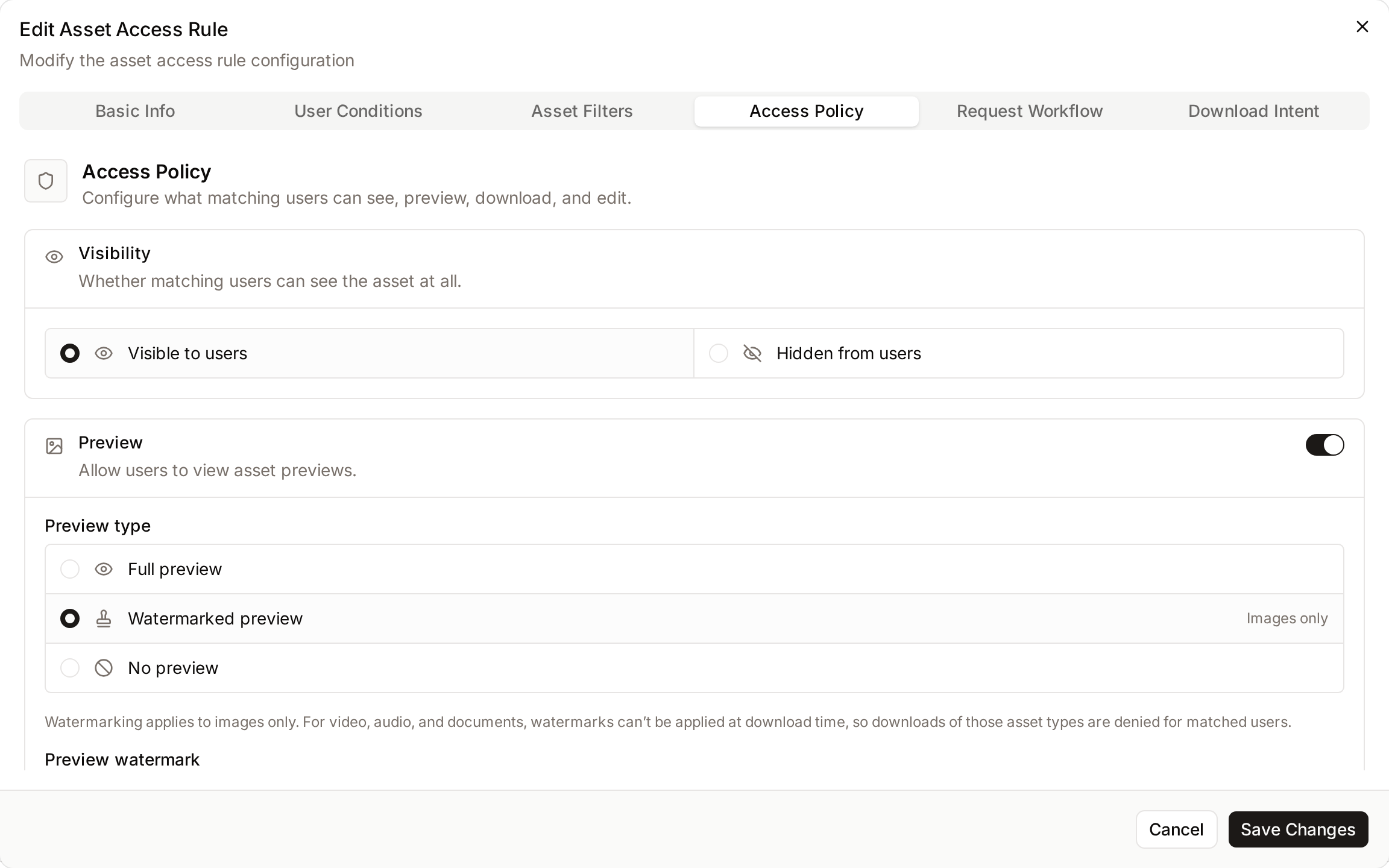
- In the Access Policy tab, under Visibility, choose Visible to users or Hidden from users.
- Configure the Preview, Download and AI editing sections (see Access Policy settings).
- Click Create Rule to save and apply the logic.

Access Policy settings
- Purpose: To set what matching users can see, preview, download and edit.
- Where to find it: Inside the Rule Dialog, navigate to the Access Policy tab.
- What you'll see: Four sections, each with its own control.
| Section | What it controls |
|---|---|
| Visibility | Visible to users or Hidden from users. When the asset is hidden, preview, download and AI editing are blocked. The settings below are kept but inactive. |
| Preview | An On/Off switch. When on, choose the Preview type: Full preview or Watermarked preview, and for a watermarked preview the Preview watermark to apply. |
| Download | An On/Off switch. When on, check the Image download resolutions users may download, from Thumbnail (128px) to Original Quality, and optionally a Download watermark. |
| AI editing | An On/Off switch that allows matching users to edit the asset with the AI tools. |
Good to know:
- Watermarking applies to images only. With a watermarked preview, downloads of video, audio and documents are denied for matched users, because a watermark cannot be applied to those files at download time.
- The resolutions are image-quality tiers. For video, audio and documents, Original must also be checked: lower tiers grant only image previews. Documents also get a PDF preview when any tier is selected.
Download Intent Dialog
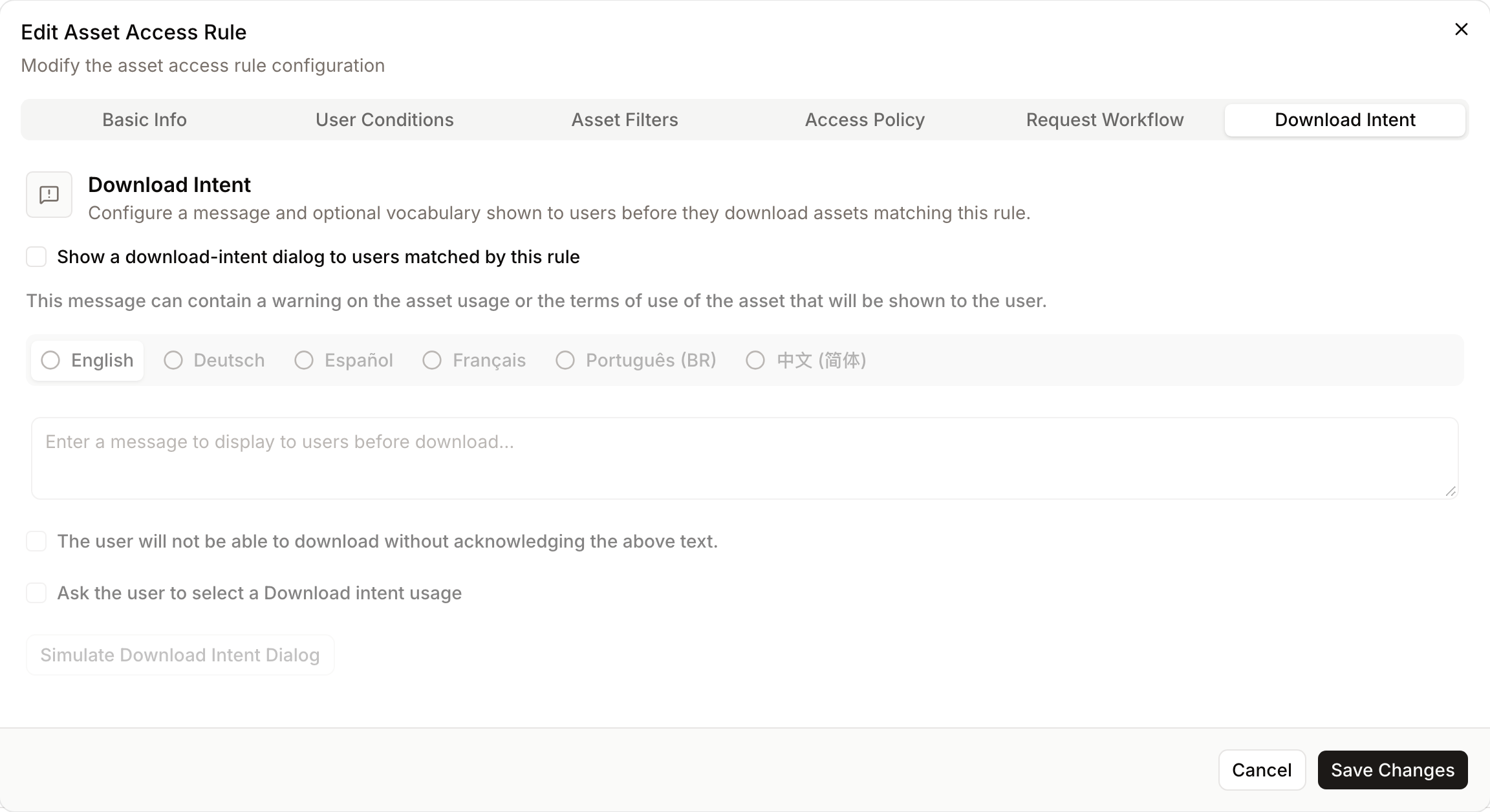
- Purpose: To force users to acknowledge terms of use or state their purpose before downloading.
- Where to find it: Inside the Rule Dialog, navigate to the Download Intent tab.
- What you'll see: Options to enable a dialog, enter a multilingual message, and require acknowledgment.
How to use it:
- Check Show a download-intent dialog to users matched by this rule.
- Enter a Download Intent Message (e.g., "These assets are for internal use only"). The message has one tab per interface language; users see their own language, else English.
- (Optional) Check The user will not be able to download without acknowledging the above text.
- (Optional) Check Ask the user to select a Download intent usage to provide a dropdown of reasons.
- Click Simulate Download Intent Dialog to see how it will appear to the end-user.
Access Tester
- Purpose: To troubleshoot why a user can or cannot see an asset.
- Where to find it: In the Top bar, click Test Access.
- What you'll see: The Asset Access Tester page with two tabs: Test User (to see all rules matching a person) and Test Asset Access (to see the final permission result for a specific asset). View Rules in the top bar returns to the rules list.
How to use it:
- Select the Test Asset Access tab.
- Enter the User email or ID and the Asset ID or GAID.
- Click Test.
- Review the Visibility, Preview, and Download cards to see the "Effective Policy."
- Expand Matching Rules to see which specific rules contributed to this result.
On the Test User tab, enter a user email or ID and click Test to list every rule that matches that person. Click Test as guest to list the rules that match a Public Portal visitor who is not signed in.

Complete Workflows
Workflow: Restrict High-Res Downloads to Marketing Team
- Goal: Allow everyone to see assets, but only the Marketing team can download high-resolution versions.
- Prerequisites: Marketing users must have a "Marketing" role assigned.
Steps:
- Click Add Rule in the Top bar.
- Name the rule "Marketing High-Res Access" and set Priority to 100.
- In User Conditions, add a condition where Role equals Marketing.
- In Access Policy, set Visibility to Visible to users.
- Switch Download on and check all available Image download resolutions.
- Click Create Rule.
- Create a second rule named "General Access" with Priority 50.
- In Access Policy, switch Download on but only check Low (256px) and Standard (512px).
- Click Create Rule.
- Expected result: Marketing users get the high-priority rule (all resolutions), while others fall through to the lower-priority rule (limited resolutions).
Workflow: Require Approval for Sensitive Assets
- Goal: Assets with the keyword "Confidential" should require Admin approval before download.
- Prerequisites: Assets must have "Confidential" among their Keywords.
Steps:
- Click Add Rule and name it "Confidential Asset Workflow."
- In Asset Filters, add a condition where Keywords equals Confidential. Keywords compare one at a time, ignoring case, so this matches "confidential" but not "Non-confidential"; use contains to match part of a keyword.
- In Access Policy, switch Download off.
- Navigate to the Request Workflow tab.
- Select Ask admin team under Workflow type.
- In Request reason, type "Please explain why you need access to this confidential material."
- Click Create Rule.
- Expected result: When a user tries to download a confidential asset, they will see a "Request Access" prompt instead of an immediate download.
Limits and guardrails
- The rules list shows 20 rules per page. Use the search box or the status filter to narrow the list when your library grows past that.
- The system ships with one Built-in Default Access Rule at the bottom of the priority stack. It grants permissive preview and download access so the product works out of the box, but it is only kept active when the server-level flag allows it. It cannot be edited, duplicated, or deleted from the interface.
- Duplicated rules are always created as Inactive, named after the original with "(Copy)" added, and given the next free priority so you can safely tweak them before they start matching anyone. The edit dialog opens automatically on the fresh copy.
- Both the Request Workflow and Download Intent sections are only enforced when the rule is Active. Inactive rules have no effect but are preserved so you can turn them back on later.
- Public Portal visitors who are not signed in are never asked to select a usage. A rule that applies to them still shows its message and its acknowledgment; the usage choice is asked of signed-in users only.
- The three request workflow types are: Access not limited (no restriction), Ask asset owner (routes the request to whoever uploaded the asset), or Ask admin team (routes it to all administrators or to the designated reviewer group). The tab shows a "Workflow recommended" notice when the access policy forbids downloads, watermarks them or limits their resolutions, and a "Workflow not needed" notice when downloads are not restricted.
What happens behind the scenes
- Activating, deactivating, editing, duplicating, or deleting any rule clears the platform-wide access cache so that all users see the new permissions within seconds - not at the next login.
- The Gallery list, the asset page, previews and downloads all apply a rule the same way, so an asset hidden from the Gallery is also hidden when someone opens its link.
- Access decisions are cached in short-lived memory per request and in a shared cache for up to an hour, so repeat checks during a gallery scroll don't add noticeable load. Changing a rule clears that cache. Changing an asset's metadata, collections, people or workflow status does not: its preview, asset page and download can keep the previous decision for up to an hour, while the Gallery list applies the change at once.
- Rule evaluation fails closed: if a rule's conditions cannot be evaluated for a technical reason, assets that rule could decide are hidden and their access requests go to the admin team, rather than falling through to a more permissive rule below. The error is logged for troubleshooting; fix or deactivate the rule to restore access.
- The Explain Rules button sends all the rules to the configured AI provider, which returns a plain-language summary in your interface language so you can show your team or auditors how access is governed without reading conditions row by row.
- The Access Tester re-runs the live rule engine, so the result you see in the dialog is exactly the same policy a real user would experience at that moment.
Tips and Best Practices
- Priority Matters: Rules are evaluated based on Priority. If two rules match a user, the one with the higher number wins.
- Use "Built-in" Rules: Some rules are provided by the system. These cannot be deleted but can often be viewed to understand base permissions.
- Performance Warning: If you use a Preview watermark that includes user-specific placeholders (like Name or Email), it may slow down page loading as the system must generate a unique image for every user.
- Duplicate Rules: Use the Duplicate option in the rule's action menu (three dots) to quickly create variations of complex rules.
Troubleshooting
Issue: User cannot see an asset they should have access to
- Symptoms: Asset does not appear in search results for a specific user.
- Cause: A high-priority rule may have Visibility set to "Hidden," or no rule exists to grant them visibility.
- Fix: Use the Access Tester with the user's email and the Asset ID. Check if a "Hidden" rule is overriding your intended policy.
- Prevention: Always set a descriptive name for rules so you can identify them easily in the tester.
Issue: "Simulate Download Intent Dialog" button is disabled
- Symptoms: You cannot click the preview button in the Download Intent tab.
- Cause: The dialog requires either a message to be typed or the "Ask usage" checkbox to be enabled before it can be previewed.
- Fix: Type a message in the Download Intent Message field or check Ask the user to select a Download intent usage.
Issue: A rule cannot be saved with a given condition
- Symptoms: Saving the rule shows "The … operator '…' cannot be used on the field …".
- Cause: The condition uses a comparison the field does not support, for example does not contain on Full text search. Rules created through an import or an older version may still hold one.
- Fix: Pick one of the comparisons the editor offers for that field. To hide assets that match a search, use a rule with Visibility set to "Hidden" above the rule that shows the rest.
Issue: Nobody can see assets after a rule change
- Symptoms: The Gallery is empty for users that should see assets.
- Cause: A rule's conditions cannot be evaluated, so access fails closed for the assets it could decide.
- Fix: Check the application log for "access rule" errors naming the rule, then fix or deactivate that rule.
Issue: Rule changes are not appearing for users
- Symptoms: You saved a rule, but users still see the old permissions.
- Cause: The rule might be set to "Inactive."
- Fix: Check the Status column in the main table. If it says "Inactive," click the action menu (three dots) and select Activate.