
Gallery
The Gallery is the central hub of Freedam, providing a powerful interface to browse, search, and manage your entire digital asset library. It is designed for all users to find content quickly and for administrators to perform high-volume management tasks like bulk metadata updates and rights assignments.
You can use the Gallery to organize assets into collections, share files with external partners, and utilize AI-powered search tools to find specific images based on visual similarity or facial recognition.

Page Overview
- Purpose: To provide a searchable, manageable view of all digital assets in the system.
- When to use it: Use the Gallery when you need to find specific files, download assets in various formats, share content with others, or perform bulk updates to asset information.
- What you can do here:
- Search using natural language or advanced rule-based filters.
- Perform visual searches by uploading an image to find similar content.
- Select multiple assets to download, share, or move to collections.
- Edit metadata for hundreds of assets simultaneously using the Bulk Metadata Edit or Spreadsheet views.
- Bookmark important assets for quick access later.
- Monitor the real-time processing status of newly uploaded files.
Page Layout
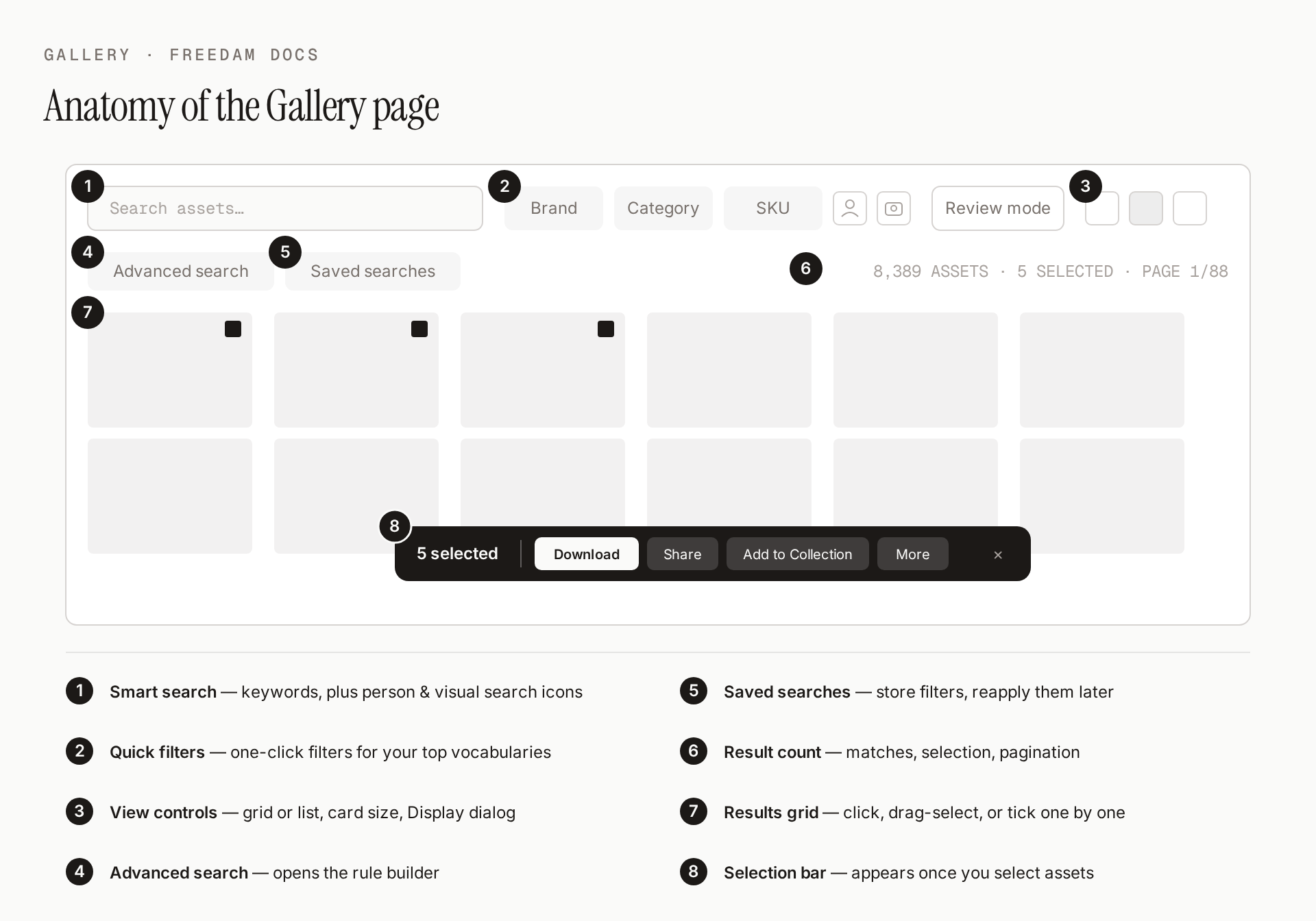
The diagram above maps each part of the page. In detail:
- Search row: The Smart Search field, with quick filters for your most-used vocabularies and two icons at its right end - person search (user icon) and visual search (camera icon). To the right of the field sit Review mode, the Grid/List toggle, the card-size toggle, and Display.
- Controls row: Advanced search (opens the rule builder), Saved searches, and - on the right - the result count, the selected count, and the pager. The pager shows page numbers between a previous and a next arrow. It only appears when the results fill more than one page.
- Filter panel: An expandable area that opens under the controls row when you click Advanced search, where you build complex, multi-rule filters.
- Main area: Displays your assets as square tiles (Grid view) or rows (List view). This area supports drag-to-select for highlighting multiple files. See Asset tiles.
- Selection bar: A bar that appears at the bottom of the page, centred, as soon as one or more assets are selected. It shows the count of selected assets and the actions you can run on them. See Selection bar.
The browser's Back button returns to the Gallery as you left it, with the same search, filters, sort order and view.
Main Features
Smart Search & Autocomplete
- What it's for: Finding assets using keywords, specific fields, or suggested terms.
- Typical use: Typing "sunset" to find images, or using field expressions like "size > 10MB" to find large files.
- Result: The gallery updates in real-time to show only assets matching your query. Word searches come back ranked by relevance; date, field and asset-ID searches come back newest first, and Sort by in Display reflects whichever ordering applies.
Visual & Person Search
- What it's for: Finding assets based on what they look like or who is in them.
- Typical use: Uploading a reference photo to find similar images or selecting a detected face to find all photos of that person.
- Result: A specialized results view showing visual matches or assets containing the selected person.
Bulk Metadata Edit
- What it's for: Updating information across many assets at once.
- Typical use: Adding a specific copyright notice or campaign tag to 50 selected images.
- Result: A queue of operations such as set, clear, find and replace, or add keywords, applied in the background. See Bulk Metadata Edit.
- Good to know:
- Setting a field that an asset has never had a value for creates that value, for core fields (such as Creator, Copyright or OCR Text) and custom fields alike.
- On multilingual fields, operations edit the value in the default language and keep the other translations. Clear removes every language. To edit one specific language, use the Spreadsheet View or the asset page.
- Replace option swaps one option or vocabulary term for another wherever it is selected, including inside fields that hold several terms.
- If a change cannot be applied to an asset because the value does not fit the field, for example text in a number field, that asset is counted as failed with the reason, and none of the operations are applied to it.
- In a selection of several asset classes, an operation on a field that only some classes have leaves the assets of the other classes unchanged. They are not counted as failed.
Spreadsheet View
- What it's for: High-speed data entry in a familiar grid format.
- Typical use: Rapidly filling in required fields for a new batch of uploads using "Fill Down" and keyboard shortcuts.
- Result: Opens a full-screen spreadsheet where every cell is editable and changes auto-save.
Detailed Feature Documentation
Smart Search Bar
- Purpose: To provide a fast, intuitive way to filter the gallery using text.
- Where to find it: At the top of the Gallery page.
- What you'll see: As you type, a dropdown appears with words, field names and list values that complete your text, plus a "Did you mean" correction when you may have misspelled a word. See Suggestions as You Type.
How to use it:
- Click into the Search assets... field.
- Type your keywords. If you see a relevant suggestion in the dropdown, click it or use the Arrow Keys and Enter to select it.
- To clear your search, click the X icon on the right side of the bar.
If you type something the search can't interpret - unbalanced quotes, an OR with a missing side, exclusion syntax like NOT - the search doesn't run: your current results stay in place and a short message explains what to adjust. See Searching by Keyword for the full syntax.

Asset tiles
- Purpose: To show each asset and what you need to know about it without opening it.
- Where to find it: The main area of the Gallery, in Grid view. Collections, Bookmarks and upload batches use the same tiles.
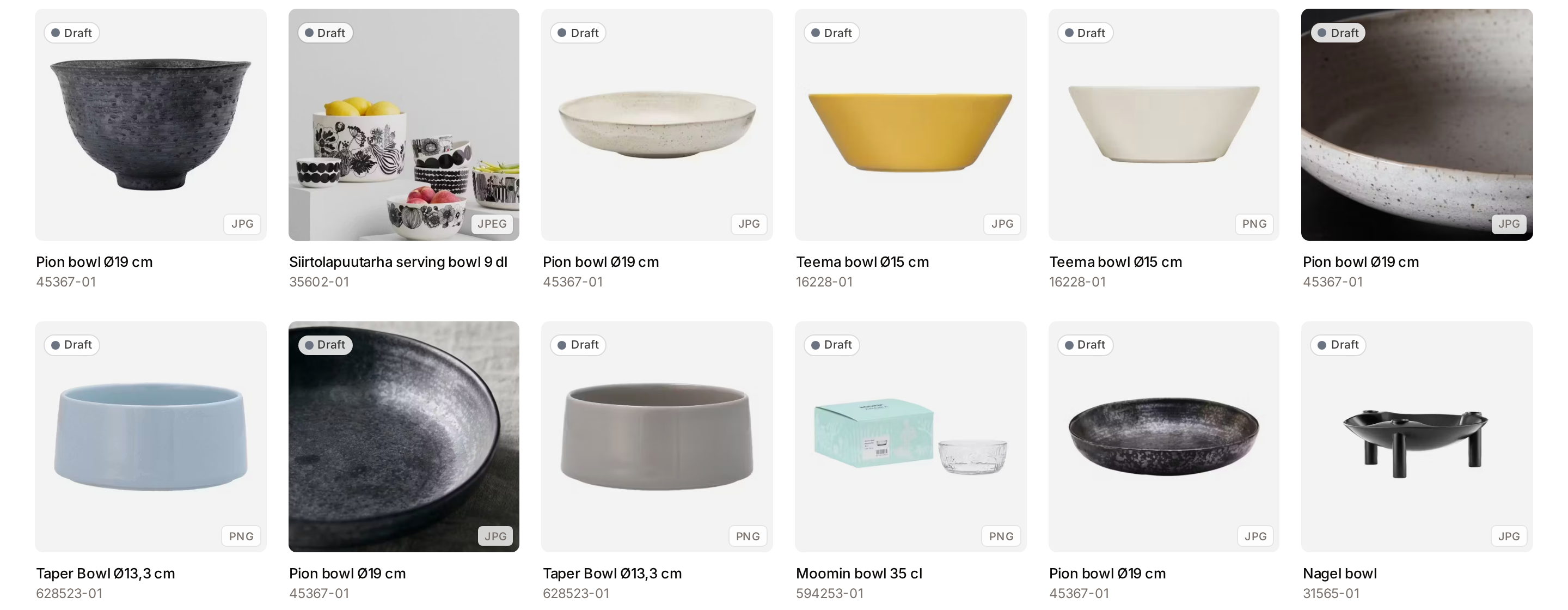
- What you'll see: A square tile with the preview of the asset. Opaque pictures fill the tile. Artwork with a transparent background, such as a logo, sits inside a margin on a light, grey or dark tile chosen from its colours, so a white logo stays visible. A photograph saved on a larger transparent canvas, for example a portrait on a square PNG, is shown like an opaque picture, without the margin, when the transparent area lies on two opposite sides only.
What a tile can show:
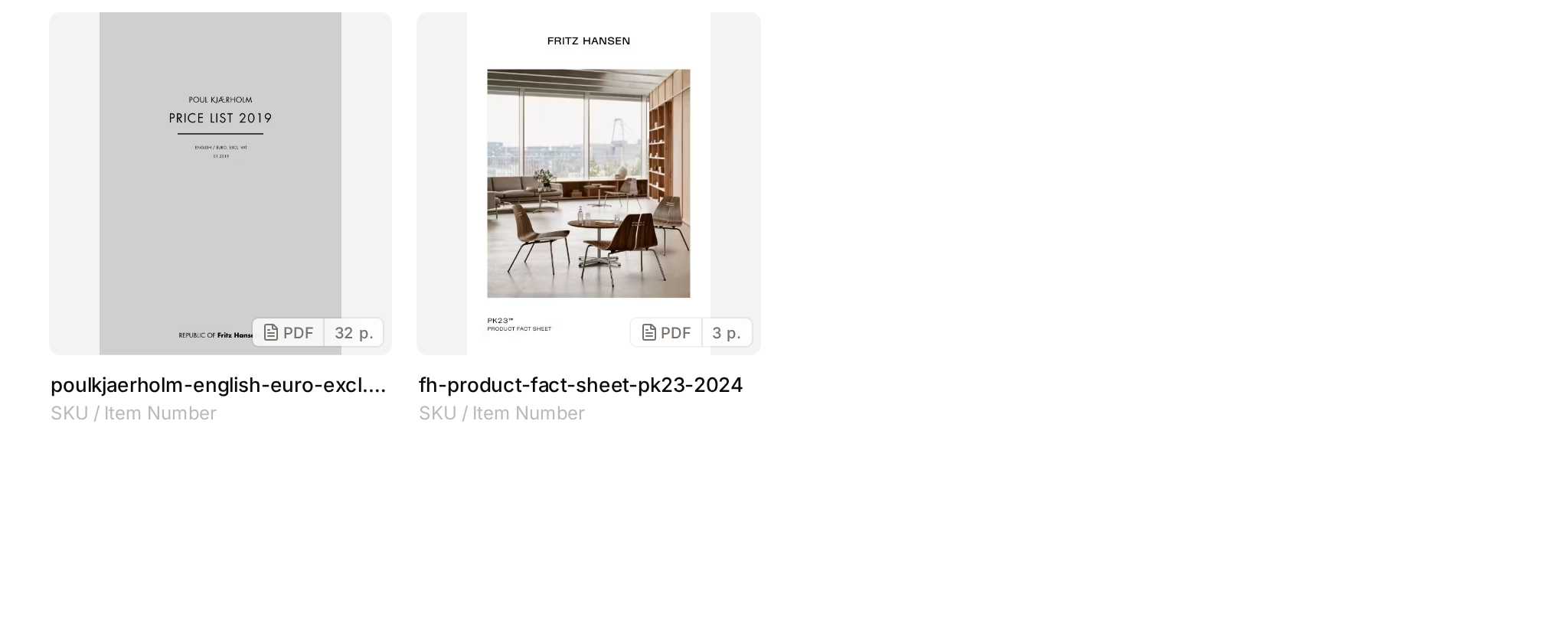
- Bottom-right corner: one small chip that describes the file. It holds the format (for example "JPG"), and for a document a document icon before the format and the number of pages after it, for example "PDF 32 p.". It also holds a shield for verified Content Credentials, AI for AI-generated content, and a stack icon with a number when identical files are collapsed into the tile.
- Bottom-left corner: what needs attention. A red shield marks invalid Content Credentials. Expiring Soon (amber) and Expired (red) give the rights status.
- Top-left corner: the workflow status, when you turned on Workflow status in Display or switched to Review mode. It is a grey pill with a dot in the colour of the status, for example "Pending Review". An asset without a workflow shows no pill. Also in this corner: the duplicate status of a new upload (Exact Duplicate or Similar), Failed when processing failed, and Incomplete when required metadata is missing.
- Centre: on a video, a play button. Click it to play the video inside the tile, muted and in a loop, and click it again to pause. One tile plays at a time. A click anywhere else on the tile opens the asset.
- Under the tile: the card metadata, when Card metadata is on. Values are shown without their labels.
Point at a tile to show its checkbox in the top-right corner and its actions at the bottom, such as Bookmark, Download and Share. Actions that do not fit are in the More actions menu.
A selected tile gets a dark ring. A flagged duplicate, or a file whose processing failed, gets a red ring.
Selection bar
- Purpose: To act on several assets at once.
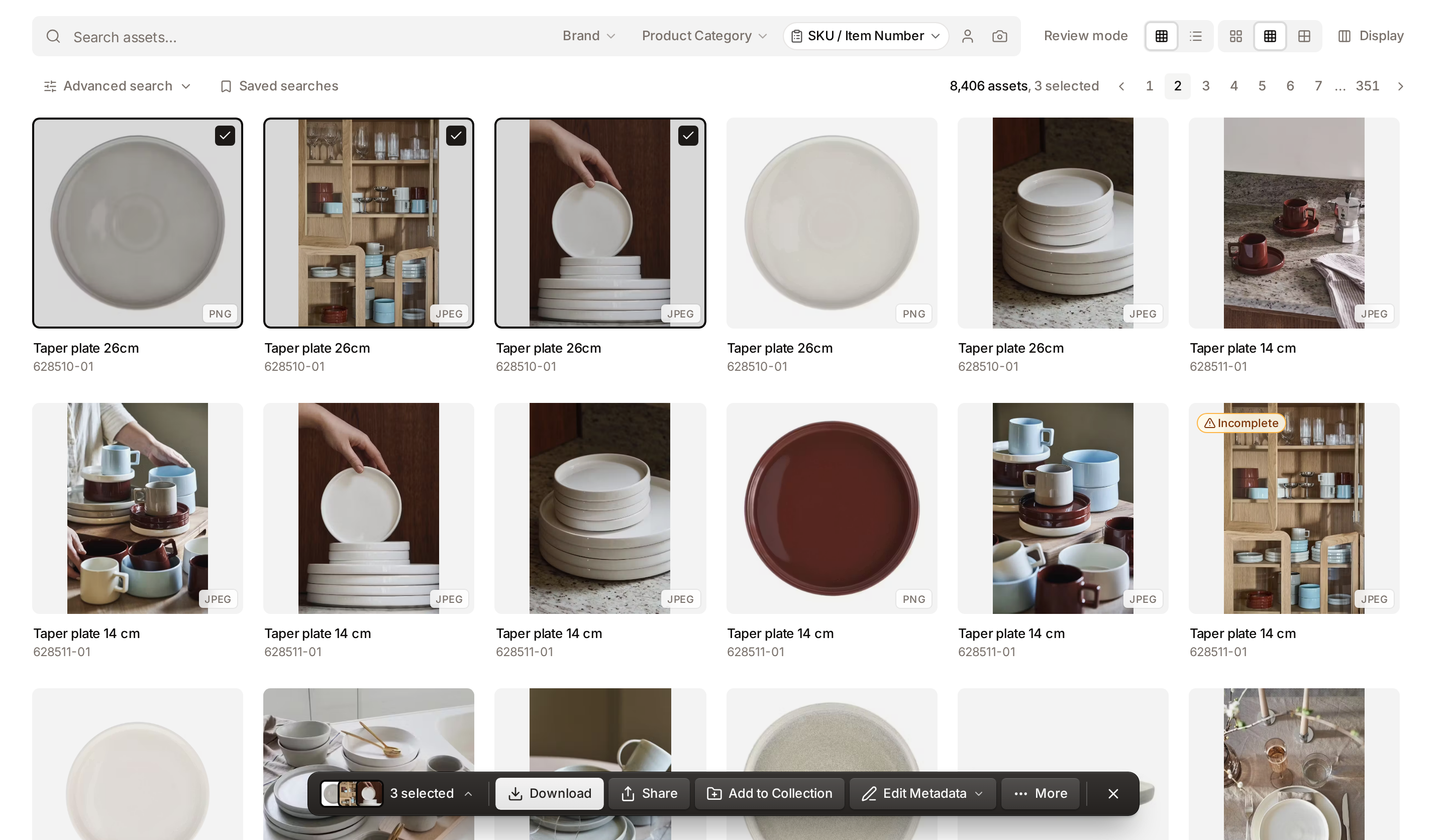
- Where to find it: It appears at the bottom of the page, centred, as soon as one asset is selected. It is a dark grey bar in both the light and the dark theme.
- What you'll see: The number of selected assets, then Download, Share, Add to Collection and Edit Metadata, a More menu, and an X that clears the selection. You only see the actions your role allows.
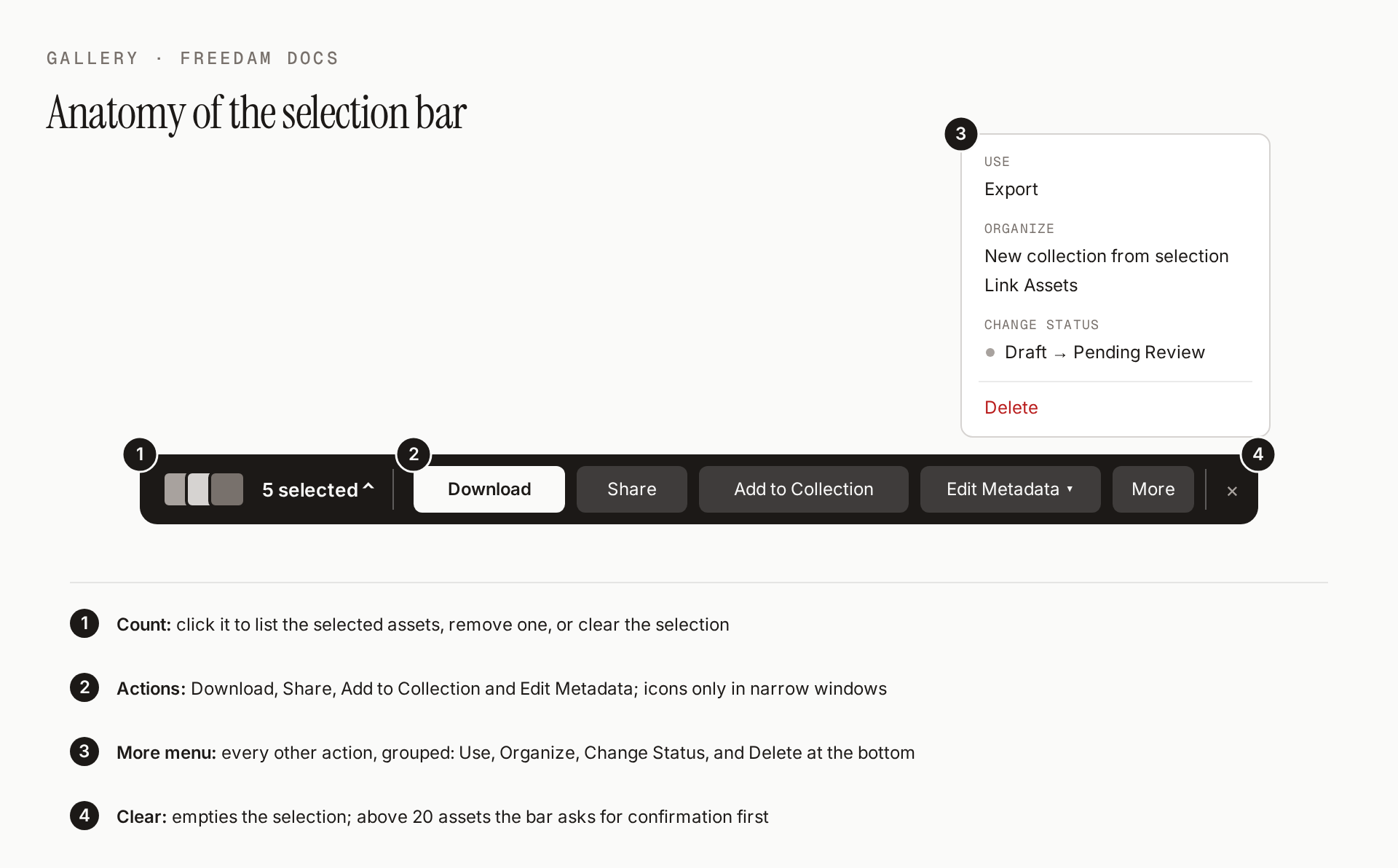
In windows narrower than about 1,000 pixels, the buttons show their icon only: hover a button to read its name. On phones, Edit Metadata moves into More.
How to use it:
- Select assets by ticking the checkbox on their tiles, or by dragging over a group of tiles. Selected tiles get a ring, dark in the light theme and blue in the dark theme.
- Click an action. Edit Metadata offers Bulk Operations and Spreadsheet View.
- Open More for the other actions, described in The More menu.
- Click the X to clear the selection.
When some of the selected assets need an access request before you can download them, a Request Access button appears next to Download.
Check what is selected
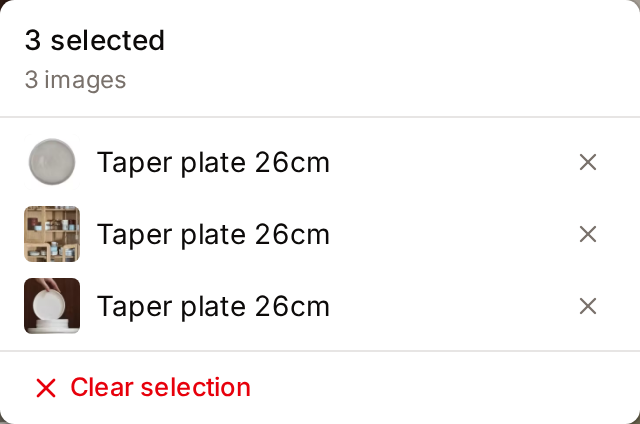
Click the count to list the selected assets. This is useful when the selection was built across several pages or searches and the assets are no longer on screen.
- The top of the list shows how many images, videos, documents and other files are selected, and how many need an access request before download.
- Click the × of a row to remove that asset from the selection.
- Clear selection at the bottom empties the selection.
- After Select all matching, there is no list: the selection is every result of the search, so the panel shows the number of matching assets and the filters instead.
Add the selection to a collection
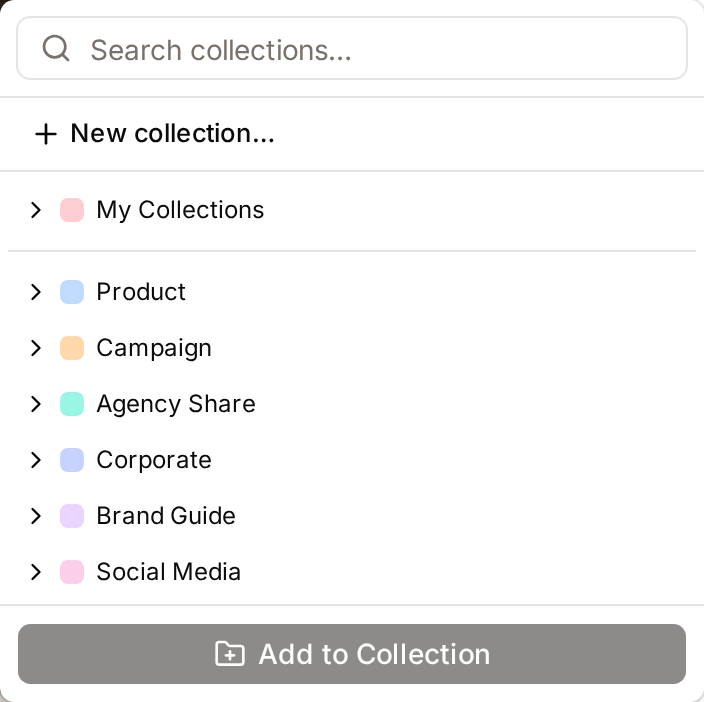
- Click Add to Collection. A panel opens above the button.
- Type in Search collections… or open the tree, and click a collection.
- Click Add N assets to [collection] and confirm.
To put the selection in a new collection, click New collection… at the top of the panel. When your search matches no collection, the same row reads Create "[your text]" and fills in the name for you. New collection from selection in the More menu opens the same dialog. These need the Create collections permission.
The More menu
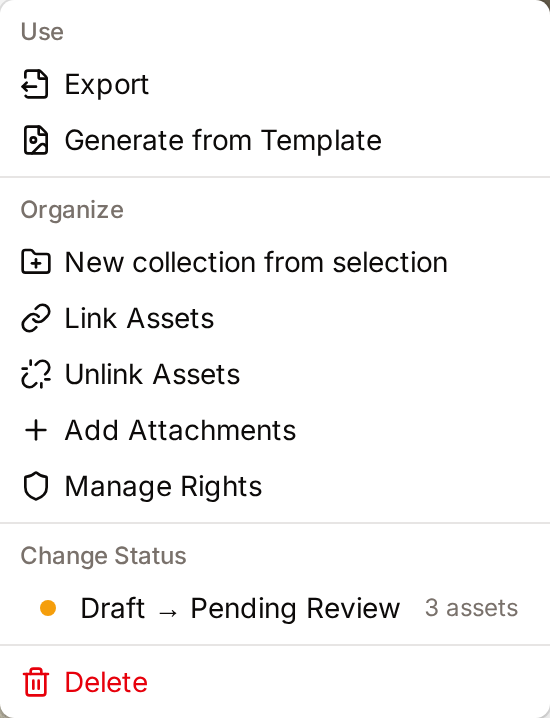
More holds every action that has no button of its own, in groups:
- Use: Export, and Generate from Template when the selection contains at least one image.
- Organize: New collection from selection, Remove from Collection (on a collection page), Link Assets (with two or more assets), Unlink Assets, Add Attachments and Manage Rights.
- Change Status: the workflow transitions available for the selection, for example "Draft → Pending Review", each with the number of assets it applies to.
- Delete, at the bottom.
Select every result
When every asset of the current page is selected and the search has more results, the bar shows Select all N matching assets next to the count (Select all N in narrower windows). Click it to extend the selection to every result. See "Select all matching" isn't a one-by-one tick list.
Clear the selection
- 20 assets or fewer: the X clears the selection at once.
- More than 20 assets: the bar asks "Clear N selected assets?". Click Clear to confirm or Keep to go back.
Either way, a notification offers Undo, which restores the selection. There is no Undo for a Select all matching selection.

Picking assets for another page
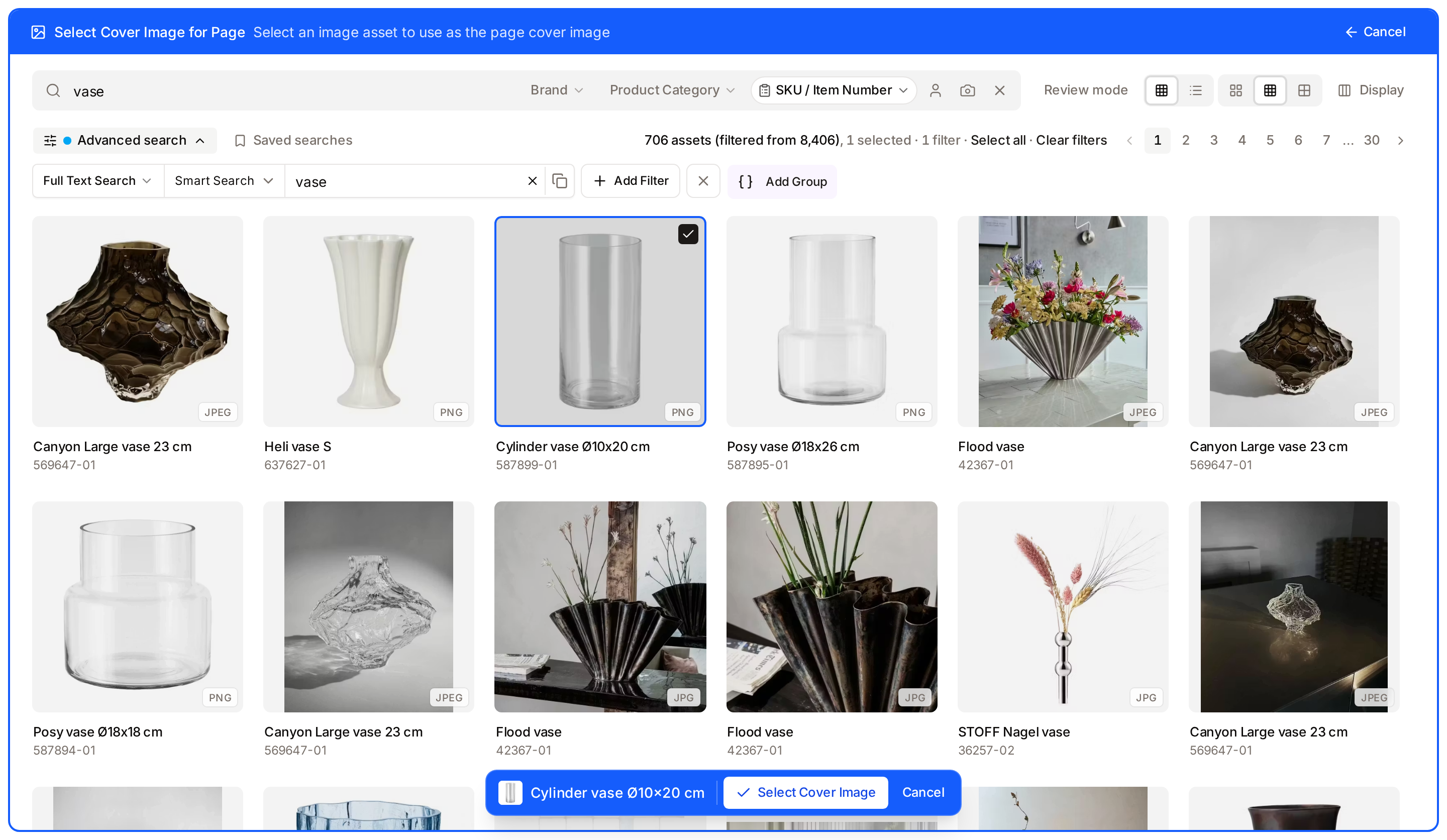
Some pages send you to the Gallery to choose assets: authentication backgrounds in Branding, the cover image or an image block of a custom page, or assets for a collection. The Gallery then opens in picking mode:
- A blue frame surrounds the Gallery. Its title bar says what you are choosing, and Cancel takes you back to the page you came from without choosing anything.
- The top menu is dimmed, because the pick is not finished.
- The selection bar turns blue and holds one button that confirms the pick, for example Select Cover Image or Add to [collection], and Cancel. It is there from the start, before anything is selected.
- When the page needs a single image, clicking another image replaces the one you picked.
Search, filters and the display options work as usual while you pick.
How the selection is kept
- One selection everywhere. The Gallery and the asset pages share the same selection. Assets you tick on an asset page, for example in Linked assets, join the assets you ticked in the Gallery, and the same selection bar appears at the bottom of the asset page.
- Kept while you move around. Changing the search, opening an asset and coming back, or reloading the page keeps the selection. It is stored in the current browser tab only: another tab starts with its own selection. It is cleared when you clear it with the X or with Clear selection, or when you sign out.
- Kept after bulk actions. Downloading, sharing, adding to a collection, editing metadata and the other bulk actions leave the selection as it was, so you can run several actions on the same assets one after the other. Only Delete clears it.
- Drag-select always adds. Dragging over a group of cards adds them to the selection. It never removes assets that are already selected.
- Unselecting a page removes only that page. Unticking the select-all checkbox of a page, in Grid or List view, removes the assets of that page and keeps the assets you selected on other pages or searches.
- Collection pages and Bookmarks share it too. Assets picked in the Gallery stay selected when you open a collection or your Bookmarks, and files you tick there join them. Opening a collection does not switch it to Select mode: only ticking a file there does.
- Removing from a collection keeps other picks. Remove from collection drops from the selection only the files it removed from that collection.
- Select all matching, then more. A Select all matching selection covers every result of the search. If you then change the search, add assets from another page, a collection or an asset page, or open a collection or your Bookmarks, the matching assets are turned into a list of individual assets so they can be combined with the new ones. This works for up to 500 matching assets. Above that, Freedam says "This search selects more than 500 assets, the most that can be combined with assets from other pages. Act on it from the gallery, or narrow the search."
Visual Similarity Search
- Purpose: To find assets that look like an image you already have.
- Where to find it: Click the Camera icon in the search bar.
- What you'll see: A dialog where you can drop an image file.
How to use it:
- Click the Camera icon.
- Drag an image from your computer into the box, or click to browse.
- Click Find Similar Images.
- Review the results. Each one carries a similarity score as a percentage, for example "95%", and the closest matches come first. See Find Visually Similar Images.
Display Preferences
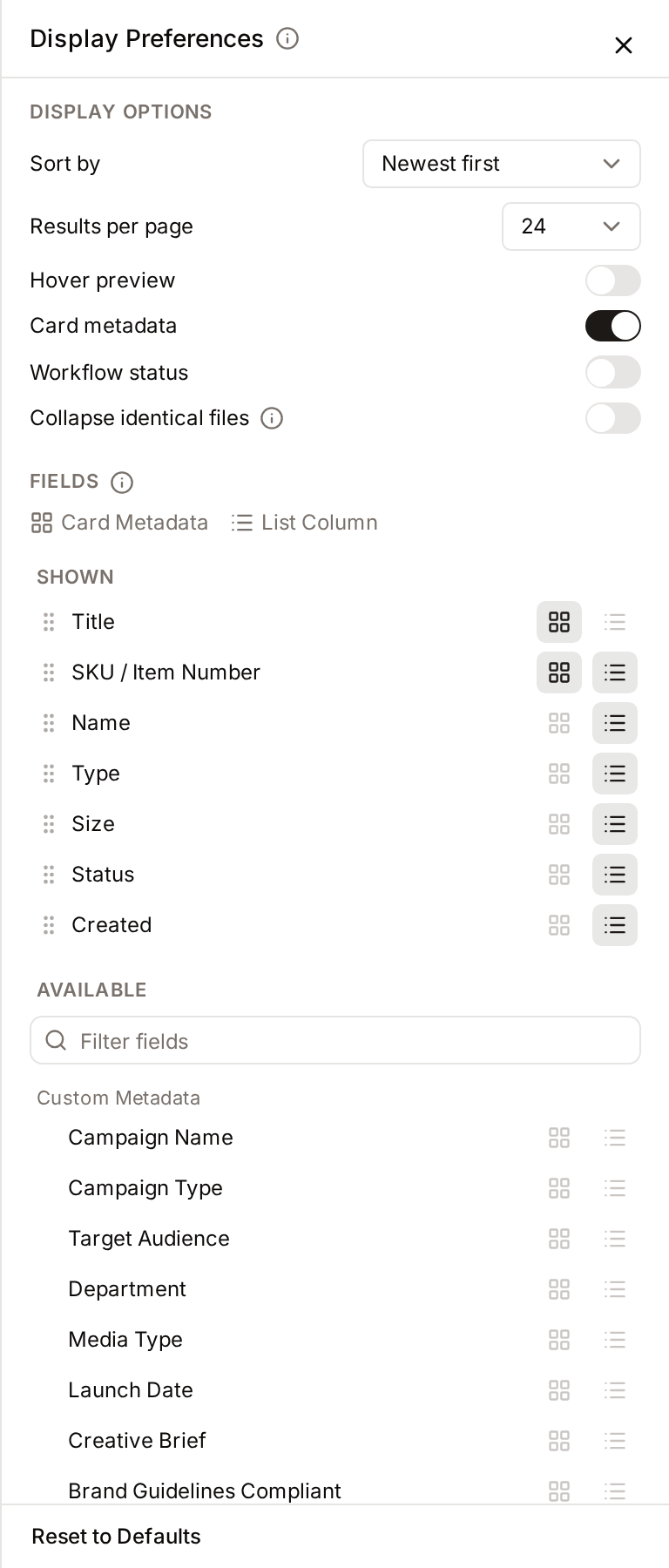
- Purpose: To control how results are sorted and paged, which metadata fields appear under each tile and as list columns, and what the tiles show.
- Where to find it: The Display button at the right-hand end of the search row.
- What you'll see: The Display Preferences panel. In a window 1,024 pixels wide or more, it docks to the right of the Gallery, which narrows to make room, and it stays open on your next visits until you close it with Close or click Display again. In a narrower window it opens over the page.
- Display options at the top: Sort by, Results per page (24, 48 or 96) and the switches Hover preview, Card metadata, Workflow status and Collapse identical files.
- Hover preview: when on, pointing at an asset thumbnail opens a larger image or video preview. The preview is purely visual: no metadata text is shown inside it.
- Card metadata: when on, each tile shows the values of the chosen fields under its picture.
- Workflow status: when on, each tile shows the workflow status of its asset as a pill with a dot in the status colour. See Asset tiles. The switch is offered only when at least one asset class follows a workflow.
- Collapse identical files: when on, a file stored several times shows as one card. See Identical files.
- Fields below that, in two lists. Shown holds the fields in use, each with a drag handle. Available holds the other fields, grouped by category, with a Filter fields box when the list is long. Every field has two icon buttons: Card Metadata (shown under the tile) and List Column (shown as a column in List view).
There is no Save button. Switches and selects apply at once. Changes to the fields are saved half a second after your last change, and the panel shows "Updating the gallery…" while the Gallery reloads.
How to use it:
- Click Display and turn Card metadata on.
- Under Available, click the Card Metadata icon of the fields you want under each tile. Title, Creator and Keywords are good starting choices. The field moves to Shown.
- Drag the fields of Shown up or down to set their order on tiles and in list columns.
- (Optional) Turn Hover preview off if you prefer not to see pop-up previews while browsing.
- Reset to Defaults puts everything back.
Every page of results ends on a full row: the grid uses 1, 2, 3, 4, 6, 8 or 12 columns depending on the width of the window and the tile size, and each page size is a multiple of all of them.
- Notes:
- Changes apply to your own view only - they do not affect other users.
- Until you change them, you see the defaults your administrator set in Display Defaults. Reset to Defaults returns to those defaults.
- In the gallery, card metadata shows at every card size, including Small cards. Asset cards outside the gallery (chat picker, analytics tiles, asset-detail thumbnails) never show card metadata, even when the setting is on.
- List-view columns are independent of the Card metadata switch - they are controlled only by the List Column button of each field.
- The Status field, as a card field or a list column, is the workflow status. It is blank for an asset without a workflow, and it is not offered when no asset class follows a workflow.
Identical files
Some teams store the same file several times on purpose: a datasheet or a product video that covers several products is uploaded once per product, each copy with that product's metadata. A search then lists every copy.
With Collapse identical files on, the Gallery shows one card per file instead. A tile that stands for several copies shows a stack icon and the number of copies the search matched in the chip of its bottom-right corner. Point at it to read, for example, "3 identical files, one shown". Only files that are byte for byte the same are collapsed; two versions of a file, or the same image in two sizes, stay separate.
- Which copy is shown: for a search, the copy that matches it best; otherwise, the newest copy. Your sort order decides where the card appears, not which copy it shows.
- What the count covers: only the copies that match the search and that you are allowed to see.
- Selecting: ticking the card selects the copy shown. Select all matching selects exactly the cards shown, one copy per file.
- Where it applies: the Gallery, including Previous and Next on the asset page. Collections, shares, the API and integrations always list every copy.
The switch is off unless your administrator turned it on for everyone in Display Defaults. You can change it for yourself at any time.
Spreadsheet Indexing
- Purpose: To type metadata for many assets in a grid, one cell at a time.
- Where to find it: Select assets, click Edit Metadata in the selection bar, then Spreadsheet View. You can open up to 500 assets at once; with Select all matching, only the first 500 are loaded.
- What you'll see: The Bulk Indexing grid, with one row per asset and one column per field. The first column shows the asset thumbnail. Column headers mark required fields with *, and multilingual fields with a globe.
How to use it:
- Click a cell to select it. Double-click it, or press Enter or F2, to edit.
- Type the value, or pick it from the list for dates, yes/no, lists and vocabularies. In a multilingual cell, click the globe button next to the input to open a field per language. Keywords are typed as text separated by commas.
- Move to the next cell with Tab or the arrow keys. Each cell is saved automatically half a second after you leave it: a spinner, then a green check, confirms it.
- To copy a value down, select its cell and press Ctrl+D (Cmd+D on a Mac). It fills every visible row below. You can also drag the small blue square at the cell's corner up or down. Filling and pasting skip the cells that cannot be edited.
- Click Back to Gallery when the header no longer shows Saving.
Use the toolbar to narrow the grid: Filter by Asset Class, Filter to show only rows with empty cells, missing required fields or errors, Columns to hide fields, and Display Language for multilingual fields.
- Cells for fields that don't belong to an asset's class are locked, with the tooltip "Field not available for this asset class". Capture date is read-only. Enter and F2 do not open these cells.
- Pasting a value into a field that holds another kind of value, for example a vocabulary term into a text cell, is refused with a message.
- A red icon on a cell means it was not saved; hover it to read the reason, for example a title longer than 255 characters or a term from another vocabulary. The header shows how many cells have errors.
- Changing a parent field in a cascading vocabulary to another term clears its dependent fields.
- Changing the Asset class cell changes the asset's class. Values of fields that both classes define are kept. Values of the other fields are deleted.
- Drag the edge of a column header to resize the column. Text wider than its column is cut off.
- Press F1 or ? to see every keyboard shortcut.
Bookmarks
- Purpose: To keep your own shortlist of assets to come back to.
- Where to find it: Bookmark an asset with Bookmark on its card or with the bookmark icon in the top bar of its asset page. Open the list from Bookmarks in the main navigation.
- What you'll see: Your bookmarked assets, 24 per page, sorted by Recently bookmarked. Change the order to oldest bookmarked, title, or asset date.
Bookmarks are personal: nobody else sees your list. From the Bookmarks page you can open, download or share each asset, or remove its bookmark.
Each bookmark has a checkbox, and you can drag over several cards to select them. What you tick joins the same selection as the Gallery and the asset pages, and the selection bar appears at the bottom of the page with Download, Share, Add to Collection and the other bulk actions.
Assets in the trash, and assets you can no longer access, don't appear in the list.
Task Center
- Purpose: To follow bulk operations that run in the background, such as exports, bulk metadata edits and bulk status changes.
- Where to find it: The Background tasks button in the top bar, on every page.
- What you'll see: A panel listing your recent operations, each with its asset count, a status (Queued, Processing, Completed, Completed with errors, Failed or Cancelled) and a progress bar while it runs.
The button shows a badge while something is running, with the overall progress. When everything has finished, the badge counts the results you have not looked at yet. Its colour tells you how they went: red when an operation failed, amber when an operation completed with some failed assets, green when everything succeeded.
What you can do in the panel:
- Cancel operation stops a queued or running operation. Assets already processed keep their changes.
- Download export appears on a finished export. Export files are kept for 24 hours, then deleted, so download them the same day. See Export.
- Dismiss removes a finished operation from the list. Clear completed dismisses every finished operation at once.
Reading the counts:
- (N processed) shows progress on a running operation.
- N failed counts assets the operation could not change. When a whole operation fails, its error message appears under the status.
- N skipped (access policy) on an export means some selected assets were left out because your access rules hide them or do not allow exporting them. This applies to ZIP, CSV and PDF exports alike.
The Task Center keeps itself up to date: it refreshes often while an operation runs, slows down when nothing is happening, and stays in sync across your open browser tabs.
Complete Workflows
Workflow: Sharing a Selection of Assets
- Goal: Send a link to specific assets to someone outside your workspace.
- Prerequisites: You can share assets, and you can download every asset you select.
Steps:
- Select the assets you want to share in the Gallery.
- Click Share in the selection bar.
- Choose who can open the link, what they can do and when it expires, then click Create link.
- Click Copy link.
- Expected result: A link you can send to your recipient.
- More detail: Every option, the rights check, and managing links afterwards are covered in Share Links. What your recipient sees is in Receiving a Share.
Workflow: Requesting Access to Restricted Assets
- Goal: Obtain permission to download assets that are currently locked.
- Prerequisites: The assets must have a "Request" workflow configured by an administrator.
Steps:
- Click the Lock icon or Download button on a restricted asset card.
- In the Why do you need it? field of the dialog that opens, type at least 10 characters explaining why you need the file.
- Click Send request.
- Expected result: You will see the notification "Access request submitted successfully". You will receive an email once an admin approves or denies the request.
Good to Know - Behind the Scenes
The Gallery hides a few things that can surprise new users. Once you know them, day-to-day work is smoother.
"Select all matching" isn't a one-by-one tick list
When you click Select all matching (for example, all 8,234 results of a search), Freedam doesn't quietly load 8,234 IDs behind the scenes. It remembers your current filters and re-runs them on the server when you execute the action.

Two practical consequences:
- The action uses the filters you selected with. The set of assets is worked out from those filters when the action runs, so assets added to the results in the meantime are included.
- You have a 5-minute window to confirm large operations. If you walk away after previewing a 10,000-asset delete, you may need to confirm again when you return - the preview "token" expires to keep the system safe.
The exception: if you change the search, or add assets from another page, a collection or an asset page, Freedam turns the matching assets (up to 500) into individual assets, as described in How the selection is kept. From then on, the selection no longer follows the filters.
Bulk actions refuse rather than guess
A bulk action only runs when Freedam can prove exactly which assets it covers. When it can't, the action is refused with a message instead of running on a partial or uncertain set:
- "This selection includes a search whose full result set cannot be verified. Narrow the selection or use filters without a search term." - your "select all matching" is based on a search so broad it hit the result cap, so the full membership can't be pinned down. Use a more distinctive search term, or drop the search term and select using filters alone. Note that adding a filter does not lift this on its own: the result cap is applied to the search before your filters narrow it, so a common word stays unverifiable even inside a small collection.
- "Access rules could not be fully evaluated for this selection. Contact an administrator." - a permission rule failed to evaluate; erring on the side of doing nothing protects restricted content.
- "Some selected assets cannot be downloaded and cannot be included in an export." - the selection names specific assets that your permissions exclude from download.
- "Some selected assets do not exist or are not available to you." - the selection includes assets you cannot see or edit. Bulk Metadata Edit and the Spreadsheet View refuse to open on such a selection, and the spreadsheet never saves a cell on an asset hidden from you.
- "This selection exceeds the maximum of … assets per operation." - split the work into smaller batches.
The same check runs again at the moment a queued operation actually executes. If the selection can no longer be verified by then, the operation is marked failed in the Task Center with the same explanation - it never silently acts on a different set than the one you confirmed.
Some actions are instant, some run in the background
Downloading a selection starts the ZIP straight away, and linking or unlinking assets is applied at once. The other bulk actions - delete, change status, add to collection, exports and bulk metadata edits - are queued once you confirm them. They run in the Task Center, which shows their progress and tells you when they are done. When one of them finishes while you are on the Gallery, the page reloads to show the result.
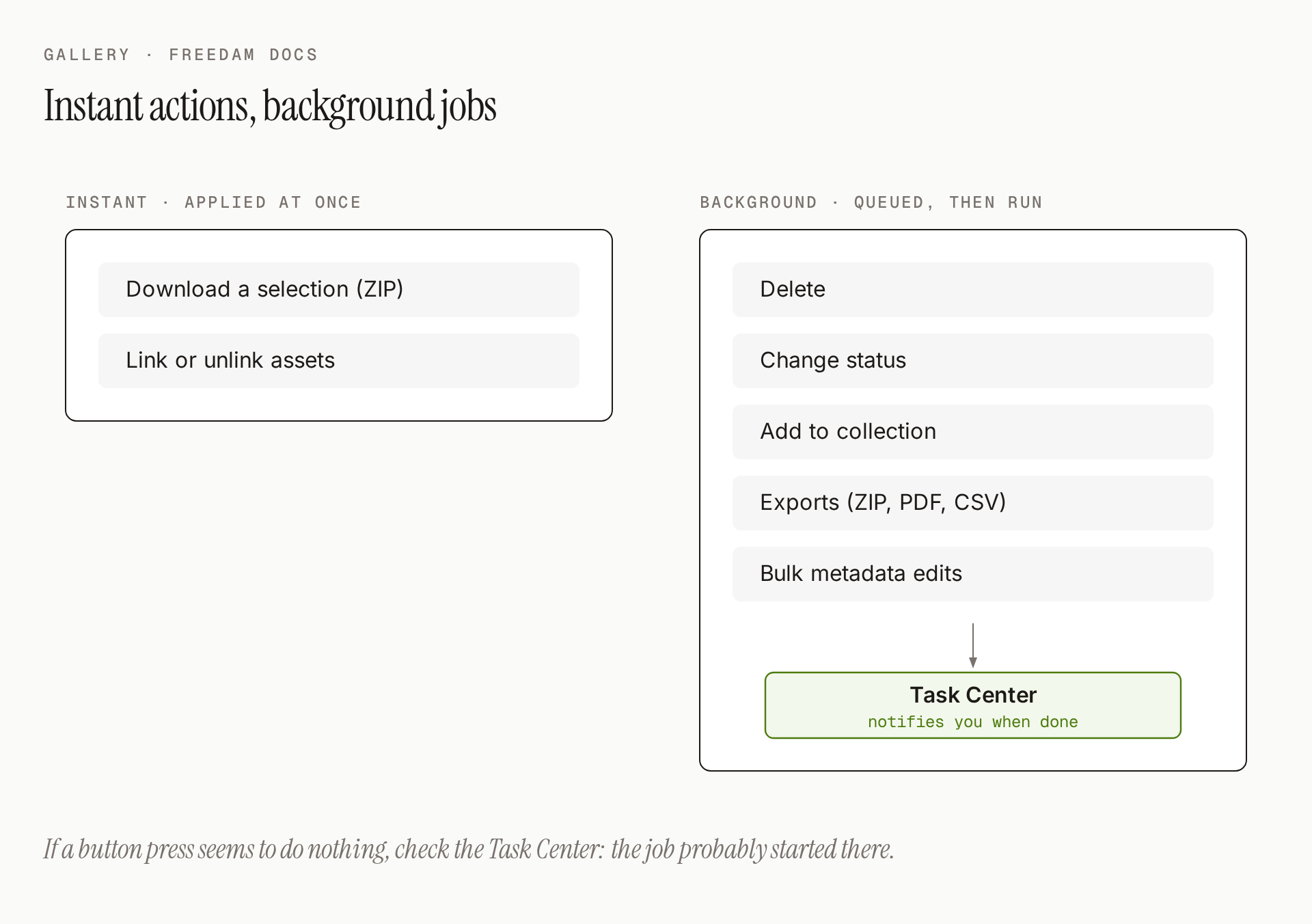
If a button press seems to "do nothing", check the Task Center widget in the top right - the job probably started there.
Delete now, recover later (for a while)
A deleted asset leaves the Gallery as soon as the delete has run - but it isn't gone. It sits in the Trash for the retention window (typically 30 days), where it can be restored in a click.
Deleting needs the Delete assets permission. It does not need Edit asset metadata. Restoring is done from the Trash page, which needs Open the trash together with Delete assets. Deleting an asset permanently needs Manage system settings.

After the retention window, the asset is removed for good and cannot be recovered. Two safety nets prevent accidents:
- Small deletes confirm with one click. Delete fewer than 50 assets and you see a simple confirmation dialog.
- Large deletes ask you to type "DELETE". For bigger selections, the dialog adds a text box that must contain the exact word
DELETE- a deliberate friction step so you can't wipe out a collection by mistake.
A share is a live view, not a snapshot
When you create a share, you're really creating a saved question ("these 100 assets, for this audience") - not a frozen copy of the files. If rights on some of the assets change afterwards, the share updates to reflect the new reality.

This is almost always what you want: revoked or restricted assets stop being shareable the moment the policy changes. A tip for campaigns: if the content of a share must be locked to a point-in-time version, download the files as a ZIP and share that instead.
A new upload that is still being processed
A new upload appears in the Gallery immediately. Until it is ready, its tile is veiled and shows the current step, for example "Generating previews", with a percentage. Three things are happening - you don't need to watch them, but it's helpful to know why the tile is veiled:

You can keep browsing, filtering and selecting other assets while new uploads finish processing. Freedam checks the progress regularly, so the veil disappears on its own once the asset is ready.
Why the result count sometimes seems off
When Access Rules are used to restrict which assets certain users can see, the Gallery applies those rules after it has counted matching assets. A user who is denied access to a handful of assets may see a page with fewer cards than the counter suggests. This isn't a bug - it's permissions doing their job. If the total matters to you (for reporting, for example), log in as a user with broader access or speak to an administrator.
Bulk status changes skip silently when they can't apply
If you select a mixed pile of assets - some "Draft", some "In Review", some already "Approved" - and change them all to Approved, only the ones whose current status allows that transition will move. The rest are left untouched, quietly. A tip: filter by current status before bulk-changing status to see exactly what will move.
Tips and Best Practices
- Drag Selection: In Grid view, you can click and drag on the empty space between cards to add a group of assets to the selection. Hold Shift while clicking a second card to select the whole range between them.
- Select all matching: Once a search or filter is active, a Select all link appears next to the result count - it acts on everything that matches, not just the current page. The selection bar offers the same after you select a whole page.
- Refine with Filters: If a search returns too many results, click Advanced search to add specific criteria like "Asset Type," "Creation Date," or "Color."
- Review mode: If you are a content reviewer, click Review mode in the search row. It is offered to people whose role includes Edit asset metadata. Click it to filter the gallery to the assets in the review statuses assigned to your reviewer groups, or in every review status when you belong to no reviewer group. Each tile then shows its workflow status as a pill, and hovering a tile shows the statuses the asset can move to: one button per status, or one Change status button on a narrow tile. In List view, the same entries are at the top of the row menu. See Workflows.
Troubleshooting
Issue: "No Results" or "No Accessible Assets"
- Symptoms: The gallery is empty even though you know assets exist.
- Cause: You may have active filters that are too restrictive, or your user account lacks permission to view the current assets.
- Fix: Click Clear filters next to the result count on the controls row. If the gallery is still empty, contact your administrator to check your access groups.
Issue: "Failed to load fields" in Filter Panel
- Symptoms: An error message appears when trying to open the advanced filter panel.
- Cause: A temporary network interruption or a server-side configuration error.
- Fix: Click the Retry button within the error message.
Issue: A bookmarked Gallery link shows a filter validation error
- Symptoms: Opening an old bookmark or a link someone sent you shows an error about invalid filters instead of results.
- Cause: The filters encoded in that URL are malformed or exceed the current limits - typically a hand-edited or truncated link. Freedam refuses such links rather than silently showing the whole library.
- Fix: Open the Gallery normally and rebuild the search or filter, then bookmark the fresh URL (or save it as a Saved Search).
Issue: "Leave with unsaved changes?" when leaving Bulk Indexing
- Symptoms: Clicking Back to Gallery shows "Leave with unsaved changes?".
- Cause: Some cells are still being saved.
- Fix: Click Stay on Page and wait until the Saving badge in the header disappears, then leave. Closing the browser tab does not warn you, so wait for the badge before closing it too.