
Filtering Results
Filters let you slice the Gallery by specific properties of your assets - for example, only PDFs, only images tagged spring, or only files created last month. You can combine as many filters as you need, and the Gallery updates live as you make changes.
Quick Filters
Quick filters are one-click shortcuts for the most common criteria. On a computer they sit inside the search bar, at its right-hand end. On a phone they form a row under the search bar.
Typical quick filters your administrator can promote to this row include:
- Asset type (images, videos, documents, audio)
- Colour (dominant colours in the image)
- Collection (e.g. Brand Photos, Product Shots)
- Tag (e.g. approved, in-review, campaign names)
- Status (draft, approved, archived)
- Orientation (landscape, portrait, square)
- People (who appears in the photo, when face detection is enabled)
Once a quick filter is applied, its button shows how many values are selected. When more quick filters exist than fit, a +N button shows the others.


How to Use a Quick Filter
- Click a quick filter button (for example Colour).
- A small panel opens listing every available value - sometimes as a flat list, sometimes as a tree (useful for nested categories). A flat list shows next to each value how many assets it would find with your other filters. Type in Search terms... to find a value in a long list.
- Tick one or more values to include them. Ticking several values broadens the filter: for example, red or orange.
- Click outside the panel or press Esc to close it. The Gallery already reflects your changes.
- To remove a quick filter, re-open the panel and untick the value, or click Clear at the bottom of the panel.

Active Filters
The controls row under the search bar tells you what is narrowing the results:
- The result count reads, for example, "54 assets (filtered from 8,402) · 1 filter".
- A blue dot on Advanced search means at least one filter is active. Click the button to see and edit every filter as a rule.
- A quick filter in use shows the number of selected values on its button.
- Click Clear filters, next to the result count, to remove all of them and return to the full library. The × in the search bar does the same when a quick filter is set.
- Quick filters stay in sync with the Advanced Filters builder - everything is one and the same underlying filter.
Combining Filters with Search
You can mix filters with search at any time:
- Type a keyword, then add filters to narrow it further.
- Or apply filters first, then search inside that narrowed set.
For example: click Asset type → Images, apply the Brand Photos collection, then type sunset in the search bar. You'll see sunset images from the Brand Photos collection only.
When a Search with Filters Finds Nothing
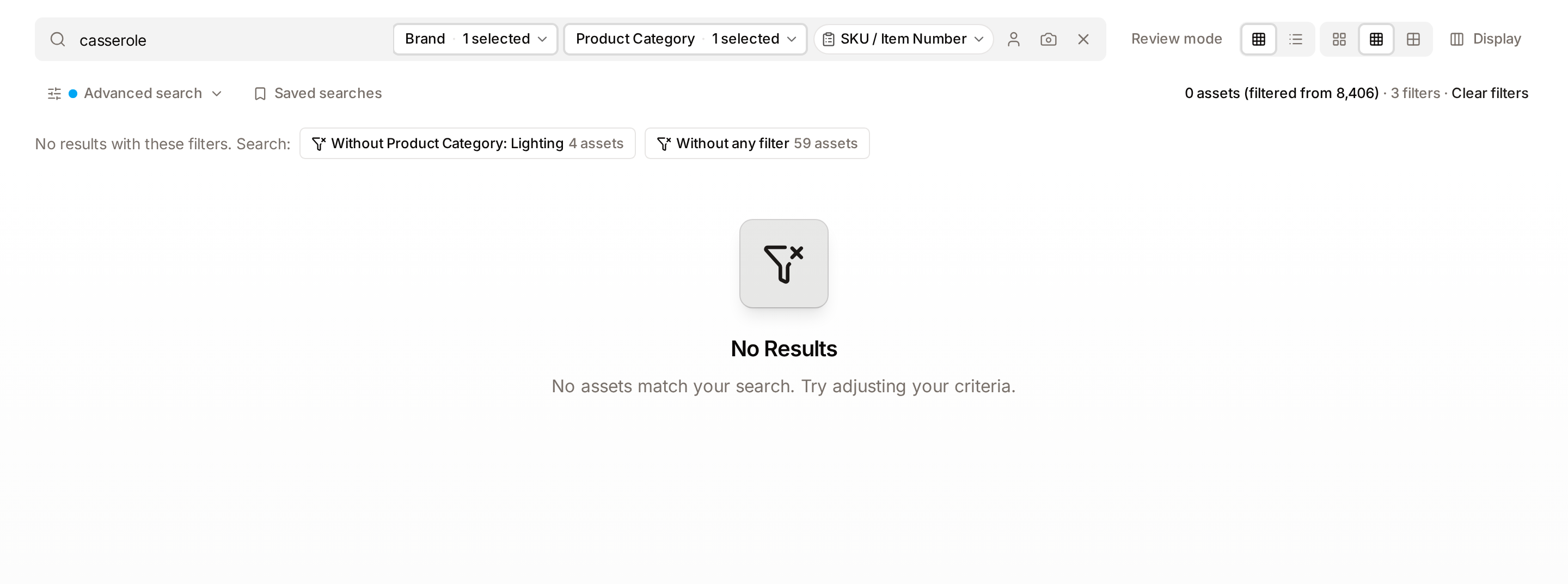
A filter you applied earlier keeps narrowing every search that follows. If you type a keyword inside it and nothing matches, the Gallery checks what the same search would find with a filter left out, and offers the answers as chips above the empty result:
No results with these filters. Search: Without Product Category: Lighting 4 assets
- Without followed by a filter runs your search again without that one filter and keeps the others.
- Without any filter keeps only the words you typed. It appears when two or more filters are applied around a text search.
Each chip shows how many assets it finds, and click one to apply it. At most three chips are offered, the largest result first. The words you typed are never left out.
A chip appears only when it finds at least one asset you are allowed to see. Its count follows your Collapse identical files display setting, so it matches the number of results you get after clicking it. Chips are not offered in review mode, inside an upload batch, or when your filters contain an ANY (OR) group.
What Each Filter Does
By asset type
Shows only one kind of content at a time - image, video, document, audio. Useful when your library contains a mix and you only want one type for a particular task (for example, only videos for a social media cut).
By date
Narrow to assets created, updated, or uploaded within a specific date range. Helpful when working on a monthly report, a seasonal campaign, or an audit of recent additions.
By collection
Only show assets that belong to a specific collection (or set of collections). Collections are curated groupings of assets - see the Collections page for details.
By tag or vocabulary
Tags describe what an asset is about (for example, a mood, a season, a product line). Ticking tag values filters to assets marked with those tags.
By colour
Show images whose dominant colours match your choice. Useful for finding assets that fit a brand palette or that will work against a specific background.
By people
When face detection is enabled, this filter lists the recognised people in your library. Tick one or more names to see only photos of those people. See Finding Photos of a Person for the full people search experience.
By dimensions or orientation
Filter to assets wider than a certain size, portraits only, landscapes only, or square formats. Handy when you need a specific shape for a template.
By status
Show only drafts, only approved assets, or assets in any custom workflow stage your organisation has defined.
Tips
- Start broad, narrow gradually. Apply one filter, see how much it reduces the gallery, then add another. This is faster than setting up five filters at once and wondering which one filtered out the wrong asset.
- Multiple selections widen, multiple filters narrow. Selecting red and orange inside one filter gives you red-or-orange results. Adding a second filter (e.g. asset type: image) cuts those further.
- Save it if you use it often. Once you've built a filter you rely on - for example "videos from the spring campaign tagged approved" - save it for later using Saved Searches.
- For anything quick filters don't cover, open the Advanced Filters panel, which lets you build a filter on any asset property.
Troubleshooting
Gallery is empty after applying filters
Your filters may be too strict. Look above the empty result first: the Gallery offers chips that run the same search without one of your filters, with the number of assets each finds (see When a Search with Filters Finds Nothing). If no chip is offered, open Advanced search and remove one filter at a time to find the one that's hiding your results. Or click Clear filters to start over.
A quick filter I expect doesn't appear
Quick filters are chosen by your administrator. If a filter you use often isn't in the quick-filter row, ask an administrator to promote it, or use the Advanced Filters panel, which can filter by any field.
The filter shows values I've never seen
Filter options are built from values that actually exist in the library. If unexpected values appear, another team member may have uploaded content with those tags. You can safely ignore values that aren't relevant to your work.