
Attachments
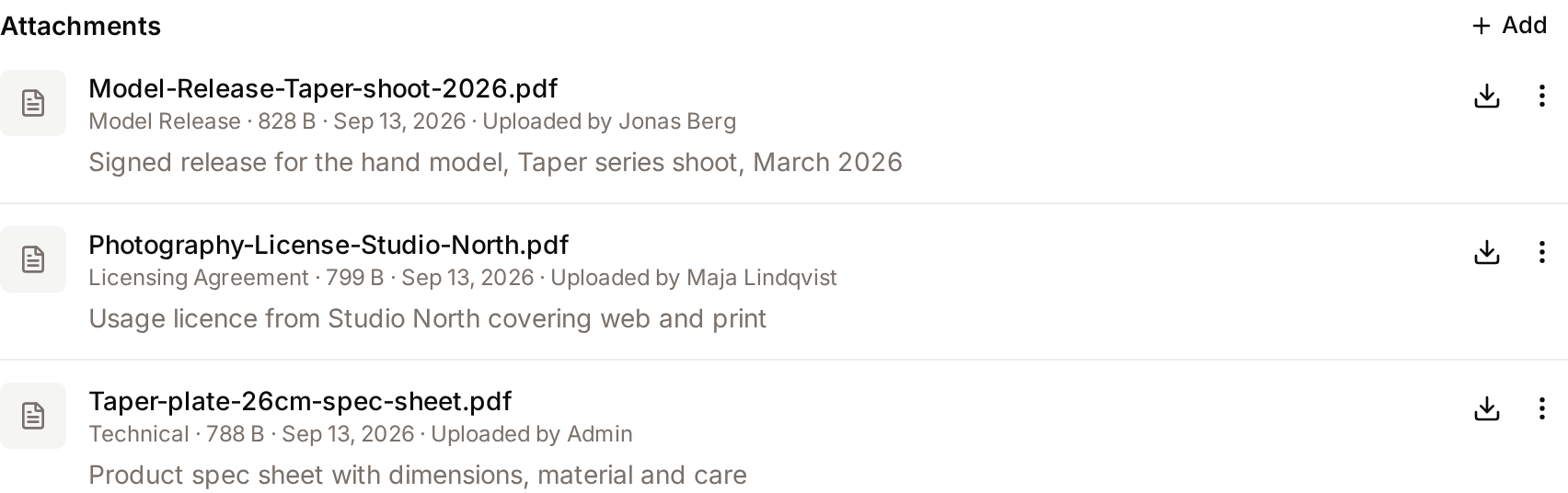
Attachments are supporting files kept with an asset or a collection: a model release, a licence agreement, the layered source file, or a photographer's brief. They sit next to the asset without replacing it, and have no previews or AI processing of their own.
To replace an asset's file with a newer one, use Upload new version instead. See Asset Detail.
Where attachments appear
- On an asset: the Attachments tab under the preview on the asset page.
- On a collection: the Attachments tab of the side panel on the collection page. On a phone, tap Attachments under the collection's actions to open the panel. On the classic Collections page, click Attachments in the collection header.
The tab name is followed by the number of attached files. Each file is a row with its file name, a Private badge when it is private, then its type, size, upload date and "Uploaded by" with the uploader's name, and its description underneath.
Who can do what
| Action | Permission needed |
|---|---|
| See and download attachments | View attachments, and access to the asset or collection. Attachments of an asset hidden from you by access rules are hidden too. Without this permission the Attachments tab is not shown. |
| Upload and edit | Add and edit attachments. On an asset you also need Edit asset metadata; on a collection, only its creator can upload and edit. |
| Delete | Delete attachments, with the same asset or collection rule as editing. |
| Create a new attachment type | Add and edit attachments. |
A private attachment can only be seen, edited, deleted or downloaded by the person who uploaded it, the asset's owner or the collection's creator, and people with the Manage users permission. Actions you are not allowed to use are not shown on the attachment row.
Attach a file
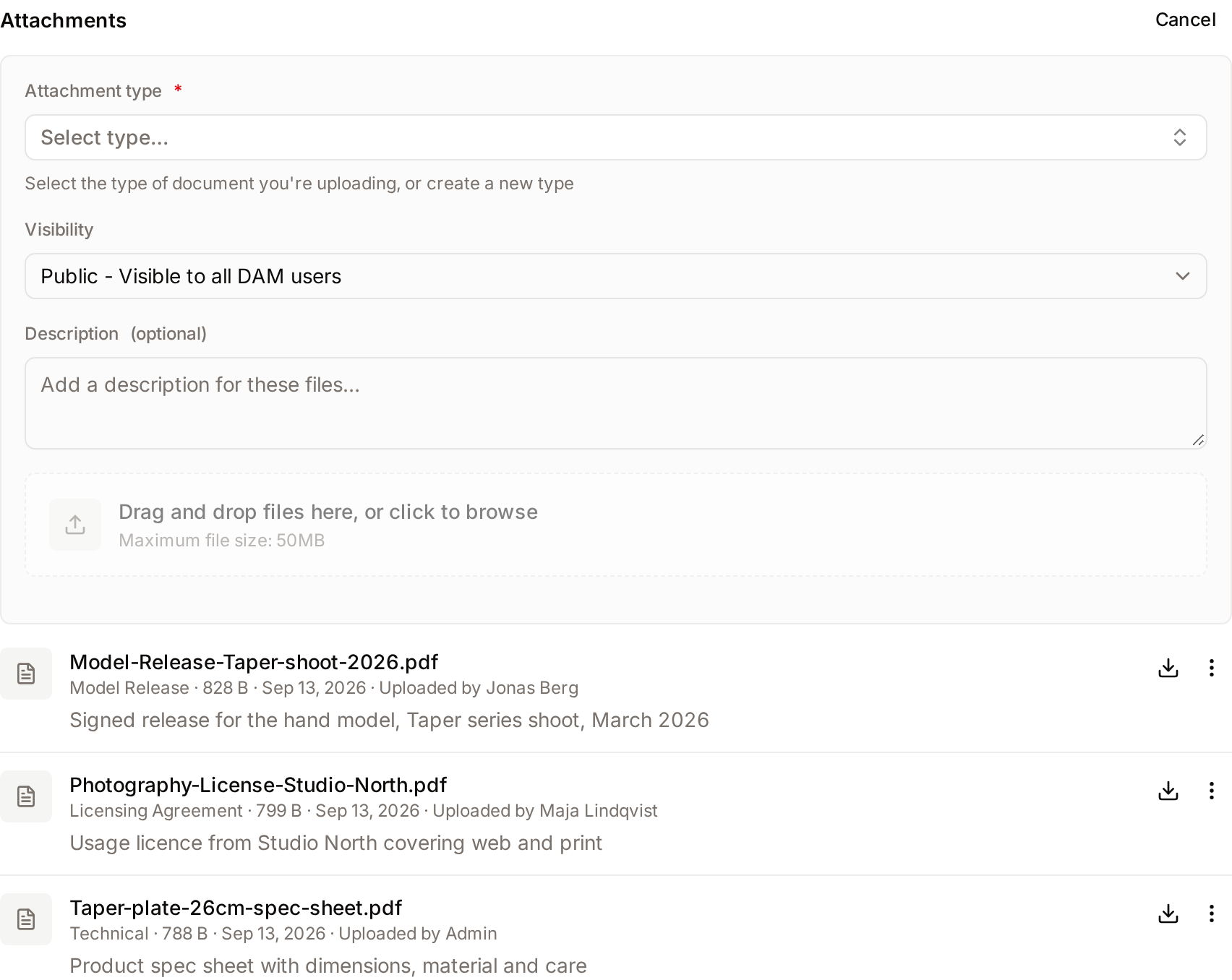
- Click Add at the top right of the attachments list, or Add attachment when there are none yet. On an asset page, the list is in the Attachments tab.
- Choose an Attachment type, such as Model Release or Contract. To use a type that doesn't exist yet, type its name and choose Create "[name]".
- Choose the Visibility:
- Public - Visible to all DAM users: everyone who can see the asset can see the file.
- Private - Only owner and administrators: only you, the asset's owner or the collection's creator, and people who manage user accounts can see and download it.
- Optionally add a Description (optional), up to 1,000 characters, for example "Signed 12 March, valid worldwide until 2028".
- Drag files onto the drop zone, or click it to choose them. You can add up to 10 files at a time, up to 50 MB each. The files are listed under Selected Files, where you can remove one before uploading.
- Click Upload N files. Click Cancel, which replaces Add while the form is open, to close the form without uploading.
Use Private for documents with personal data, such as signed releases with addresses or ID numbers.
Freedam includes these attachment types from the start: Model Release, Talent Release, Location Release, Property Release, Licensing Agreement, Usage Rights, Contract and Source Files.
Manage attachments
Each attachment row has a Download button (arrow icon), which saves the file, and a menu (three dots) with the other actions:
- Preview opens images and PDFs in the browser. Clicking the file name does the same.
- Edit opens Edit Attachment, where you change the description and visibility, then click Save Changes. To change the file or its type, delete the attachment and upload it again.
- Delete asks for confirmation, then removes the file permanently. It does not go to the trash.
Attach files to many assets
- In the Gallery, select the assets.
- In the selection bar, open More and click Add Attachments.
- In Add Attachments to N Assets, choose an existing attachment type, the visibility, an optional description, and the files.
- Click Upload to N Assets.
Each file is added to every selected asset separately, so it counts towards your storage once per asset. Files over 50 MB are refused when you choose them. Assets you are not allowed to edit are reported as failed uploads. New attachment types can't be created from this dialog: create the type on a single asset first.
Good to know
- Attachments count towards your workspace storage. See Plan & Usage.
- Attachments are not part of share links. Recipients of a share only get the assets. Send supporting documents separately.
- Duplicating an asset does not copy its attachments.
Related pages
- Asset Detail: versions, rights and the rest of the asset page.
- Collections: collection attachments.
- Usage Rights: for administrators, rights policies on assets.