
Uploads
The Uploads feature serves as the central hub for bringing new content into Freedam. It allows you to track the lifecycle of your assets from the moment they are selected for upload through virus scanning, metadata extraction, and final gallery ingestion.
Uploading needs the Upload assets permission. Without it, the upload page and its actions are not available, in the web app, through the API and through the MCP server. An API token with the upload ability is refused when its owner's role does not include Upload assets. Uploading into a collection also needs the right to edit that collection.
This area is designed for contributors and administrators who need to manage high-volume asset imports. You can monitor real-time processing progress, review historical upload batches, and handle complex scenarios like duplicate file detection or failed processing attempts.
How uploads work in plain English
- Chunked, resumable uploads. Large files are split into small chunks and sent in sequence, so a flaky connection only costs you the current chunk - not the whole file. If the browser is refreshed mid-upload, previously-received chunks on the server are still there when you try again.
- Consent first. If your organization has an active upload-consent notice, Freedam asks you to accept it before the first chunk leaves your computer. Uploads simply won't start until you have.
- Fair-use rate limit. Each user can send up to 500 upload requests per minute. For reference, a 1 GB file cut into 10 MB chunks fits comfortably inside this window. If you hit the limit, Freedam tells you how many seconds to wait before retrying.
- Smart batch grouping. If you upload more files within 30 minutes of your last batch, they join that same batch automatically. Tick New batch in the upload panel to force a fresh one. Failed or cancelled batches are never reused.
- Files and folders. You can drop files or whole folders. A dropped folder is read with its subfolders, and its files are queued in name order. Hidden system files such as
.DS_Store,Thumbs.dbanddesktop.iniare left out. The folder structure is not kept: the files arrive as a flat list. - Imports land here too. Files imported from a connected source, such as Google Drive, go through the same pipeline and appear as batches on this page. Sources are set up by an administrator: see Sources.
What happens behind the scenes after upload
Once a file has finished uploading, it goes through a pipeline before it's browseable in the gallery:
- Virus scan. A dedicated scanner inspects the file. Anything flagged is permanently blocked and cannot be moved to the gallery.
- Metadata extraction. Freedam reads dimensions, capture date, EXIF, IPTC and other embedded information.
- Preview generation. Multiple preview sizes are rendered and the standard thumbnail renditions are created automatically.
- Document conversion. Office files (Word, PowerPoint, etc.) are converted to PDF so they can be previewed in the browser.
- AI analysis. Freedam generates AI tags and captions to make the asset discoverable.
- Face detection. Faces are detected and matched against known people in your library.
- Focus-point detection. The most visually important point is detected so smart crops stay centred on the subject.
Different stages run on different background workers, so you'll typically see thumbnails appear before tags, and tags appear before face matches.
While a file is processed, its tile names the current step (Queued, Virus scan, Storing file, Extracting metadata, Generating previews, AI analysis, Finalizing) with one percentage for the whole pipeline. The percentage only goes up. The percentage of a batch is the average of its files and stays below 100% until the batch has ended.

Page Overview
- Purpose: To provide a searchable, filtered history of all file ingestion activities and a dedicated zone for adding new assets.
- When to use it: Use this page when you need to upload new files, check if a previous upload has finished processing, or resolve "flagged" files that may already exist in the system.
- What you can do here:
- Drag and drop files to start new ingestion batches.
- Follow the progress of files while they are processed.
- Rename upload batches for better organization.
- Filter upload history by date, status (Completed, Failed, Processing), or filename.
- Resolve duplicate file conflicts using side-by-side visual comparisons.
Page Layout
- Title row: The "Uploads" title, the number of upload batches, and the Upload Files button, which opens the upload form. While the form is open, the button reads Hide Upload.
- Filter row: Below the title row. It holds the Search filenames… field, the All Statuses dropdown, the Date from and Date to pickers, and the sort order. Both rows stay in view while you scroll. The filter row is not shown on phones.
- Main area: A grid of batch tiles, 24 per page, with a pager under the grid when there are more. When the upload form is open, it replaces the grid.
- Batch page: Clicking a batch tile opens a page with the files of that batch, its progress, and the files that failed. See The batch page.
You see your own batches. People with an administration permission (users, roles, asset classes or audit logs) see everyone's batches, with the name of the uploader on each tile.
Batch tiles
A batch tile is a square that shows up to four pictures from the batch. Each picture fills its part of the square, so a picture that is not square is cropped. Artwork with a transparent background, such as a logo or a cut-out, is shown whole on a light, grey or dark background chosen from its colours. A file that has no picture, such as a CSV, shows its file-type icon.
- Status pill (bottom-left): shown only when the batch needs your attention or is not finished. Processing while files are processed (point at it to read the progress), "2 failed" in amber when some files failed, Failed in red when the whole batch failed. A batch that completed without failures has no pill.
- File count (bottom-right): for example "16 files".
- Under the tile: the batch name, the date and time of the upload, and the uploader when you can see everyone's batches.
Main Features
Upload Form
- What it's for: The primary interface for adding new files to the DAM.
- Typical use: Dragging files or a folder of images into the browser, or clicking to browse local files.
- Result: Files are queued, validated for size and type, and then uploaded in chunks to ensure reliability.
Batch Management
- What it's for: Organizing groups of uploads into named collections.
- Typical use: Clicking the name under a batch tile to rename it to something descriptive like "Q4 Campaign Assets". Press Enter to save.
- Result: The batch is updated across the system, making it easier to find in the history.
Duplicate Detection & Resolution
- What it's for: Preventing the library from becoming cluttered with identical or visually similar files.
- Typical use: Reviewing a "Flagged" asset to see if it matches an existing file already in the gallery.
- Result: You can choose to keep both, replace the existing file, or delete the new upload. The owner of a batch can also delete all its exact duplicates in one action.
Detailed Feature Documentation
Uploading Files
- Purpose: To securely add new assets to the system.
- Where to find it: Click the Upload Files button in the top right of the Uploads page.
- What you'll see: A form in two halves. The left half is the drop zone, with Browse Files, the maximum size per file, the maximum number of files and the accepted types. The right half is the list of queued files.
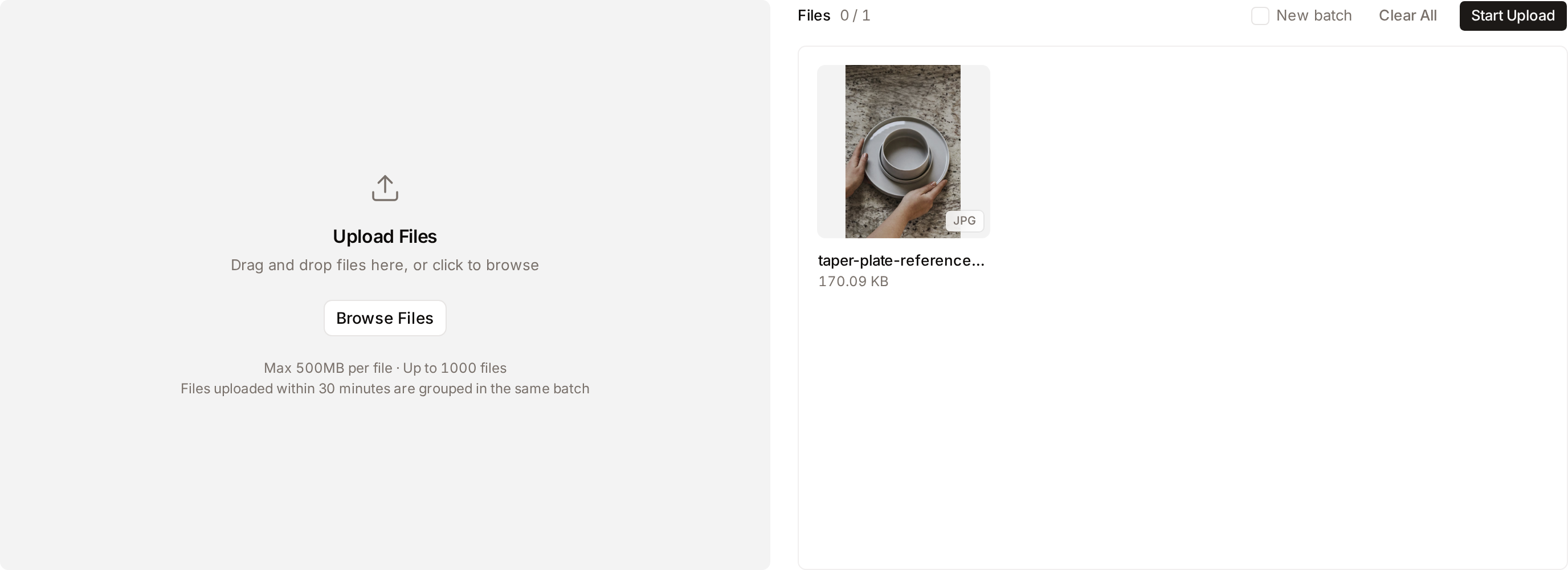
How to use it:
- Drag files or folders onto the drop zone, labelled "Drag and drop files here, or click to browse", or click Browse Files. While you hold files over the zone, it reads "Drop files here".
- Review the queue under Files. Each file shows its picture, its format, its name and its size. Point at a file and click the X to remove it before starting.
- (Optional) Tick New batch if you want these files kept apart from your current batch.
- Click Start Upload.
- While a file is sent, a veil over its picture withdraws as the upload advances, with the percentage in the middle. Click the X on the file to cancel it. A file that is sent gets a check mark.
- When every file is uploaded, the form says "Successfully uploaded N files. Redirecting to batch details…" and opens the batch page, where you can follow the processing.
If Freedam refuses some of the files you added, because they are too large, of a type that is not accepted, or over the maximum number of files, a dialog lists them. Click Continue with Valid Files to queue the others.
A file whose upload failed gets a red ring and a Failed pill, with the reason under its name. In that case the form stays open and does not open the batch: click Retry Failed to send those files again, or remove them. Clear All empties the queue.
The batch page
- Purpose: To follow the processing of one upload, check its files, and deal with the files that failed or were flagged as duplicates.
- Where to find it: Click a batch tile on the Uploads page. The page also opens by itself at the end of an upload.
- What you'll see:
- Title row: a link back to Uploads, the batch name, and a pill with the status of the batch (Processing, Completed, Completed with failures, Failed). On the right: Delete N exact duplicates when the batch has some, View in Gallery, and the Grid/List toggle. This row stays in view while you scroll. While the batch is processed, a thin line under the row fills up with the progress.
- Facts row: the number of files, or the progress while the batch is processed, for example "18 / 25 completed (72%)". When files failed, it adds the numbers of successful and failed files. On the right, who uploaded the batch and when.
- Failed files panel: listed when at least one file failed. See Files that failed.
- Files: the assets of the batch as gallery tiles, 48 per page. Files still being processed come after the finished assets, each with its current step and percentage, so the grid fills in from its first tile.
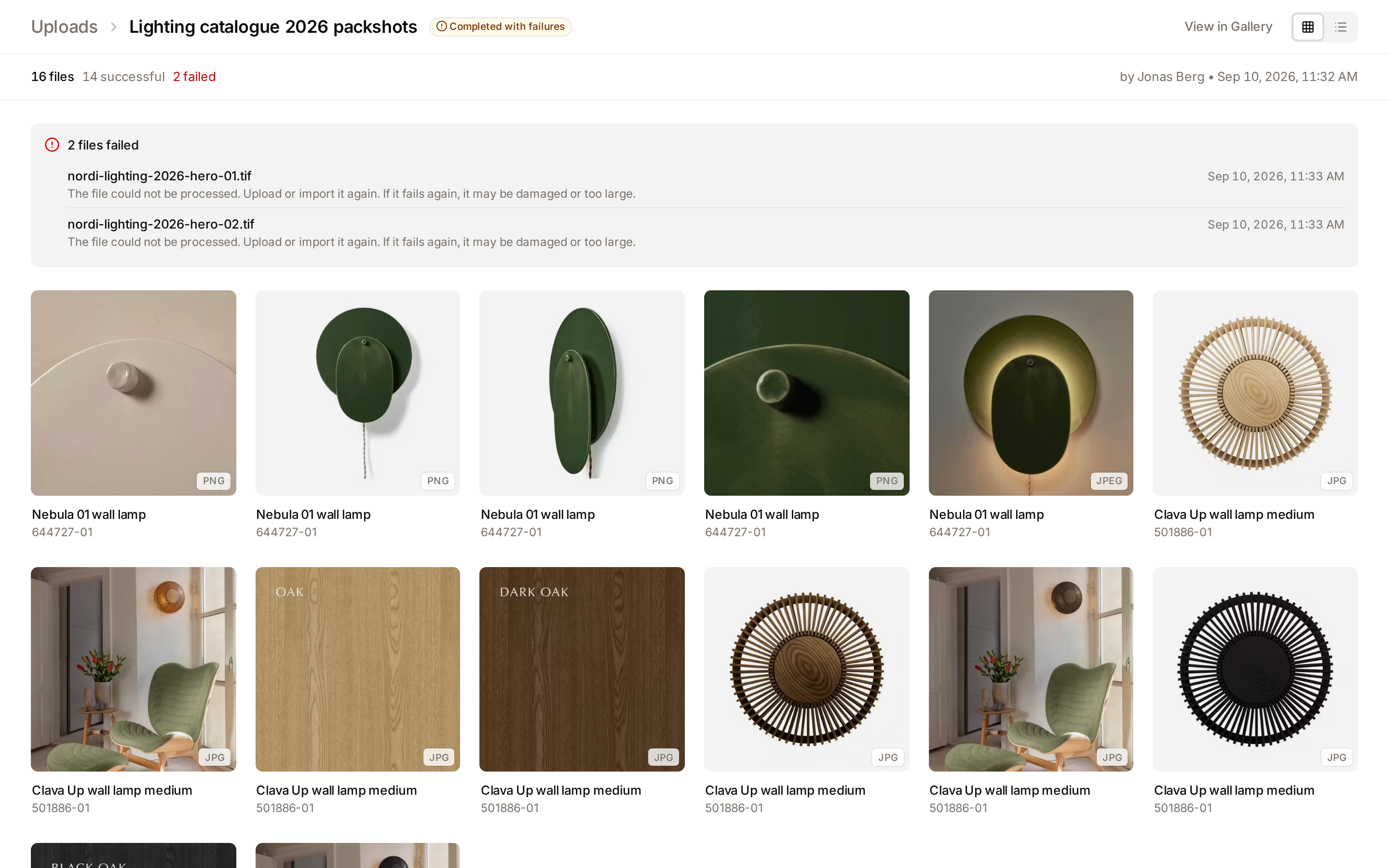
The files behave as in the Gallery: click a tile to open the asset, tick tiles to select them, and use the selection bar to download, share, export or edit the selection. Selecting everything selects the assets of this batch only. A delete, a status change or a metadata edit started from the selection bar runs in the background: the page reloads its files by itself when the Task Center reports the operation finished. If the operation deleted the last asset of the batch, you are taken back to the Uploads page. View in Gallery opens the Gallery filtered on the batch, and Previous and Next on the asset page stay inside the batch.
Files that failed
The panel is titled "1 file failed" or "N files failed". Each row gives the file name, the reason, and the time of the failure. When the failed file still has a tile in the batch, click its name to scroll to it: the tile has a red ring and a Failed pill.
| Message | What to do |
|---|---|
| "This file failed the security scan and was rejected." The row also shows Virus Detected. | The file is blocked. Do not upload it again as it is. |
| "The security scan could not run, so the file was not added. Upload or import it again." | Upload or import the file again. |
| "The file was no longer available on the server while it was being processed. Upload or import it again." | Upload or import the file again. |
| "Your storage is full. Upgrade your plan or free up space, then upload or import the file again." | Free up space or upgrade, then upload the file again. |
| "The file could not be downloaded from the source." | For an import: check that the file still exists in the source and that the source can be reached. |
| "The import was cancelled before this file was downloaded." | Run the import again if you need the file. |
| "The file could not be processed. Upload or import it again. If it fails again, it may be damaged or too large." | Upload it again. If it fails again, check the file on your computer. |
The page has no button that retries a file: upload or import the file again.

Filtering Upload History
- Purpose: To find specific past uploads among hundreds of batches.
- Where to find it: The filter row under the title of the Uploads page.
- What you'll see: The grid updates as you change a status, a date or the sort order. The filename search runs when you press Enter.
How to use it:
- Select a status from the All Statuses dropdown: Processing, Completed, Partial Success (some files failed) or Failed.
- Click Date from or Date to to pick a date on the calendar.
- Type part of a filename into the Search filenames… field and press Enter.
- Change the order with the sort dropdown: Newest First, Oldest First, Most Files or Least Files.
- Click Clear, shown when a filter is set, to reset all filters and see the full history.
When no batch matches, the page says "No upload batches match your current filters." with a Clear Filters button.
Resolving Duplicates
- Purpose: To handle files that the system identifies as already existing.
- Where to find it: On a batch page, look for tiles with a red ring and an Exact Duplicate or Similar badge in the top-left corner.
- What you'll see: A Duplicate Detection dialog with side-by-side previews and metadata comparisons.
How to use it:
- Click the Exact Duplicate or Similar badge on the tile.
- Use the Side-by-Side tab to compare file sizes and dimensions.
- Use the Overlay Slider tab to slide a divider across the images to spot visual differences.
- Select one of three actions:
- Delete Uploaded: Discards the new file and keeps the one already in the DAM.
- Replace Existing: Replaces the file of the existing asset with the uploaded file, keeps the metadata of the existing asset, and deletes the uploaded asset. Freedam asks you to confirm with Replace File. This cannot be undone.
- Keep Both: Ignores the warning and imports the file as a new, separate asset.
These three choices are the only outcomes available - Freedam will wait for a human decision on each flagged file rather than guessing. Once resolved, the tile shows Kept Both, Replaced or Deleted.
Delete all exact duplicates at once. When a batch you uploaded contains files that are identical copies of assets already in the library, its title row shows Delete N exact duplicates. Click it, then Delete duplicates: the uploaded copies are deleted and the existing assets are kept. The button is shown to the person who uploaded the batch, and needs the Delete assets permission.
The dialog only offers the choices your role allows:
| Choice | Permission needed |
|---|---|
| Keep Both | Upload assets only. |
| Delete Uploaded | Delete assets. |
| Replace Existing | Replace asset files, and you must be able to see every matched asset. |
The dialog shows only the matched assets you are allowed to see, and tells you how many others exist. When a match is an asset you cannot see, Replace Existing is not offered.
Complete Workflows
Workflow: Tracking a Large Batch to Completion
- Goal: Ensure 100+ files are successfully ingested and available in the gallery.
- Prerequisites: Assets must be within the maximum file size limit displayed in the drop zone.
Steps:
- Click Upload Files, add your files and click Start Upload.
- Wait for "Successfully uploaded N files. Redirecting to batch details…". The batch page opens by itself.
- On the batch page, follow the progress in the facts row, for example "18 / 25 completed (72%)", and on the line under the title row.
- Check the numbers of successful and failed files, shown in the facts row when a file failed.
- Once the status pill changes to Completed, click View in Gallery to begin tagging your new assets.
- Expected result: The progress disappears, and all assets show their thumbnails.
- If it doesn't work: Read the failed files panel at the top of the batch page. It gives the reason for each file. See Files that failed.
Workflow: Retrying Failed Uploads
- Goal: Recover files whose upload failed, for example after a network interruption.
- Prerequisites: The upload form is still open with the failed files in its list.
Steps:
- In the upload form, look for files with a red ring and a Failed pill. The reason is under the file name.
- Click Retry Failed.
- If the error persists, remove the file from the list and add it again.
- Expected result: The file is sent again and gets a check mark.
This covers files that failed while they were sent. A file that was uploaded and then failed during processing is listed on the batch page: upload it again. See Files that failed.
Tips and Best Practices
- Batch Naming: Check the name of a batch after uploading and rename it when it does not say what the batch holds. Names like "Batch a1b2c3d4" make it difficult to audit your history later.
- Chunked Reliability: Freedam uses chunked uploading. If your internet cuts out, the system can often resume where it left off rather than starting the whole file over.
- Virus Scanning: Every file is scanned. A file marked Virus Detected is blocked automatically and cannot be moved to the gallery.
- Leave the page open while files are sent: The batch is complete once every file you queued has arrived. If you close the browser during the upload, the batch ends by itself after 30 minutes without a new file, with the files that arrived.
Troubleshooting
Issue: "Storage full - uploading is temporarily disabled"
- Symptoms: The drop zone is greyed out, and a red alert appears above the upload form.
- Cause: Your organization has reached its total storage capacity.
- Fix: Contact an administrator to upgrade your plan or delete unused assets from the gallery to free up space.
Issue: "1 file failed - Virus Detected"
- Symptoms: The failed files panel of the batch page lists the file with a Virus Detected pill and the message "This file failed the security scan and was rejected."
- Cause: The automated security scan identified a threat in the file.
- Fix: This file is permanently blocked for security. You must remove the threat from your local file and attempt a clean upload, or discard the file.
Issue: A dropped folder is not uploaded
- Symptoms: After dropping a folder, the form shows "Could not read the dropped files".
- Cause: The browser could not read the folder.
- Fix: Open the folder, select its files and drop them, or use Browse Files.
Issue: "Duplicate file detected"
- Symptoms: An error message appears during the upload phase stating the file already exists in the batch.
- Cause: You have selected the same file twice within the same upload session.
- Fix: The system automatically prevents the second copy from uploading. No action is required; the first copy will continue processing.